Bulk Operations
Create and manage your linking rules in bulk

A feature of the Link Manager plugin for WordPress
Create and manage your linking rules in bulk
A feature of the Link Manager plugin for WordPress
Bulk Operations is a set of Link Manager tools that work on many items at once. Bulk Add Rules creates automatic link rules from a spreadsheet-style editor, Import and Export moves rules between sites as an XML file, and Maintenance deletes data in bulk.
Creating one auto link rule takes a minute. Creating three hundred, one form at a time, takes most of a working day. Automatic linking pays off most on large sites, and large sites need many rules. You may already have the list you need, such as a glossary or a product catalog exported from your shop. Bulk Operations let you turn that list into working rules in minutes.
Agencies and site owners with several sites also save time by preparing a linking setup once and importing it where it is needed, for example from a staging site to production. When data is no longer needed, Maintenance removes it in one step instead of deleting items page by page.
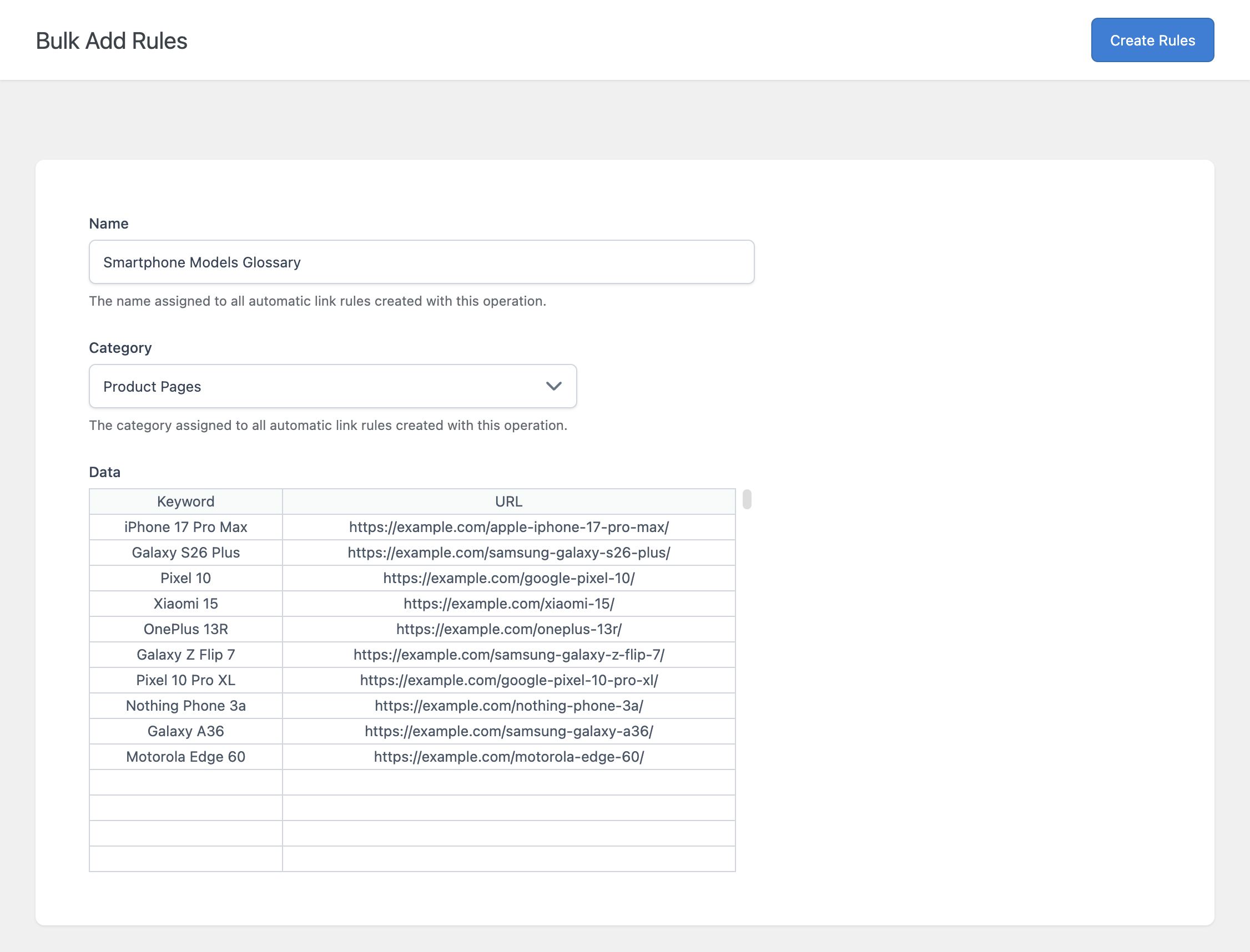
The Bulk Add Rules page has a spreadsheet-style editor with a keyword column and a URL column. Enter one rule per row, choose a name and a category for the whole batch, and click Create Rules.
The other options of the new rules, such as link attributes and targeting, come from the default values you set in the plugin settings. Invalid rows are skipped without stopping the batch, and a notice tells you how many rules were created.
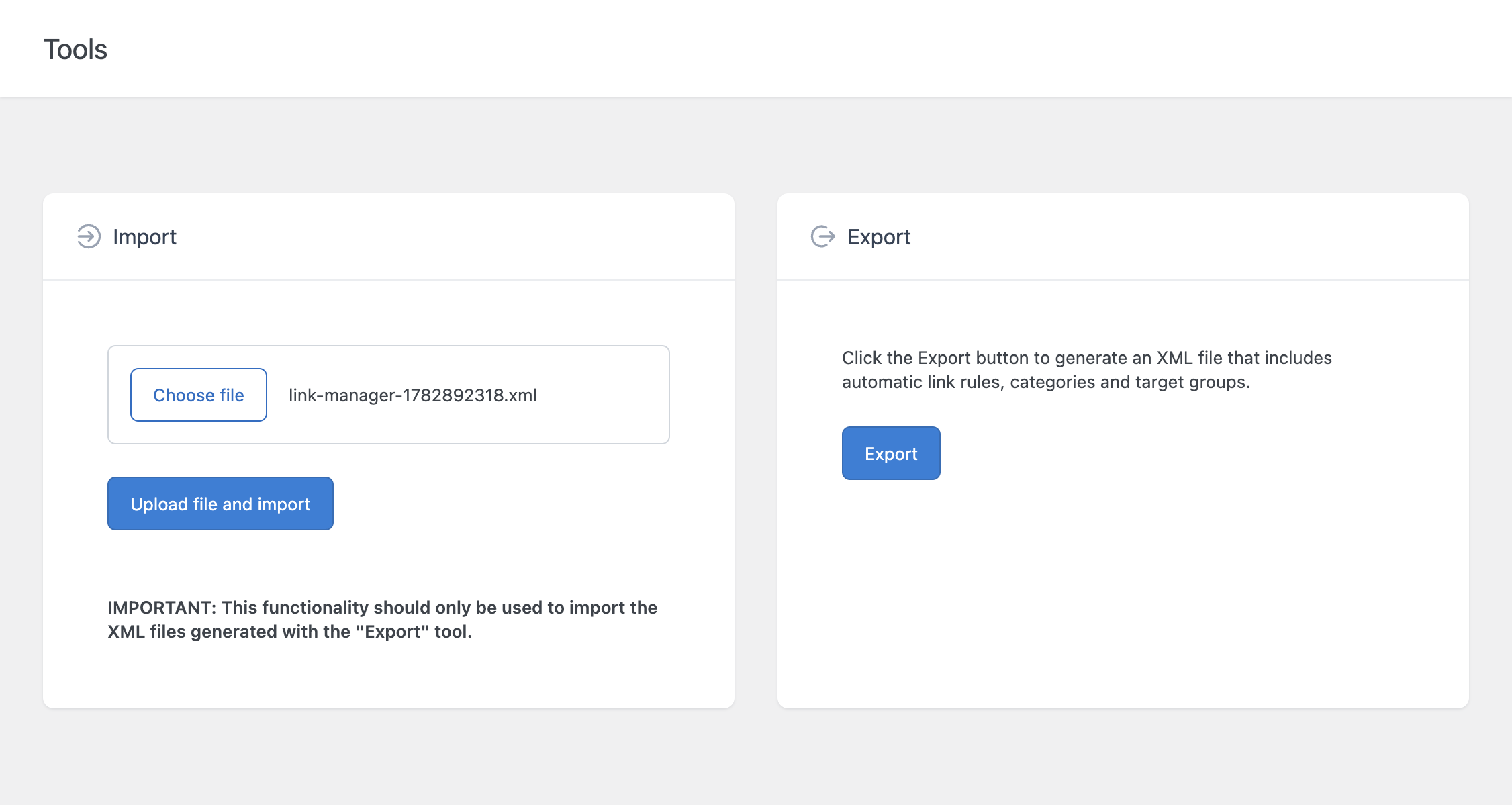
The Export tool downloads an XML file with all your auto link rules, categories, and target groups. Use it as a backup before large changes, or to move your setup to another site.
The Import tool loads an XML file created by the Export tool and recreates its rules, categories, and target groups. It is the way to copy a linking setup between sites and to move your rules from the free version to Link Manager Pro.
The Maintenance menu deletes auto link rules, categories, or target groups within a range of IDs. A confirmation is required before the task runs, and a single task can process up to 10,000 items.
The Maintenance menu can also delete tracked clicks in bulk. Use it to remove test clicks or old data you no longer need.