

Merging table cells can help you create more complex tables that are easier to read and understand. However, it can be a bit tricky when it comes to merging cells of an HTML table in WordPress.
In this article, I will show you how to merge table cells in WordPress with code examples and existing plugins.
Merge Table Cells in HTML
To merge cells in HTML we use the colspan and rowspan attribute. The rowspan attribute is for the number of rows a cell should span, whereas the colspan attribute is for the number of columns a cell should span.
Note that both attributes should be placed inside the th or td HTML tags. For more information on these subject, see the Attributes section in the following article from Mozilla:
Using the rowspan Attribute
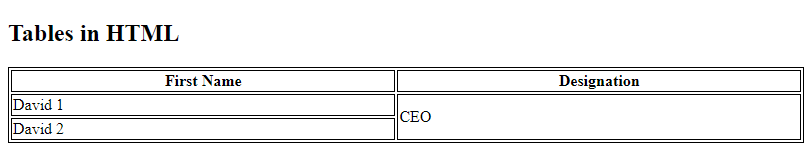
In the example below, I merged the entries of the “Designation” column in a simple HTML table.
<table>
    <tr>
        <th>First Name</th>
        <th>Designation</th>
    </tr>
    <tr>
        <td>David 1</td>
        <td rowspan="2">CEO</td>
    </tr>
    <tr>
        <td rowspan="2">David 2</td>
    </tr>
</table>
The resulting table:
Using the colspan Attribute
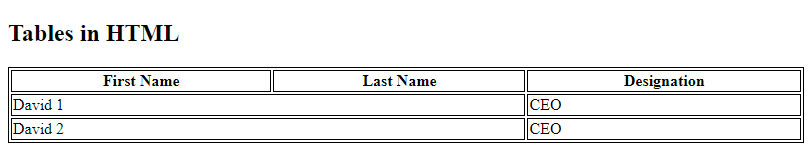
Here I merged the entries of first name and last name.
<table>
    <tr>
        <th>First Name</th>
        <th>Last Name</th>
        <th>Designation</th>
    </tr>
    <tr>
        <td colspan="2">David 1</td>
        <td>CEO</td>
    </tr>
    <tr>
        <td colspan="2">David 2</td>
        <td>CEO</td>
    </tr>
</table>
The resulting table:
Merge Table Cells by Extending the Functionalities of the WordPress Editor
Merge Table Cells With Tables With the Block Editor
There is no option to merge table cells in the WordPress block editor. But we can enable this feature using the Advanced Editor Tools plugin.
Let’s see the steps.
Install and activate the Advanced Editor Tools plugin.

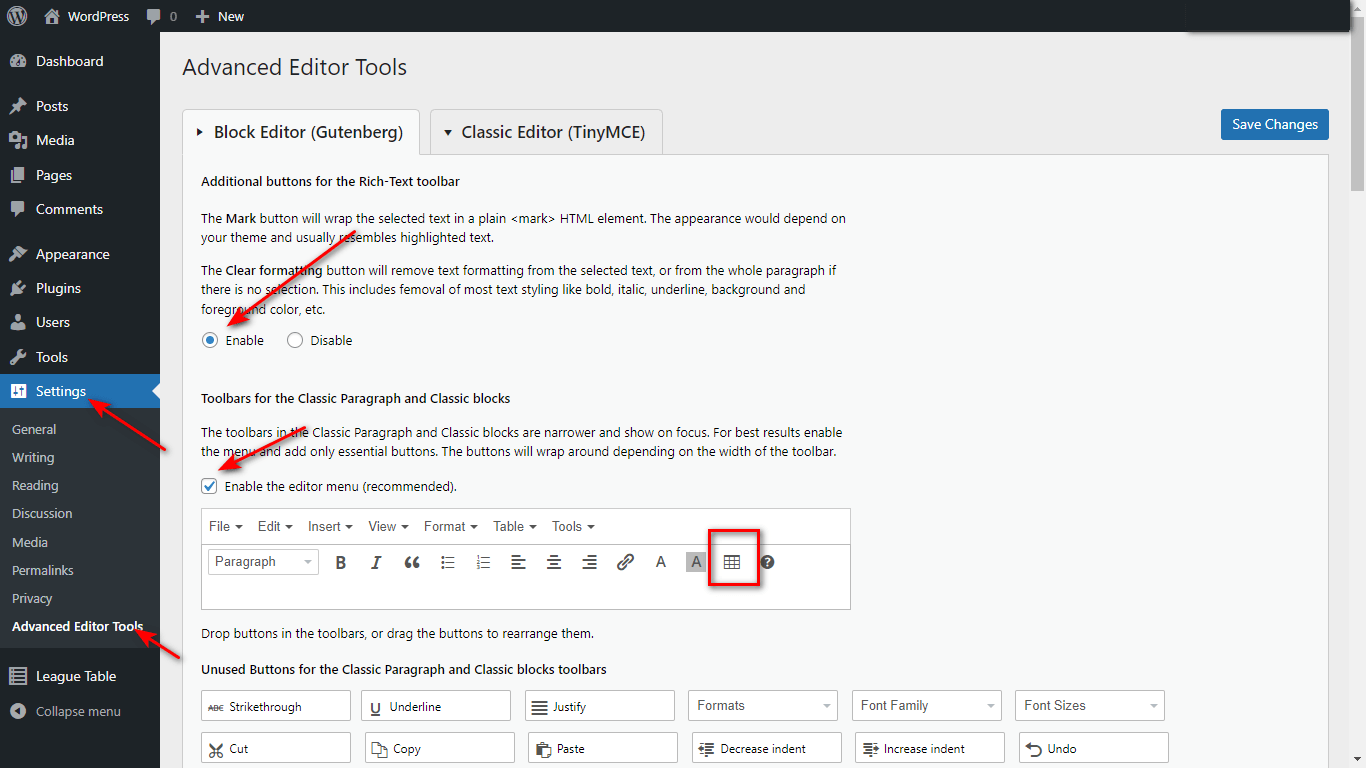
Go to the Settings > Advanced Editor Tools menu and enable the following features:
- Additional buttons for the Rich-Text toolbar
- Toolbars for the Classic Paragraph and Classic blocks
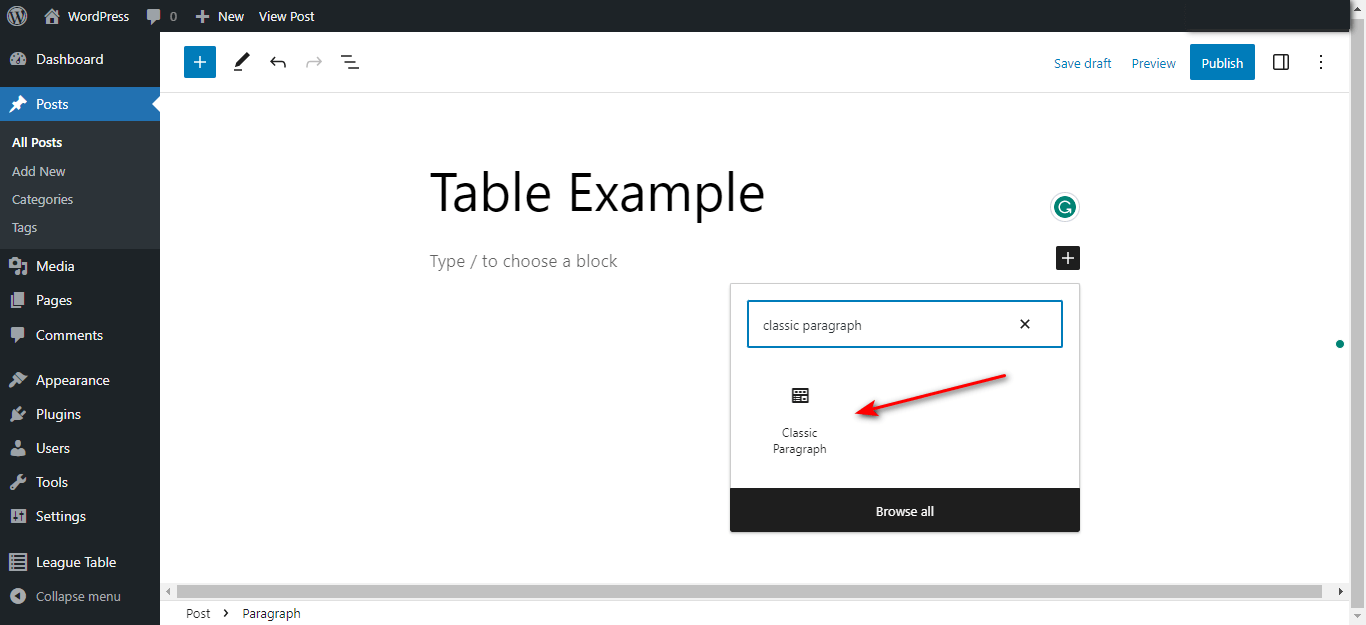
Go to the page or post and add a new post or page. Then in the block section, search Classic Paragraph.
After that, proceed as follows:
- Create a table by clicking on the table icon
- Go to Table > Table Properties > Advanced
- Set Table Border Style as “Solid”
- Set the table Border Color to “Black”
Then you’ll see a table that looks like the one below:

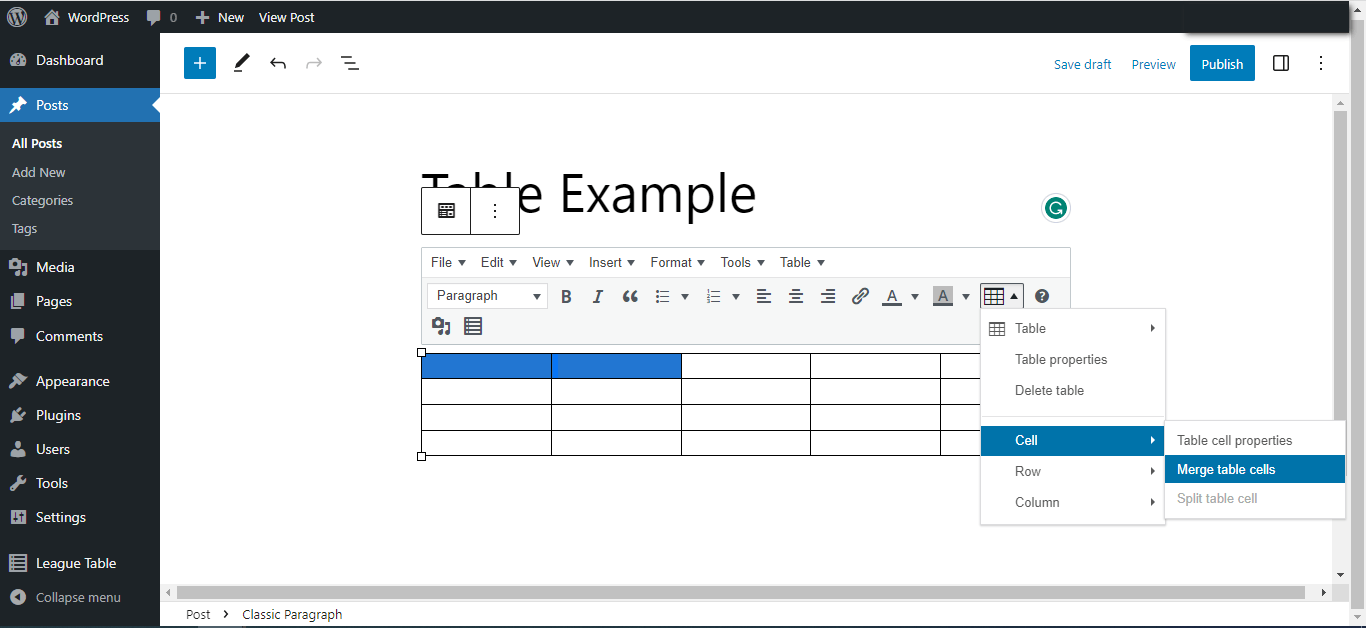
Select any group of cells that you want to merge. Then click the Table > Cell > Merge Table Cells context menu option.
Merge Table Cells With Tables With the Classic Editor
- Go to the Plugin > Add New menu
- Install and active the Classic Editor Plugin plugin

Then follow the procedure used in the previous section dedicated to the Classic Editor. The plugin settings and the required steps are the same.
Conclusion
In this article, I covered basic information on merging standard HTML tables, and I also provided different methods to merge table cells in WordPress.
Tables are a great way to present data on your WordPress website, but they can quickly become cluttered and confusing if they contain too much information.
Merging table cells can be a helpful solution to make your tables more readable and user-friendly.