Automatic Links
Automatically turn keywords into links across your WordPress site

A feature of the Link Manager plugin for WordPress
Automatically turn keywords into links across your WordPress site
A feature of the Link Manager plugin for WordPress
Automatic Links is a feature of Link Manager that turns keywords into links. You define a keyword and a target URL once, and the plugin converts the matching occurrences of the keyword into links in your posts, with limits, targeting, and matching options to control where links appear.
Some links should exist in every post that mentions a topic: the glossary entry for a technical term, the product page for a product name, the cornerstone guide for a key topic, or the affiliate link for a tool you recommend. Adding these links by hand takes time, and keeping them up to date across hundreds of posts is almost impossible.
With Automatic Links you write the rule once, for example the keyword “WordPress hosting” pointing to your hosting guide, and the plugin does the rest, including on posts you publish in the future. When a URL changes, an affiliate program moves to a new network, or a product is discontinued, you edit or delete one rule instead of searching and editing every post.
Because the links are added dynamically and not hardcoded in your posts, your content stays exactly as you wrote it. If you deactivate the plugin or exclude a post, its automatic links disappear.
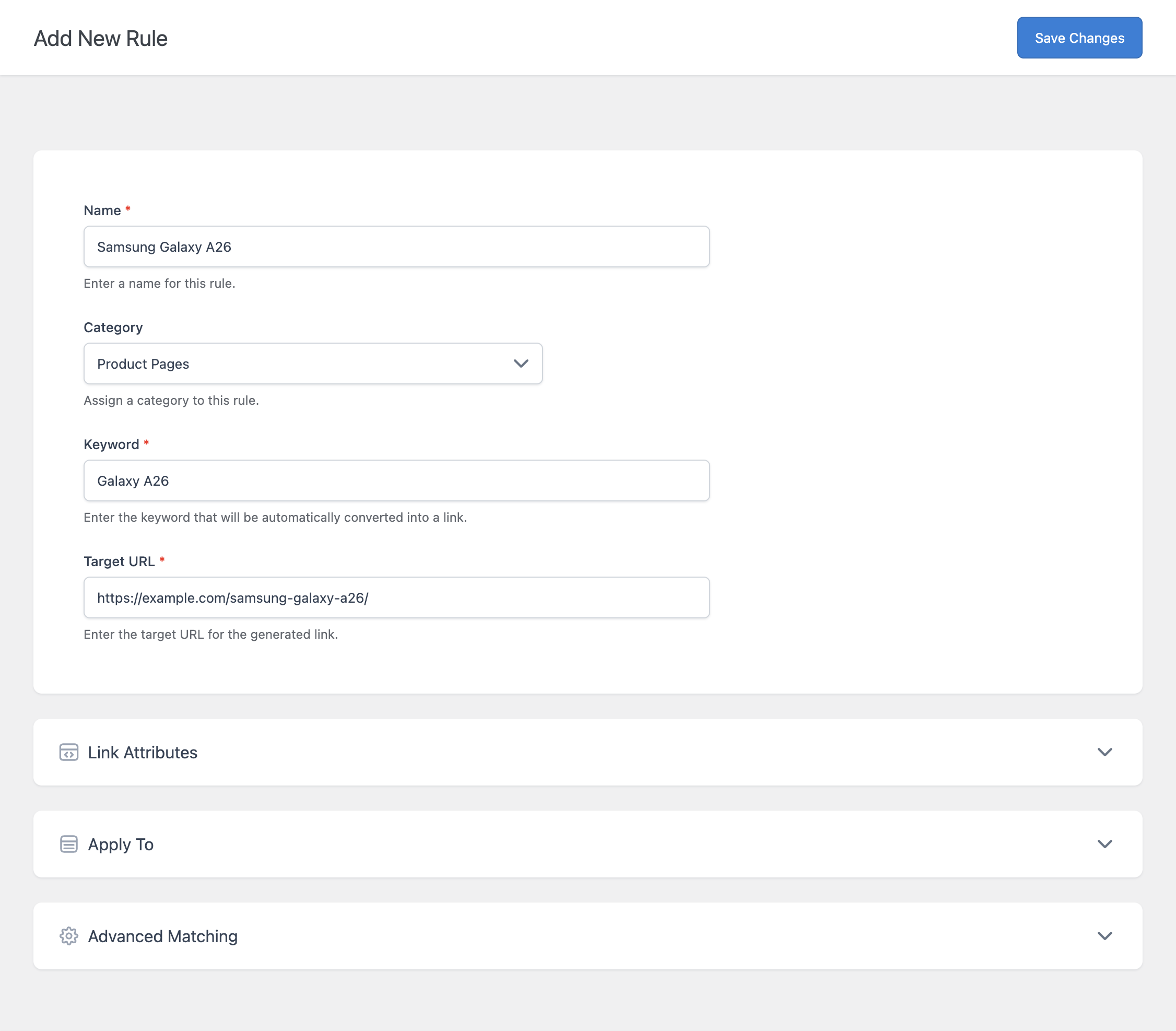
Each rule connects a keyword to a target URL. The target can be a page of your site or an external website, so the same feature works for internal linking, affiliate links, and references to partners or sources. For each rule you can also configure the link attributes, for example to mark affiliate and sponsored links.
A rule can apply to all your content or only to selected post types, categories, and tags. For more complex cases, a target group combines several conditions, such as “posts in the News category” or “posts with the Review tag”, and can be reused by many rules.
You can organize your rules into categories, for example “Glossary”, “Product links”, or “Affiliate links”. These categories only help you manage a large number of rules, and they are not related to the categories of your posts.
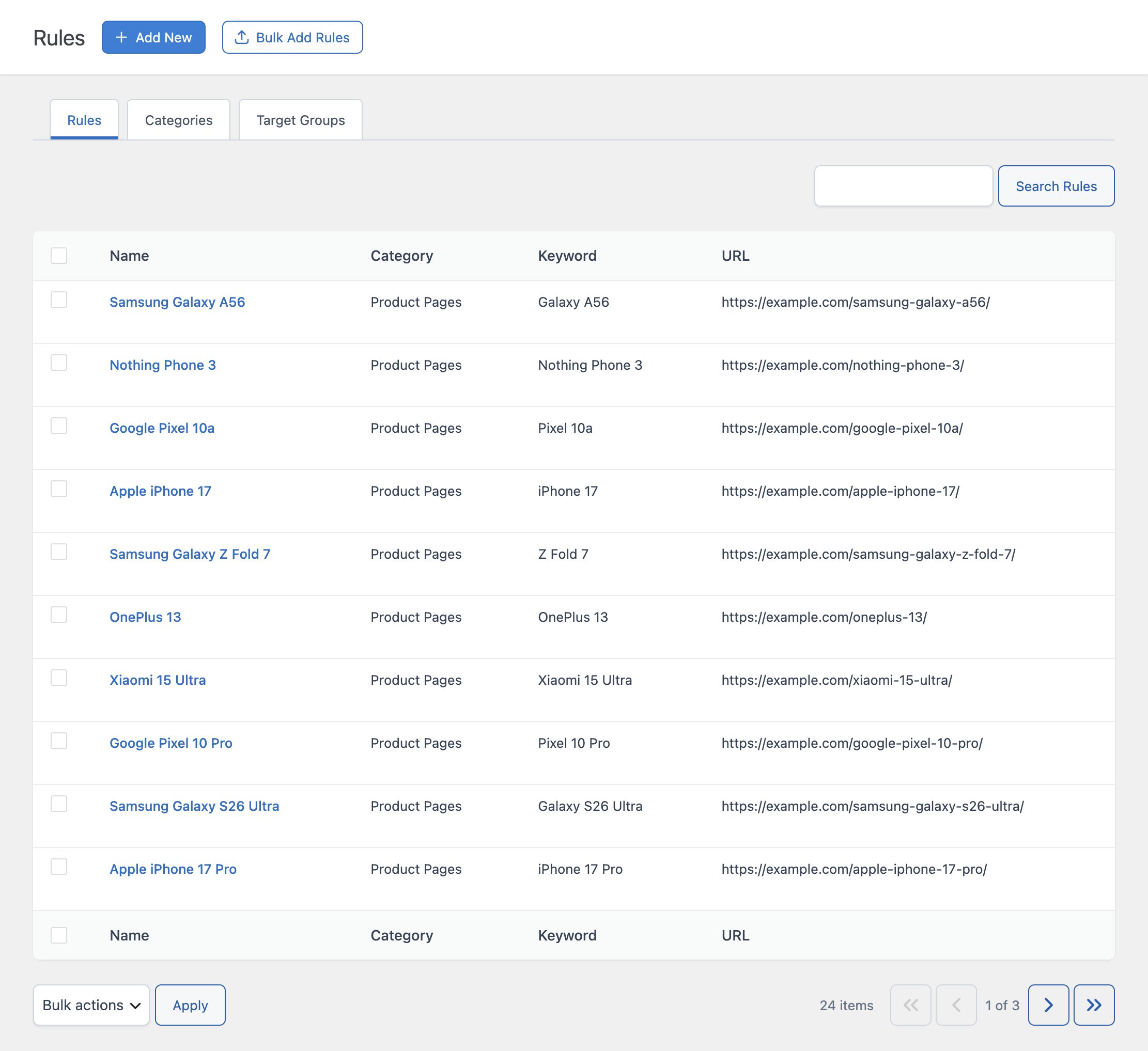
Too many links in the same post look unnatural to readers and search engines. Link Manager applies three limits at the same time:
All three limits are configurable, so you can adapt them to your content.
When several rules match the same post and the limits do not allow all of them, priority decides which rules are applied first. Rules with a higher priority value are applied first. With random prioritization enabled, the default setting, rules that share the same priority are applied in a different order on each post, so links are distributed more evenly across your rules.
Advanced matching options let you decide exactly which occurrences are linked:
You can protect specific HTML tags, such as headings, and specific editor blocks, such as buttons or tables, including custom blocks from other plugins. Protected areas never receive automatic links.
A rule is never applied on the page it points to, so a post never links to itself.
Test mode shows automatic links only to the users who can manage rules, so you can check new rules on the live site before visitors see them.
The Automatic Links panel in the post editor lets you disable automatic links on a single post, for example on a legal page.
Link Manager also includes two tools that work with your rules. With Bulk Operations you can create many rules at once from a spreadsheet-style editor, and with Click Tracking you can see how many clicks each automatic link receives.