Link Analytics
All your internal links in one dashboard

A feature of the Link Manager plugin for WordPress
All your internal links in one dashboard
A feature of the Link Manager plugin for WordPress
Link Analytics shows, in a single dashboard, the manual internal links, automatic links, and inbound internal links of every published post, and flags the posts that have too few or too many internal links.
Internal links tell search engines which pages are related and which ones matter most. They also guide readers to the next piece of content. On a site with hundreds of posts it is hard to know which articles are well connected and which ones were published and then forgotten.
Opening every post to count its links is not realistic. Link Analytics does the counting for you and presents the result in sortable tables, so you can answer practical questions in a few seconds: which posts receive no internal links, which long articles contain only one or two links, and how many links your Auto Link Rules are adding.
The analysis runs on your own server. Your content is not sent to an external service, and there are no usage credits to buy.
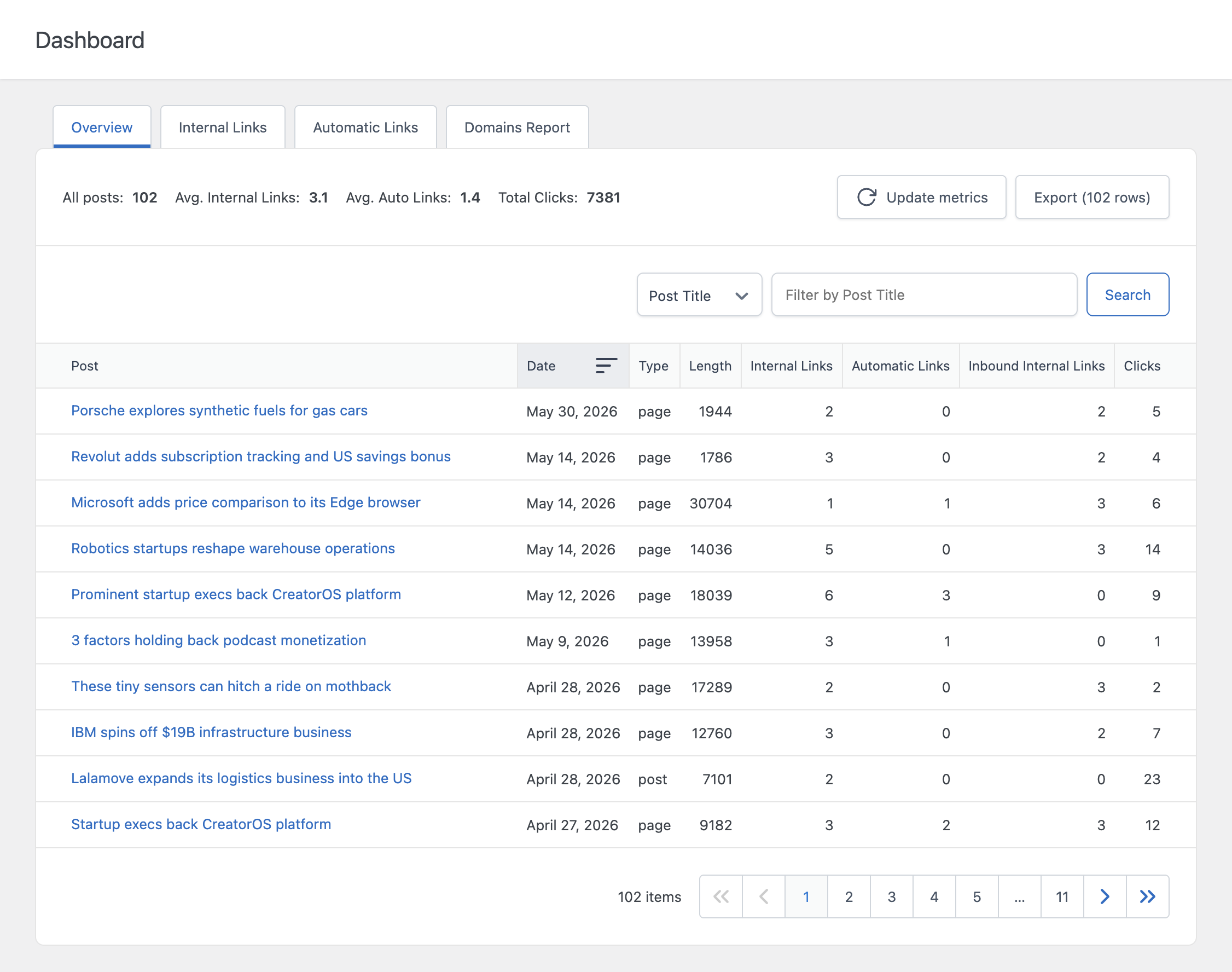
The Overview tab combines all the link metrics of each post in a single table: content length, internal links, automatic links, and inbound internal links. Summary statistics at the top show the number of analyzed posts and the average number of internal links and automatic links per post.
It is the best starting point to understand the overall state of your internal linking before looking at individual posts.
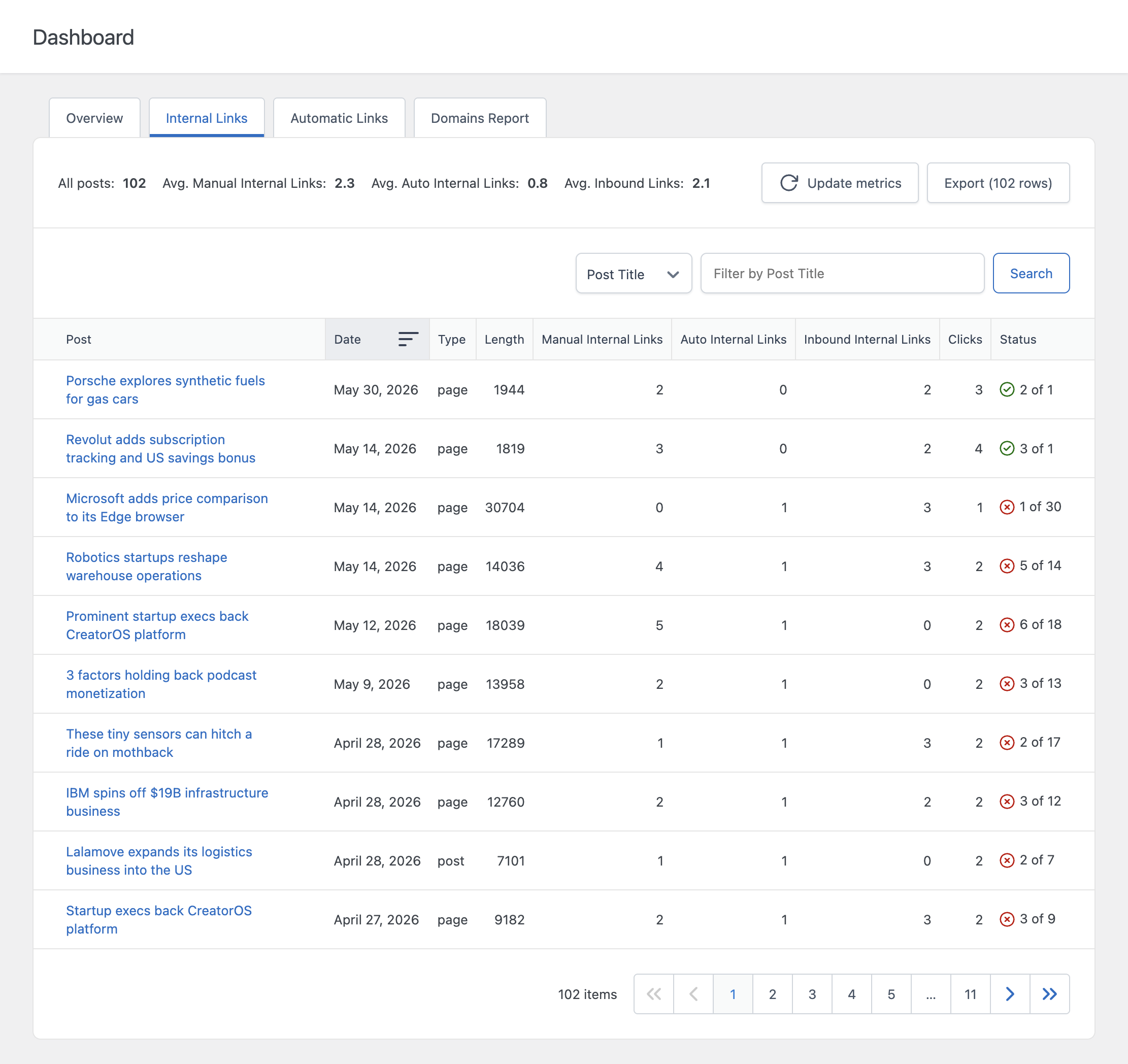
The Internal Links tab separates the internal links you added manually in the editor from the internal links generated by your Auto Link Rules. It also shows the number of inbound internal links, which are the links from other posts on your site to the current post.
A Status column compares the total number of internal links with a recommended number based on the content length, and marks each post with a green or red indicator. This makes under-linked and over-linked posts easy to spot. The optimization logic is described on the Internal Links Optimization page.
The Automatic Links tab isolates the links created by your Auto Link Rules. Because rules can point to any URL, this count includes automatic links to external sites as well as to your own pages.
Use it to see on which posts your Auto Link Rules have been applied, and how many automatic links each post received.
An orphan post is a post that no other post on your site links to. Readers can reach it only from menus, archives, or search, and search engines may consider it less important.
The plugin shows the number of inbound internal links of every post, so orphan posts are easy to find. The Link Graph shows the same information in visual form.
Every table can be filtered by column and sorted by clicking a column header. You can also search posts by title. Combining a filter with a sort is the fastest way to build a list of posts to work on.
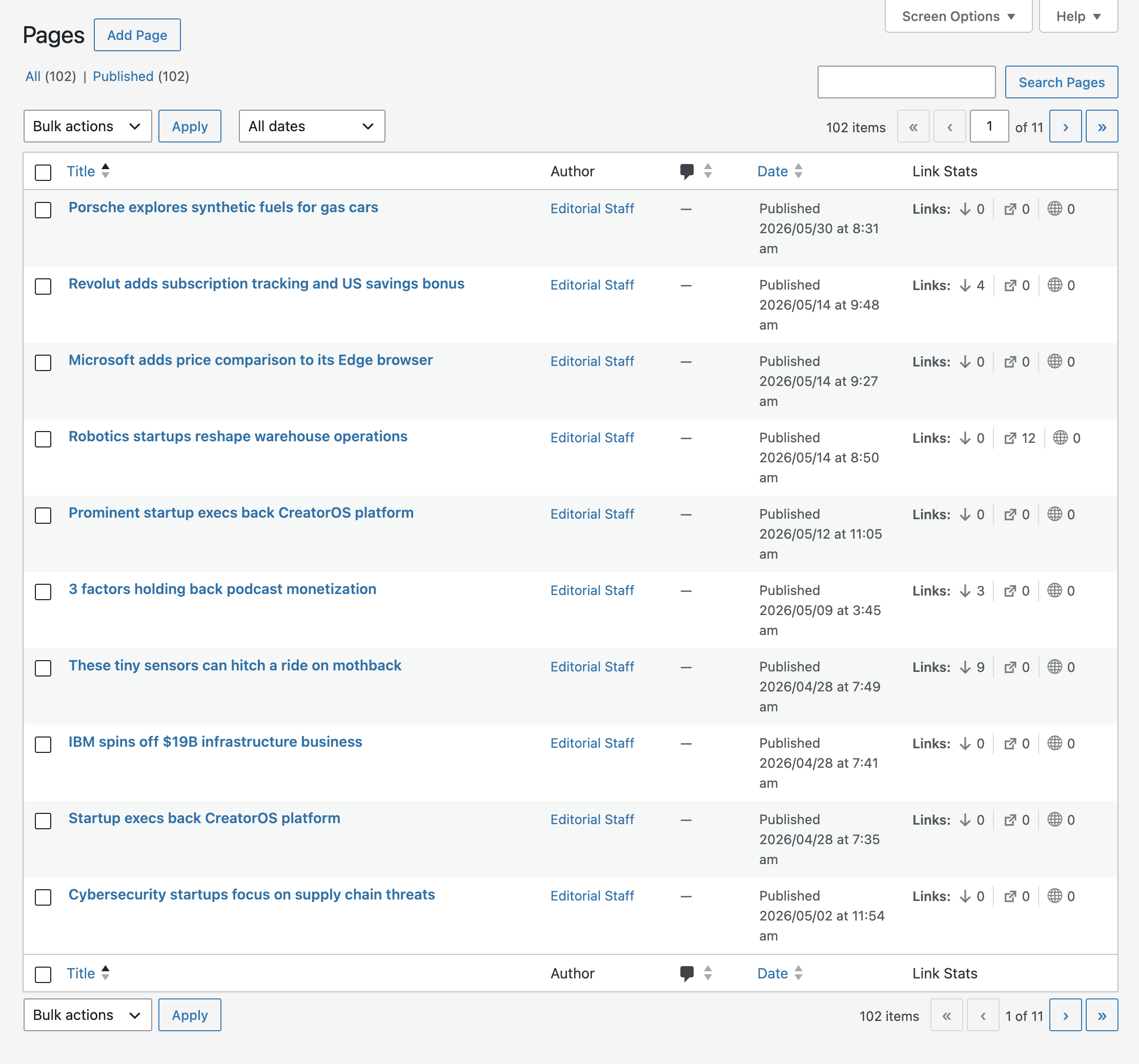
The Link Stats column adds three numbers to the Posts and Pages screens of WordPress: inbound internal links, outbound internal links, and outbound external links. This allows you to review the linking profile of a post while you browse your content, without opening the Dashboard.
When click tracking is enabled, the Overview, Internal Links, and Automatic Links tabs include the number of clicks recorded on the links of each post. You can compare how many links a post contains with how many of them visitors actually use. Details on how clicks are recorded are on the Click Tracking page.
Each tab includes an Export button that downloads the data of the table in CSV format. Open the file in Excel or Google Sheets to share the results with a client or to combine them with data from other SEO tools.