Internal Links Optimization
Know how many internal links each post needs

A feature of the Link Manager plugin for WordPress
Know how many internal links each post needs
A feature of the Link Manager plugin for WordPress
Internal Links Optimization is a feature of Link Manager that compares the number of internal links in a post with a recommended number based on the content length, and tells you if the post is optimized. The check is shown in the post editor and, for every post, in the Dashboard.
A short news item and a 4,000-word guide should not have the same number of internal links. Writers either forget to add them or add the same two links to every post, and over time long, valuable articles end up with almost no internal links while others are full of them.
Internal Links Optimization gives every post a target based on its length, because longer content can support more links. Writers see the target in the editor while they work, and editors can find the posts that need attention from the Dashboard, without counting links by hand.
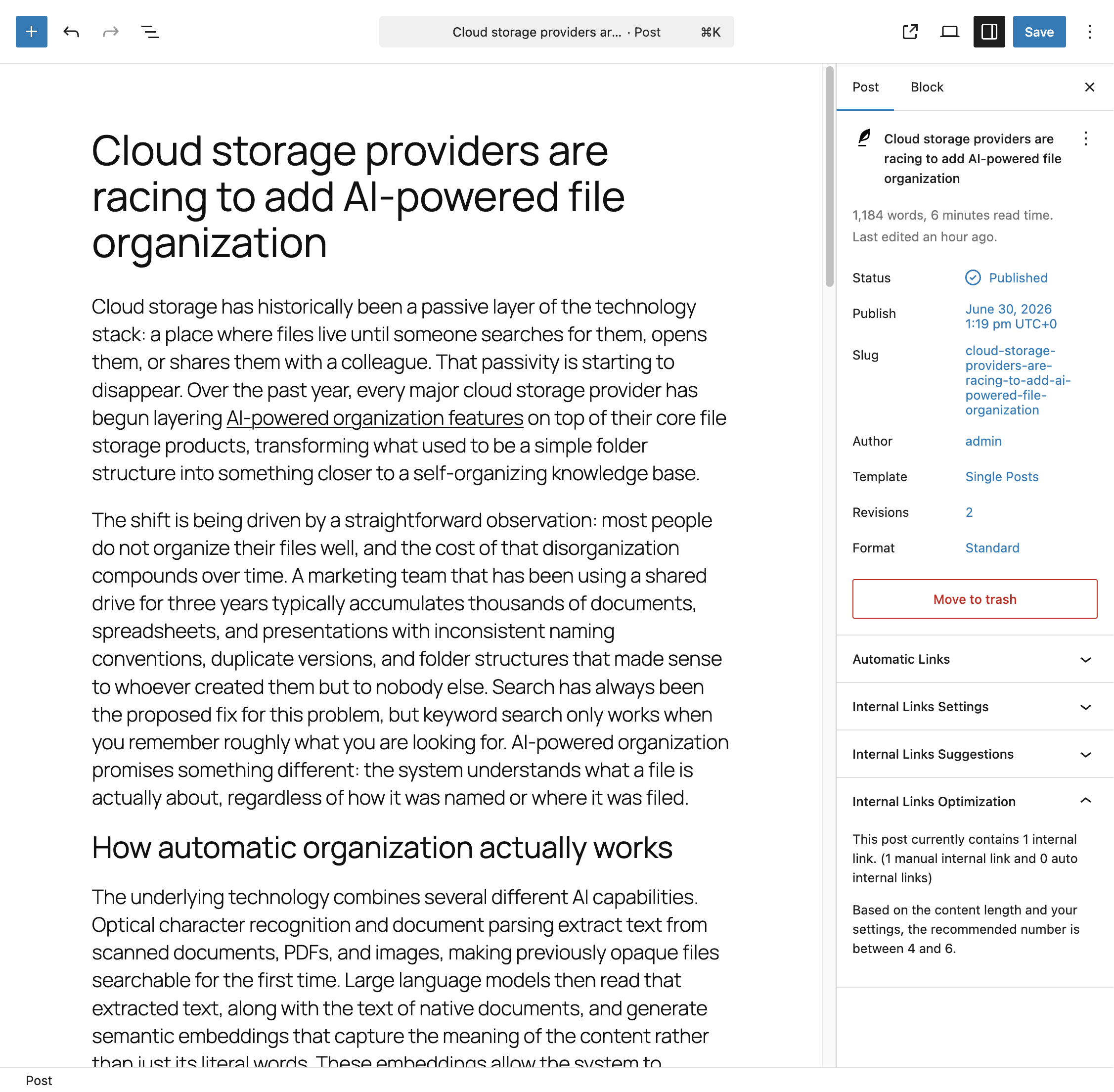
The Internal Links Optimization panel appears in the sidebar of the post editor, in both the block editor and the Classic Editor. It shows the number of internal links in the post, divided into manual links and links generated by your auto link rules, and tells you whether the total is within the recommended range. If it is not, the panel shows the range to aim for.
The panel needs no action. It loads its data when you open the post and refreshes every time you save.
The recommended number of internal links depends on the length of the content. Longer posts get a higher target, and a small tolerance allows the count to be slightly above or below it and still be considered optimized.
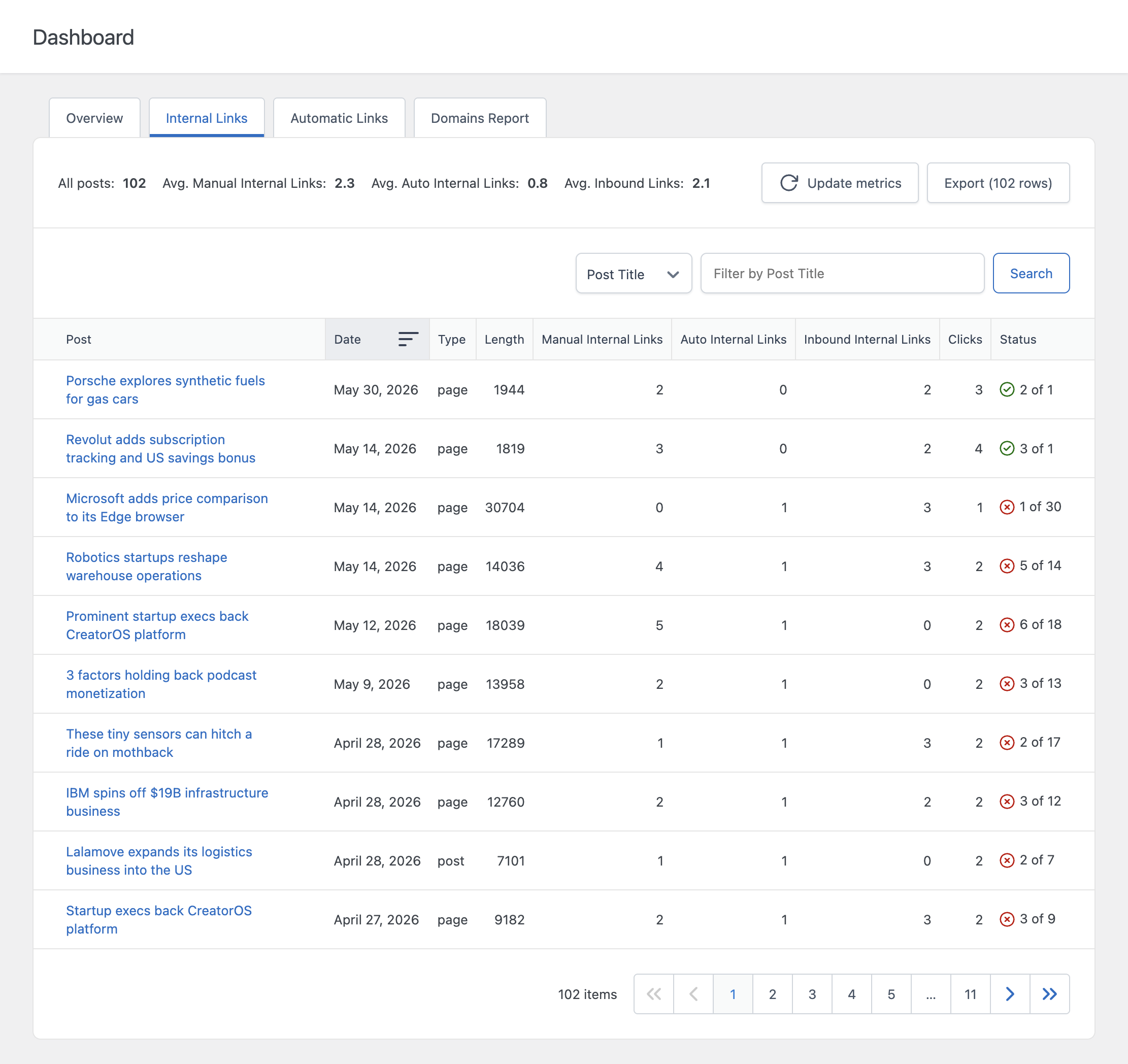
The Internal Links tab of the Dashboard applies the same check to every analyzed post. A Status column shows the current number of internal links next to the recommended number, with a green indicator for optimized posts and a red one for posts that need work. Sort or filter by this column to find the posts that need more internal links. The Link Graph can also color its nodes by optimization status.
You can choose the post types where the panel is displayed. By default it appears on posts and pages.
You can change the parameters of the calculation from the Settings menu, to match the recommendation to your content. For example, a site with long technical guides may prefer one link every 700 characters, while a news site may prefer one every 1,500.