Configuring Automatic Links Options
The Automatic Links section of the Settings menu controls how the auto-linking engine behaves globally, which elements are protected from automatic linking, and the default values used when creating new rules. This page covers the Options and Protected Elements cards.
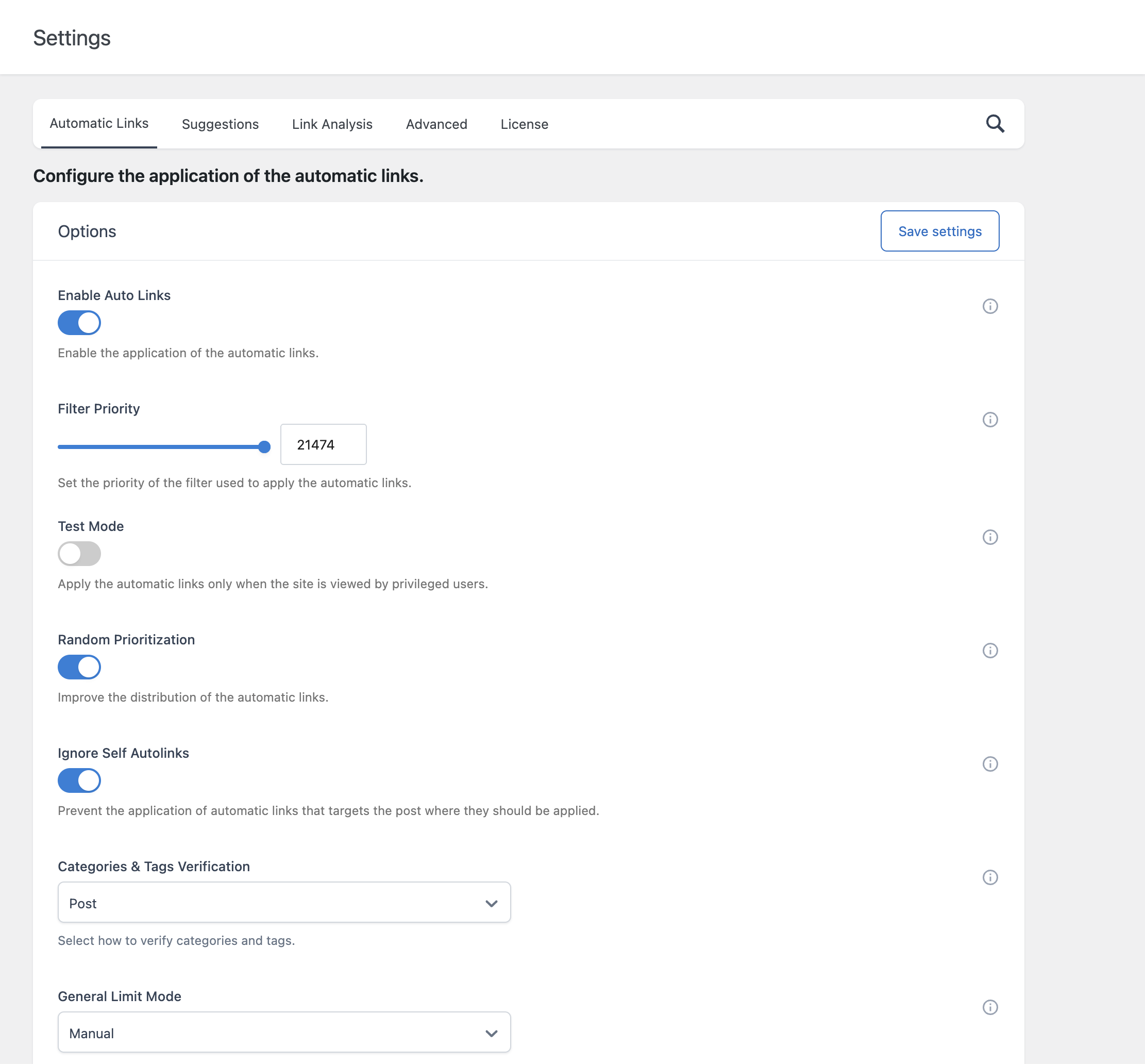
Options
- Enable Auto Links – Sets the default status of the Enable toggle in the Automatic Links editor panel. This determines whether automatic links are applied to new posts by default; it does not retroactively change posts that already have an explicit value set.
- Filter Priority – Controls the priority of the WordPress filter the plugin uses to apply automatic links to your content. A lower number runs earlier. Only change this if you are experiencing a conflict with another plugin that also filters post content.
- Test Mode – When enabled, automatic links are only applied when the content is being viewed by a user with the capability assigned to the Auto Link Rules menu. This lets you preview how your rules behave on the live site without exposing them to regular visitors yet.
- Random Prioritization – When enabled, rules sharing the same Priority value are applied in a random order on each post, rather than the fixed order they were created in. This produces a more even distribution of links across rules with equal priority and is recommended in most cases.
- Ignore Self Autolinks – When enabled, a rule is skipped if its Target URL points to the same post where it would otherwise be applied. This prevents a post from linking to itself.
- Categories & Tags Verification – Determines which post types are checked when a rule’s Categories or Tags conditions are evaluated. Selecting Post restricts this verification to the post post type only; selecting Any verifies categories and tags across any post type.
- General Limit Mode – Determines how the maximum number of automatic links per post is calculated. Auto calculates the limit based on content length, using the General Limit (Characters per Auto Link) value. Manual uses a fixed number defined by the General Limit (Amount) value instead.
- General Limit (Characters per Auto Link) – Used only when General Limit Mode is set to Auto. Defines how many characters of content justify one automatic link.
- General Limit (Amount) – Used only when General Limit Mode is set to Manual. Defines a fixed maximum number of automatic links allowed per post.
- Same URL Limit – Limits how many automatic links with the same Target URL can be inserted across a single post, regardless of how many separate rules point to that URL.
How the General Limit Interacts With Individual Rule Limits
The General Limit applies across all automatic links combined in a post, while the Limit field on an individual rule restricts how many times that specific rule can match within a post. Both limits apply simultaneously; whichever is reached first stops further automatic links from being added.
Protected Elements
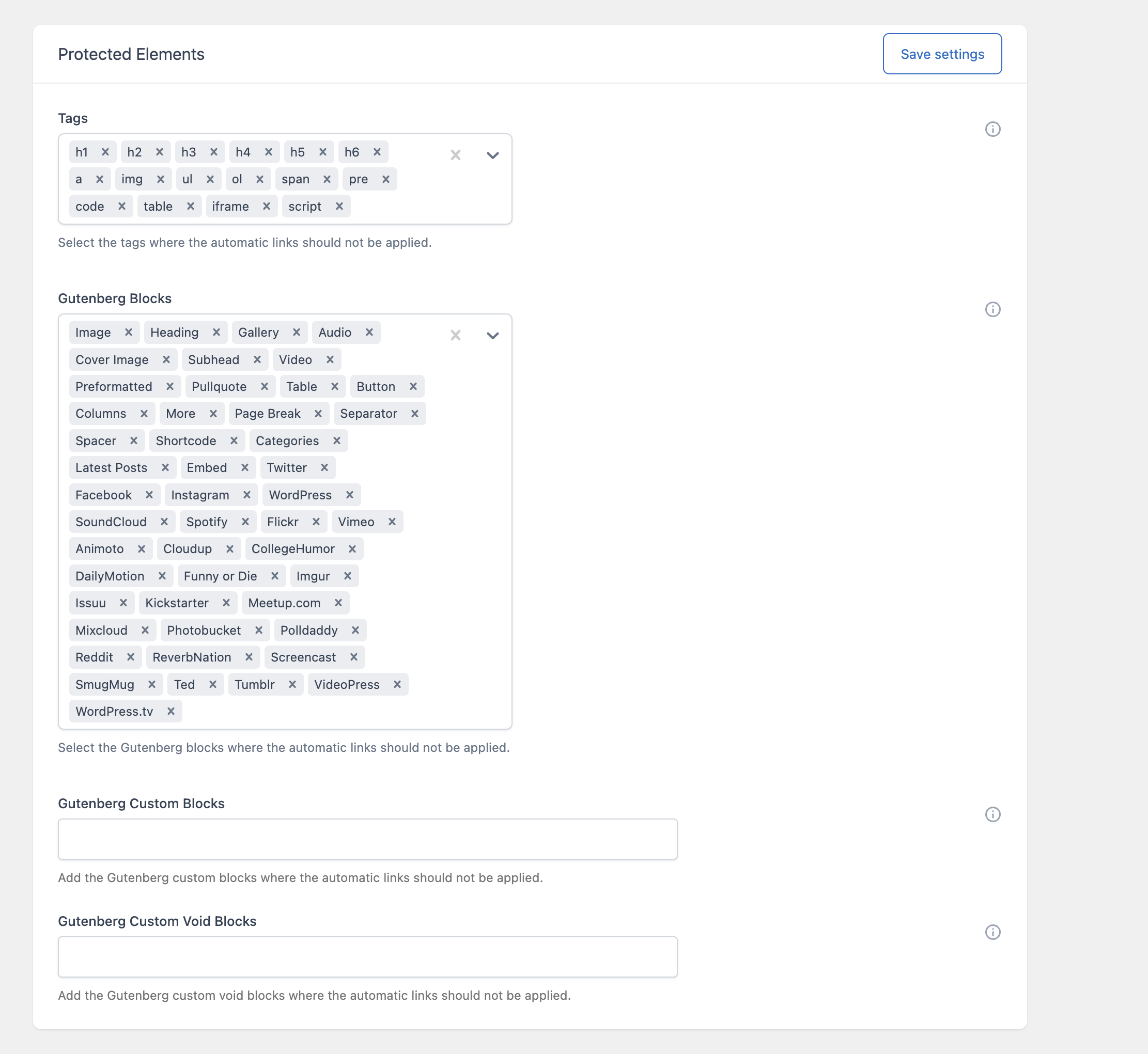
Protected Elements let you exclude specific parts of your content from automatic linking entirely, regardless of which rules would otherwise match.
- Tags – Select the HTML tags where automatic links should never be applied. For example, protecting the
h1throughh6tags prevents automatic links from being inserted into your headings. - Gutenberg Blocks – Select the Gutenberg blocks where automatic links should never be applied, for example excluding the Button or Table blocks.
- Gutenberg Custom Blocks – Enter a comma-separated list of custom Gutenberg block names, beyond the built-in ones listed above, where automatic links should not be applied.
- Gutenberg Custom Void Blocks – Enter a comma-separated list of custom Gutenberg void blocks (blocks with no closing tag and no nested content) that should be excluded from automatic linking.
Why Protect Specific Elements
Automatic links inserted inside headings, buttons, or table headers can look out of place or interfere with the intended styling of those elements. Protecting them keeps automatic links confined to body text, where they read naturally.
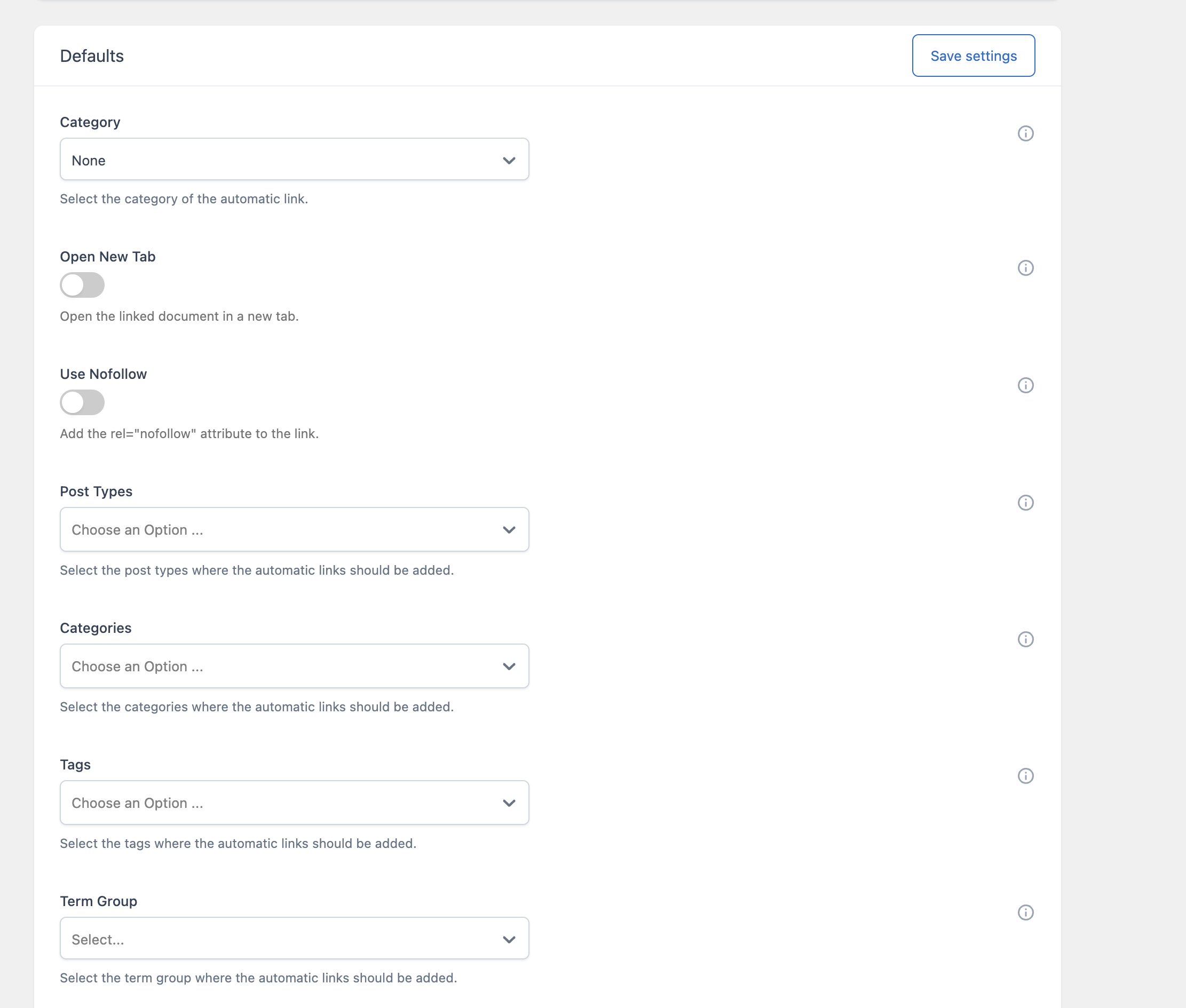
Default Values for New Rules
The Defaults card in this same section configures the values used to pre-fill new Auto Link Rules, and is also used directly by the Bulk Add Rules feature, which doesn’t expose these fields individually. Since these defaults are covered together with their full set of fields in the dedicated documentation on creating rules, refer there for a complete breakdown of each Defaults option.