Migrating From Free to Pro
Migrating from the Free version of Hreflang Manager to the Pro version is straightforward. The steps below explain how to safely transfer your data without losing any existing hreflang entries.
Step 1: Export Your Data From the Free Version
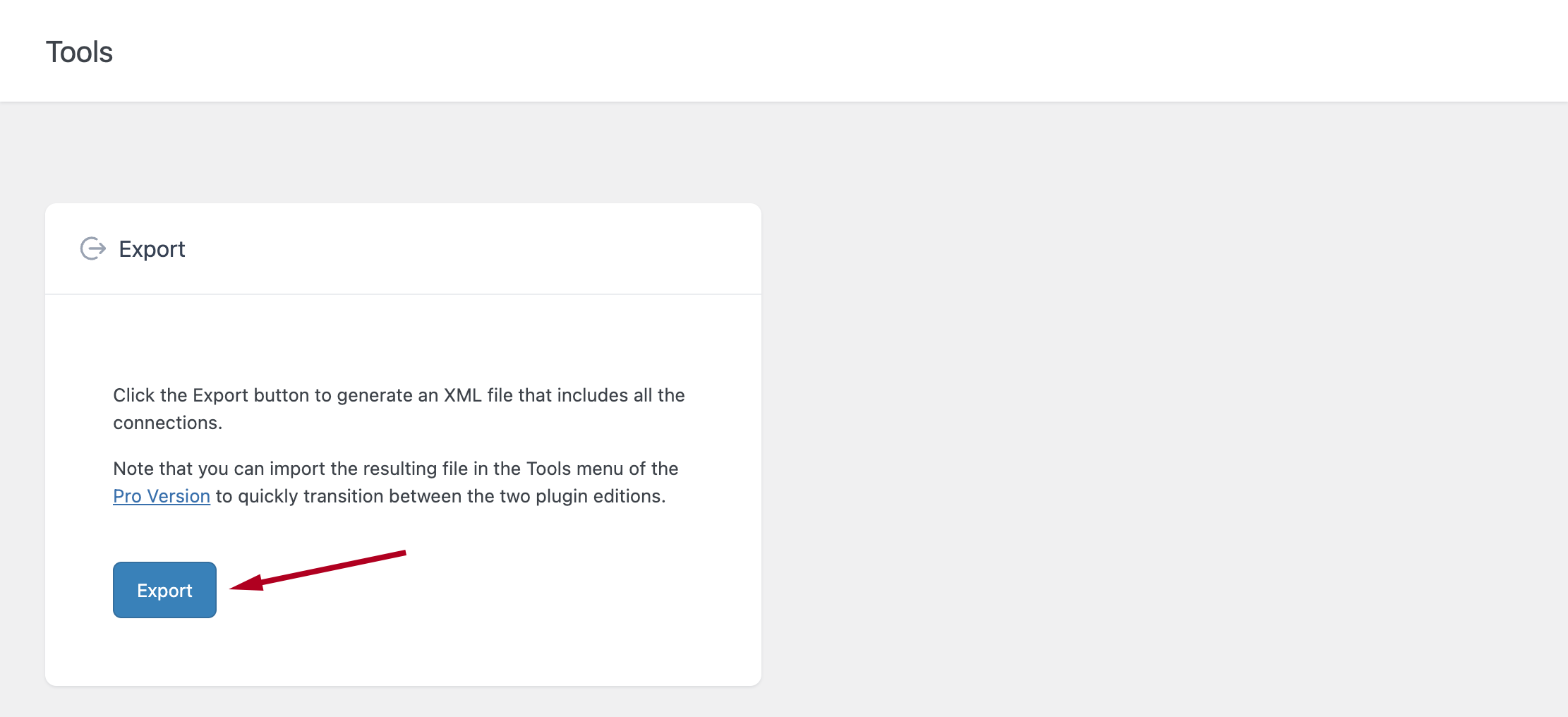
To begin, open the Tools menu in the Free version of the plugin and click the Export button. This will generate an XML file containing all your hreflang entries, which will be downloaded to your computer.
Step 2: Deactivate the Free Version
Once the XML file has been downloaded, you can deactivate the Free version of the plugin.
Important:
Do not delete the Free version at this stage. Deleting it would remove not only the plugin files but also the options and database tables where your hreflang entries are stored.
We recommend deleting the Free version only after you have successfully completed the migration.
Step 3: Download the Pro Version
Next, log in to your account and navigate to the Downloads section. From there, download the ZIP package that contains the Pro version of the plugin.
Step 4: Install and Activate the Pro Version
In your WordPress dashboard, go to the Plugins menu. Upload the ZIP file you just downloaded, then proceed to install and activate the Pro version.
Step 5: Configure the Import Settings
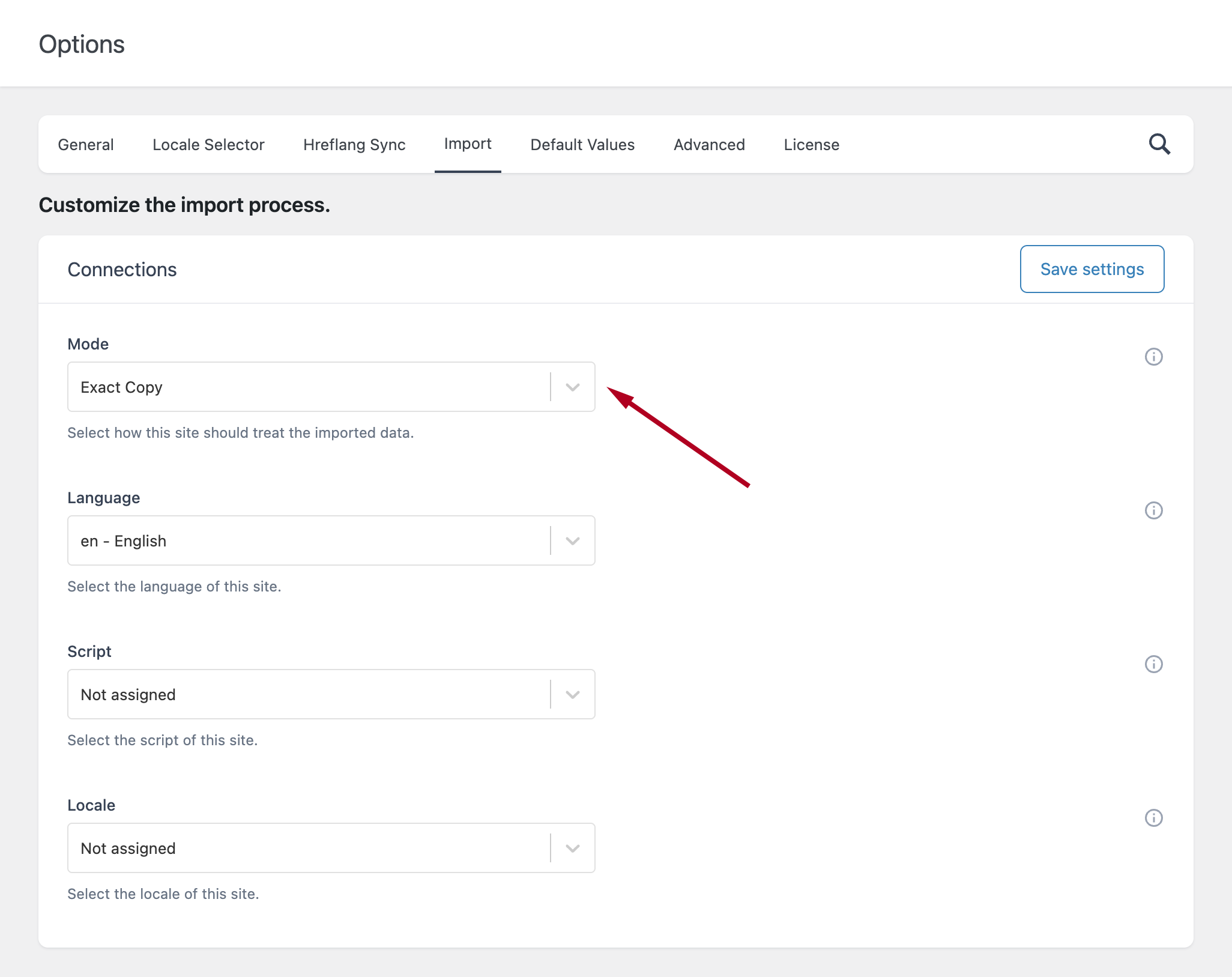
Before importing your data, open the Import settings in the Pro version. Make sure the Mode option is set to Exact Copy, which ensures a one-to-one copy of your previous hreflang data with no changes or variations applied.
Step 6: Import Your Data Into the Pro Version
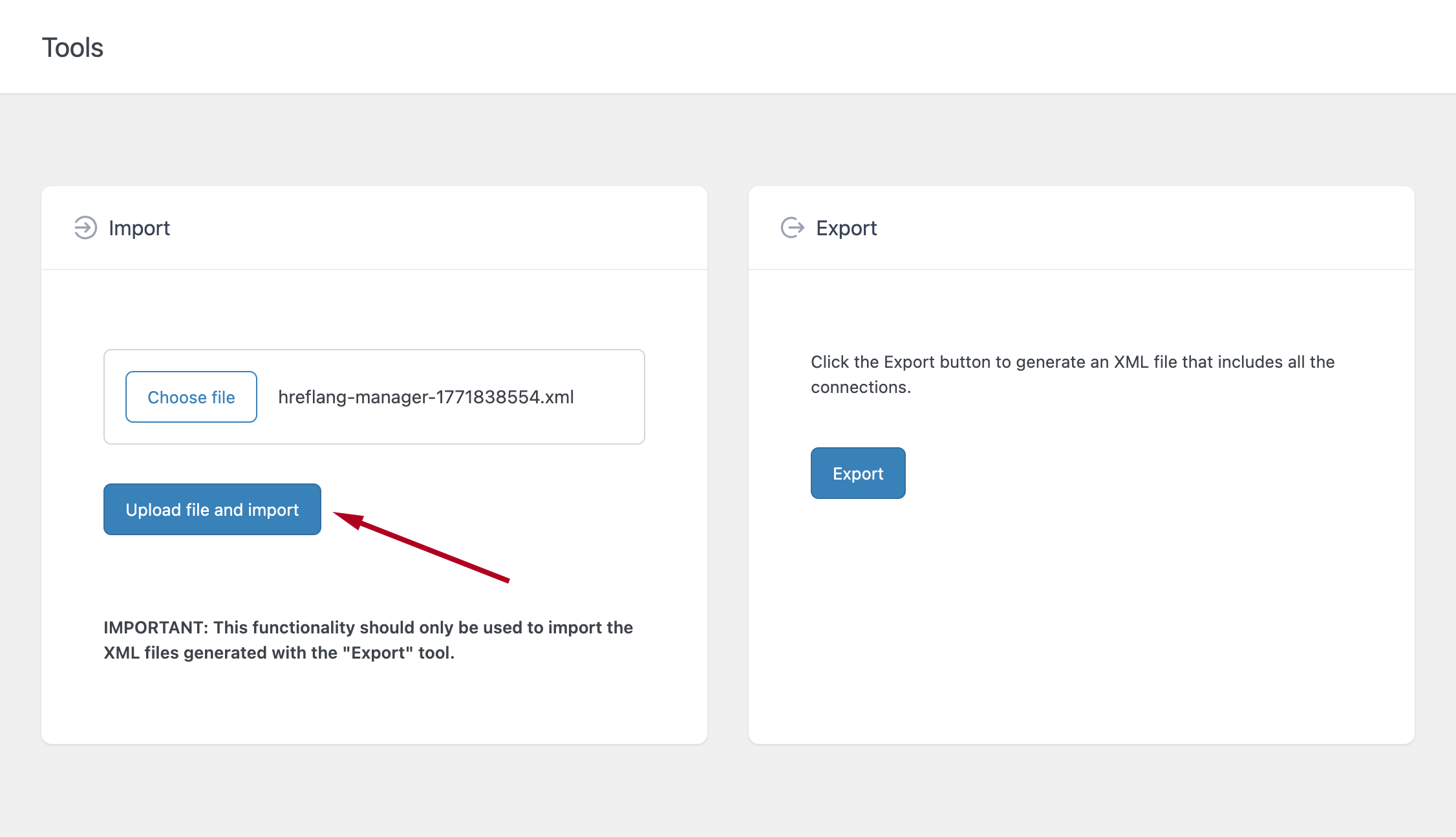
Now proceed to the Tools menu in the Pro version. Use the Choose file button to select the XML file exported earlier, then click Upload file and import to begin the import process.
Step 7: Verify the Imported Data
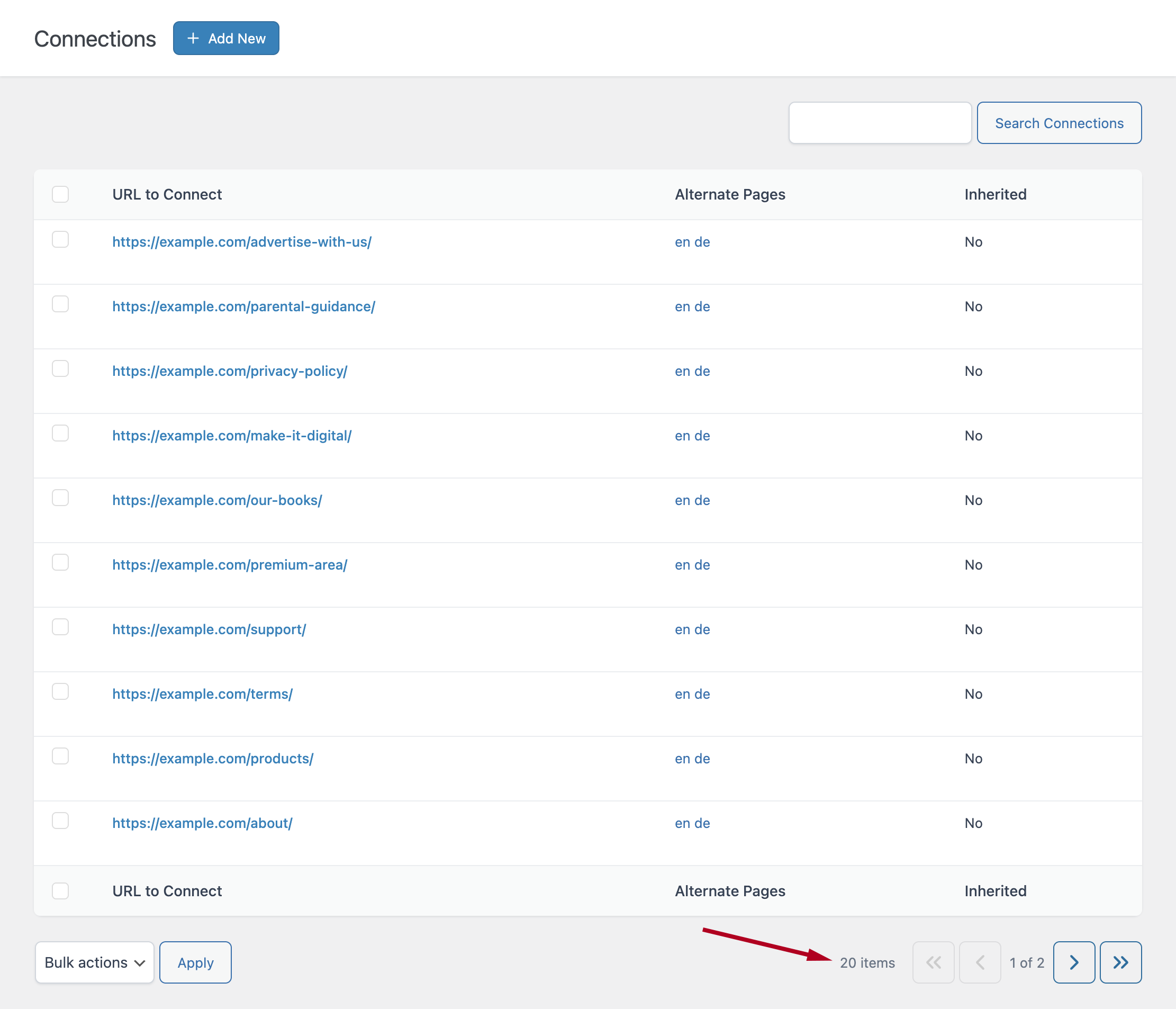
After the import completes, visit the Connections menu. Here you can verify that all hreflang entries from the Free version have been successfully imported into the Pro version.