Verifying and Debugging Your Hreflang Implementation
The Tag Inspector is a built-in diagnostic tool that helps you verify the correctness and consistency of the hreflang tags generated on your website. It appears directly on the front end and provides a convenient way to confirm that all alternate versions of the page are correctly linked and formatted.
Enabling the Tag Inspector
To activate the Tag Inspector:
- Visit Hreflang → Options → General
- Turn on the Tag Inspector toggle
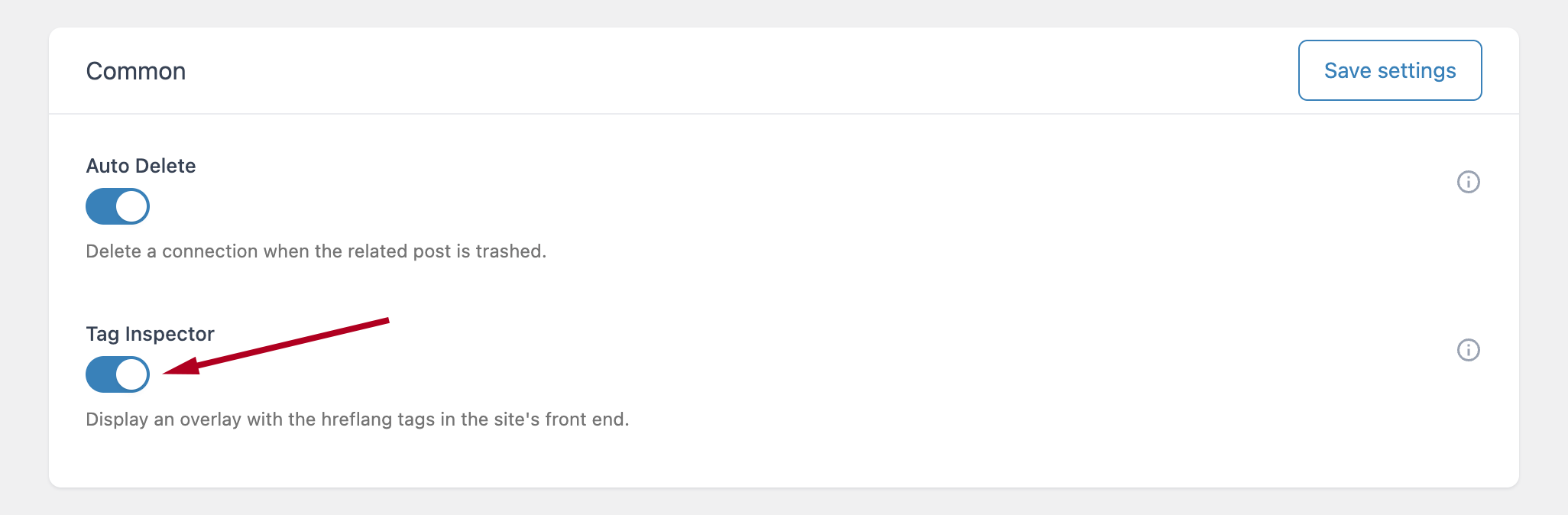
Once enabled, the inspector becomes available on all front-end pages that contain at least one hreflang tag generated by the plugin.
Using the Tag Inspector
When active, the Tag Inspector appears automatically as a floating panel in the bottom-right corner of the front end.
Important notes:
- The Tag Inspector only evaluates hreflang tags created by Hreflang Manager. Hreflang tags added manually in a theme, or generated by other plugins, are ignored and do not appear in the inspector.
- The Tag Inspector is displayed only when a page includes hreflang tags. When no hreflang tags are present the Tag Inspector is not displayed.
- The Tag Inspector is displayed only if the plugin is configured to output the hreflang data as link tags using the Options → HTML Tags option.
Table View
The first screen displayed by the inspector is the Table View, which provides a clean overview of all hreflang entries detected on the current page.
It contains two columns:
- Language/Locale – The language and locale combination displayed as text
- URL – The destination URL for that hreflang entry
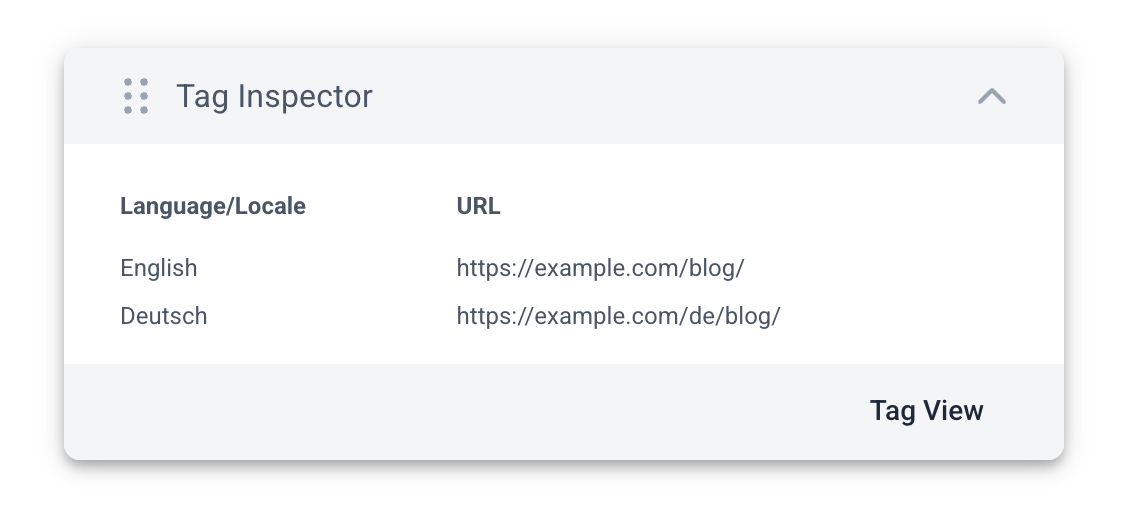
This view helps you quickly check whether:
- All intended languages are present
- Unwanted or incorrect locales appear
- URLs point to the correct pages
Tag View
By clicking the Tag View button inside the inspector, you can switch to a more technical perspective that displays the raw HTML <link> elements generated by the plugin.
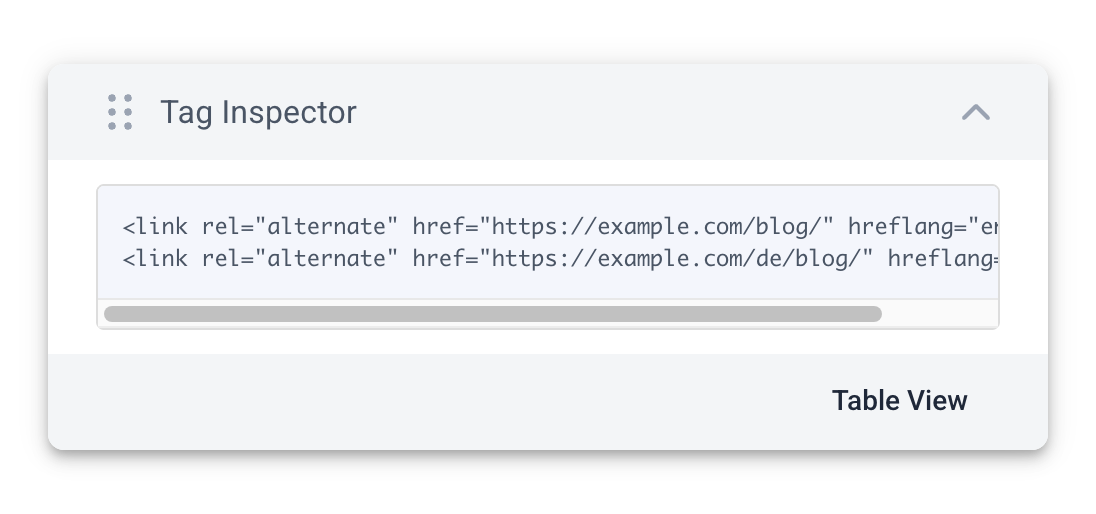
This view is especially useful for:
- Verifying that attributes follow the expected syntax
- Inspecting canonical relationships
- Diagnosing issues where search engines report malformed tags