How to Manually Add Hreflang Data
The plugin gives you the ability to configure hreflang data directly from the post editor or through the dedicated Connections menu created by the plugin.
Configuring the connection from the post editor is a convenient way to add hreflang data while editing an article. The plugin supports this workflow in both the Block Editor and the Classic Editor (including environments where plugins force the Classic Editor by disabling the Block Editor).
The Connections menu created by the plugin is instead a centralized location where administrators can monitor and manage all hreflang data. This is the place to duplicate or delete hreflang entries, verify that the correct data has been added after a bulk import or after importing XML files from external websites or backups, or check that the correct hreflang configuration is present on responder sites that have just been synced from a controller site.
Let’s now see how to use and manage the interfaces provided by the plugin to handle the hreflang data.
Configuring Default Languages and Locale
When inserting hreflang data from the post editor or from the Connections menu, you typically do not want to manually enter the language, script, and locale values for every page. For this reason, the plugin provides options to configure these default values.
Assume your site is available in three alternate versions, for example English, German, and French. By visiting the Options → Default Values menu, you can define these three languages. Once set, these languages will automatically appear in the plugin UI when adding hreflang data, avoiding repeated manual selections. This also helps prevent errors and ensures consistency in the order of languages for a clean and predictable list of entries.
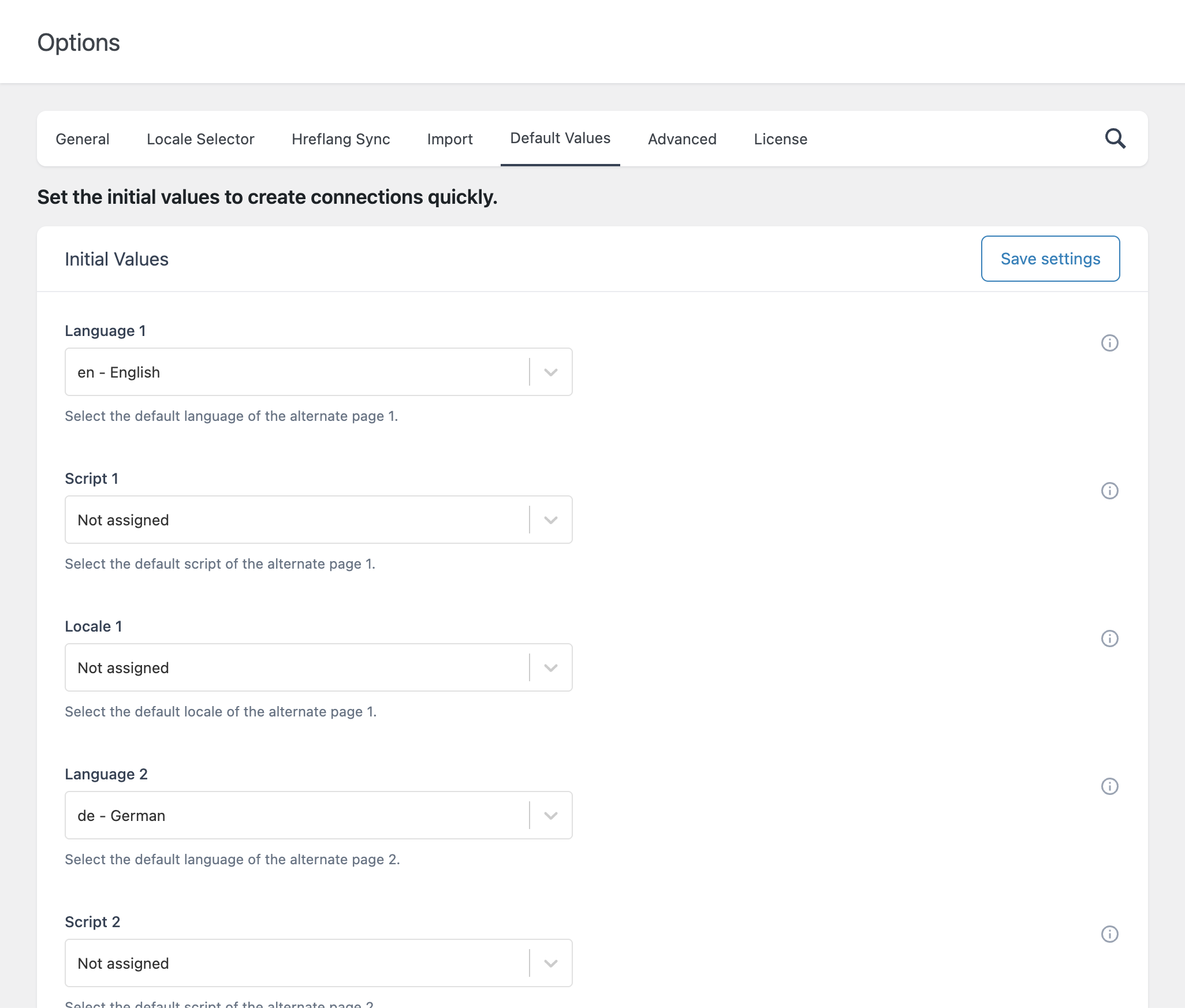
Procedure:
- Visit the Options → Default Values tab.
- Configure the languages, scripts, and locale based on how your multilingual network is structured.
- Click Save settings.
Configure Hreflang From the Block Editor
Assuming the Block Editor is enabled in your WordPress environment, follow these steps to configure the hreflang data of a page:
Visit the post, page, or custom post type where you need to configure the hreflang data, or create a new one if required.
Hreflang Manager adds a globe icon in the top toolbar of the WordPress Block Editor. Click that icon to open the sidebar dedicated to hreflang configuration.
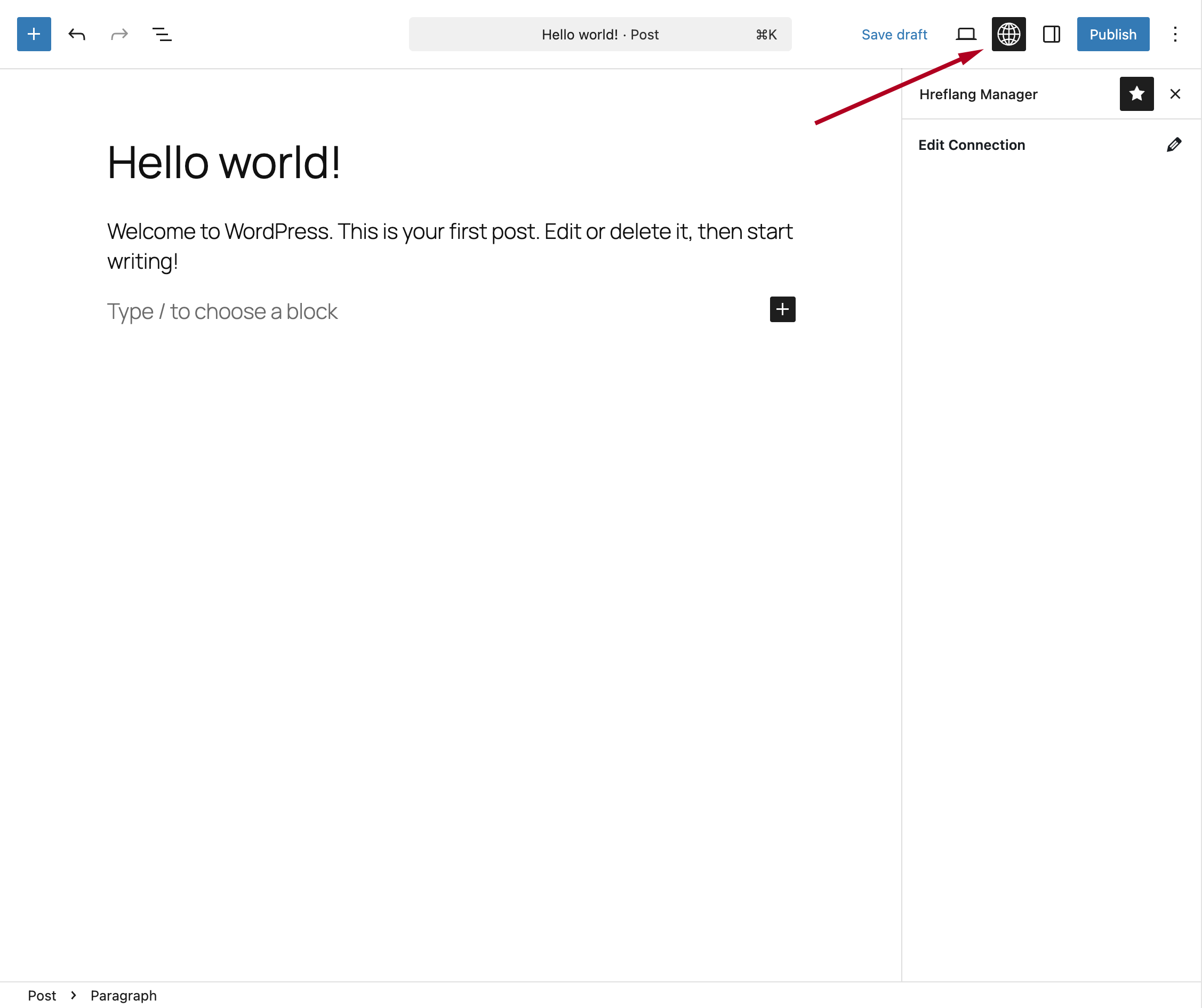
Click Edit Connection to open the modal window containing the form used to configure the alternate pages.
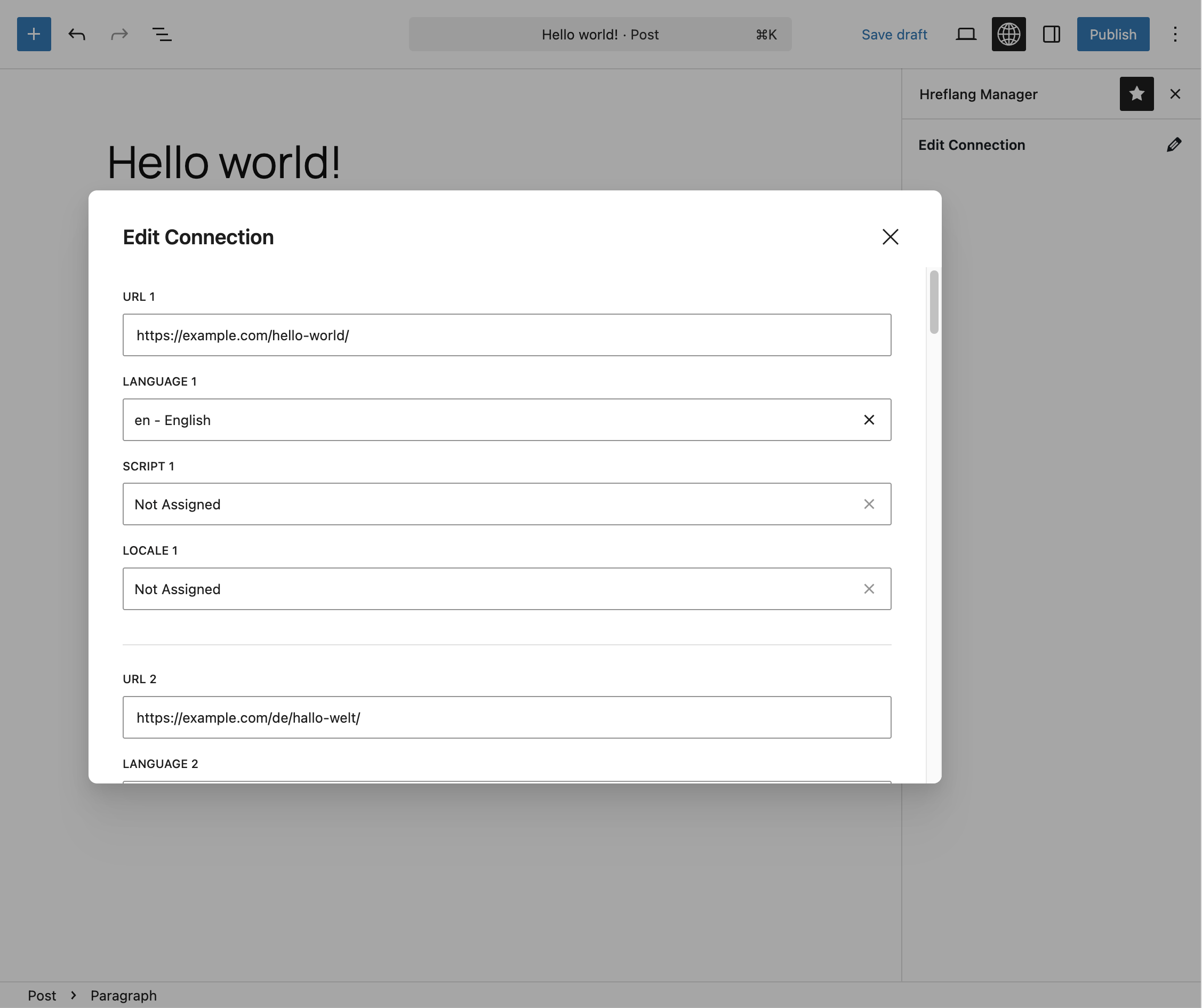
Once finished, close the modal window and click Save changes or Publish, depending on the context.
Configure Hreflang From the Classic Editor
If your WordPress environment uses the Classic Editor plugin, or if the Classic Editor is enabled by plugins such as WooCommerce, you can still configure hreflang data using Hreflang Manager.
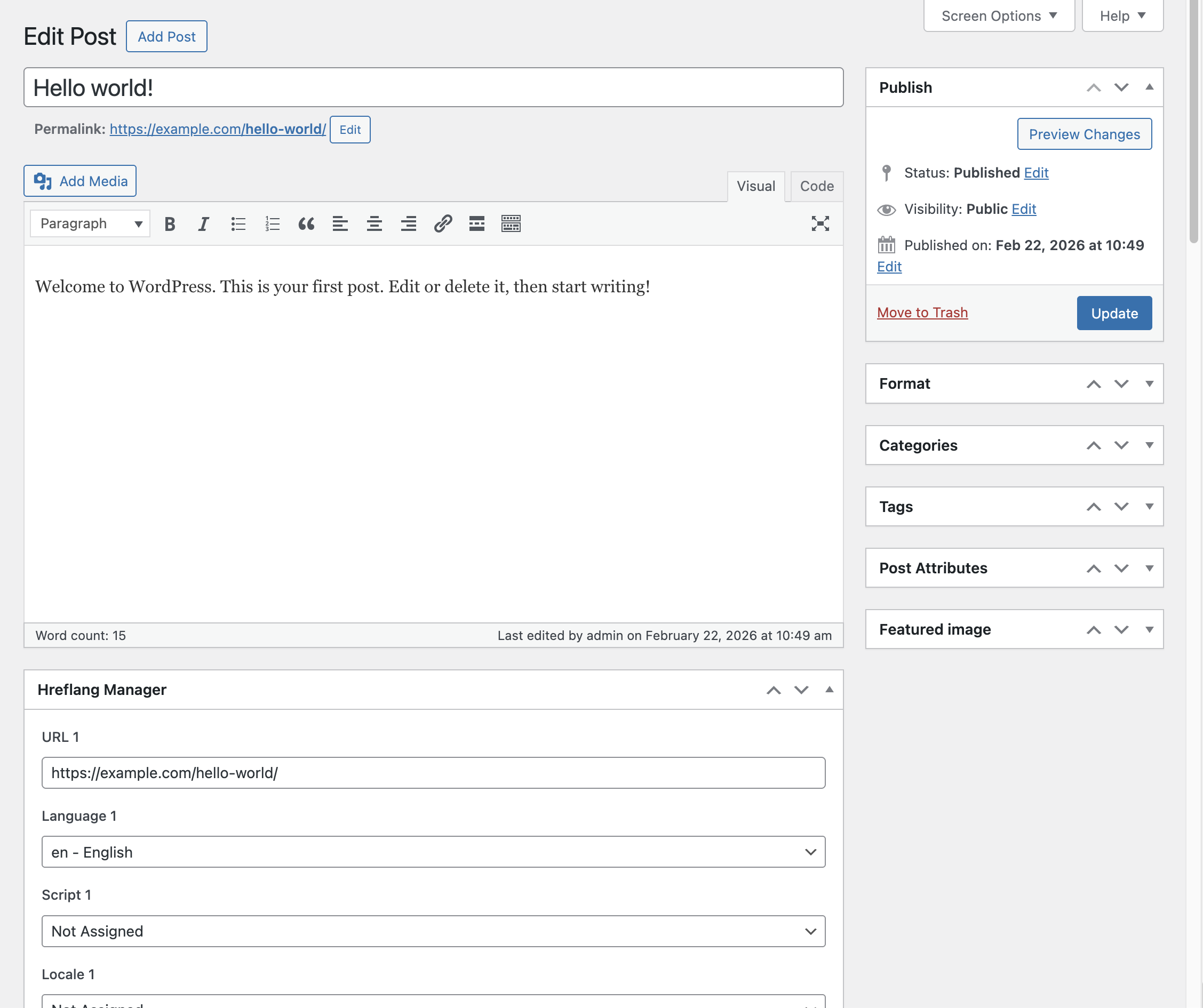
The plugin adds a meta box named Hreflang Manager, visible below the content editor.
If the meta box is not visible, open Screen Options at the top of the editor screen and enable the Hreflang Manager checkbox.
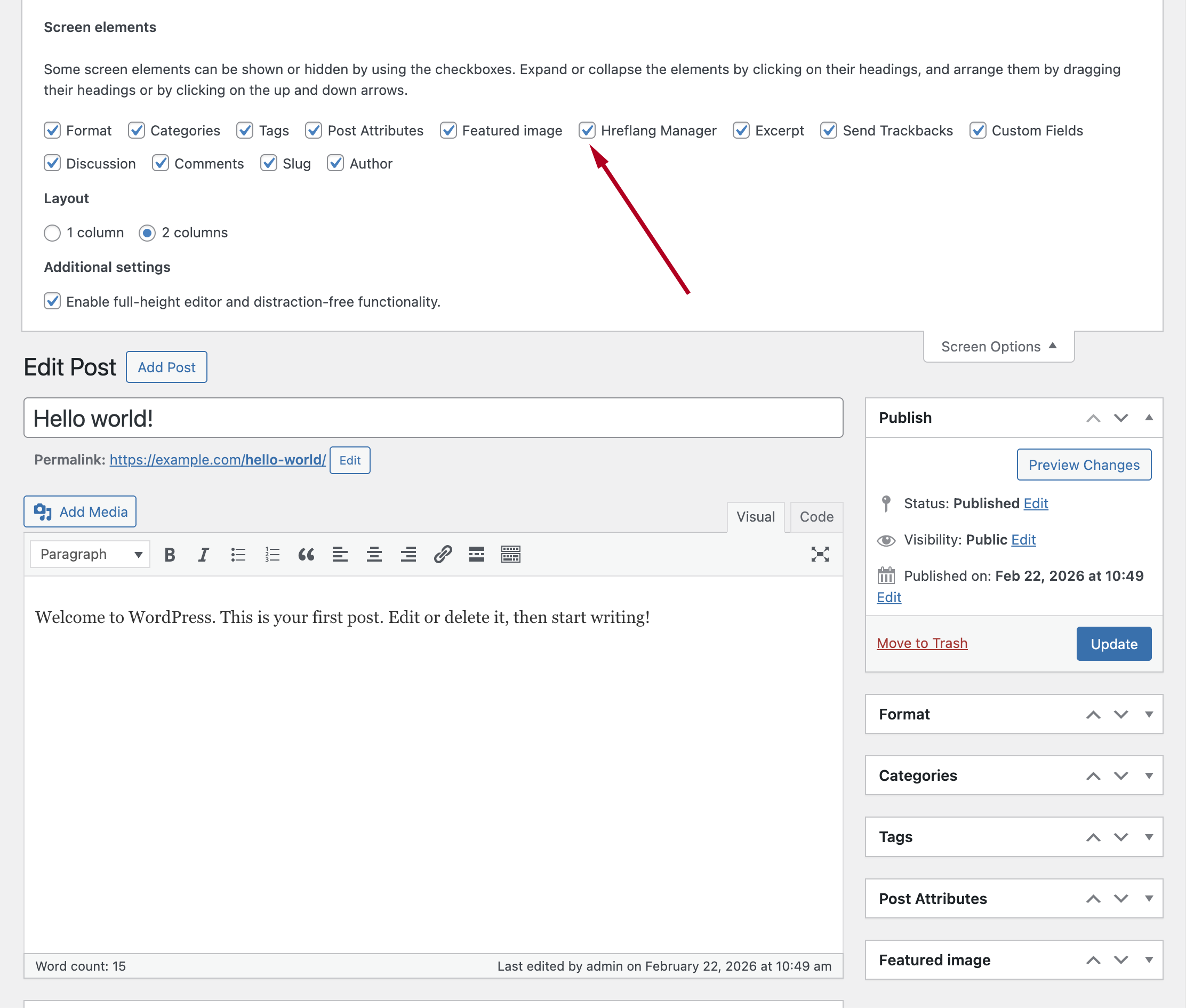
When the meta box is enabled, use the available URL fields and selectors to define the locale and complete the hreflang configuration for the current page.
Configure Hreflang From a Centralized Place Using the Connections Menu
The plugin allows you to visualize, explore, modify, or delete all connections from the dedicated menu available under Hreflang → Connections.
This menu functions as a classic CRUD interface for managing data. Below is how the table used to list the available connections appears.
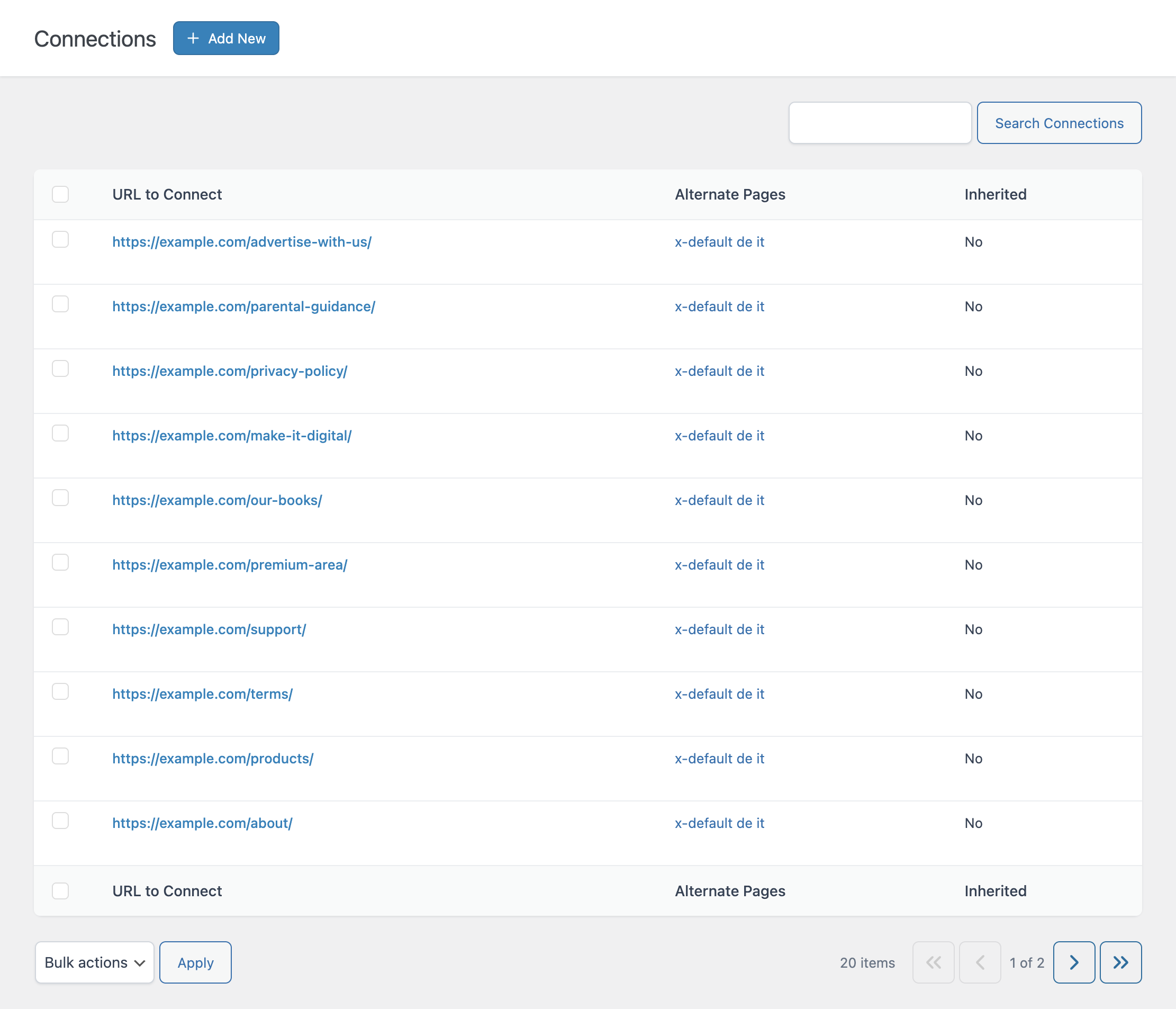
The table includes the following columns:
- URL to Connect: This is the URL where the plugin will insert the configured hreflang data. Ensuring that this URL exists guarantees that the hreflang attributes are added to the correct page.
- Alternate Pages: This column lists all configured alternate pages. Each alternate page is identified using a sequence of ISO codes representing language, script, and locale, separated by a hash sign. Each locale entry is displayed as a link, clicking it opens the corresponding page so you can verify its hreflang implementation if needed.
- Inherited: This boolean value indicates whether the connection was manually created on the current site or inherited from a controller site. For more information, see the Hreflang Sync section.
This menu also allows you to create or modify connections. To create a new one, click the + Add New button at the top of the page.
A form will appear containing the same fields available in the Block Editor and in the Classic Editor meta box, along with the Inherited selector, which is only configurable when modifying a connection in this context.
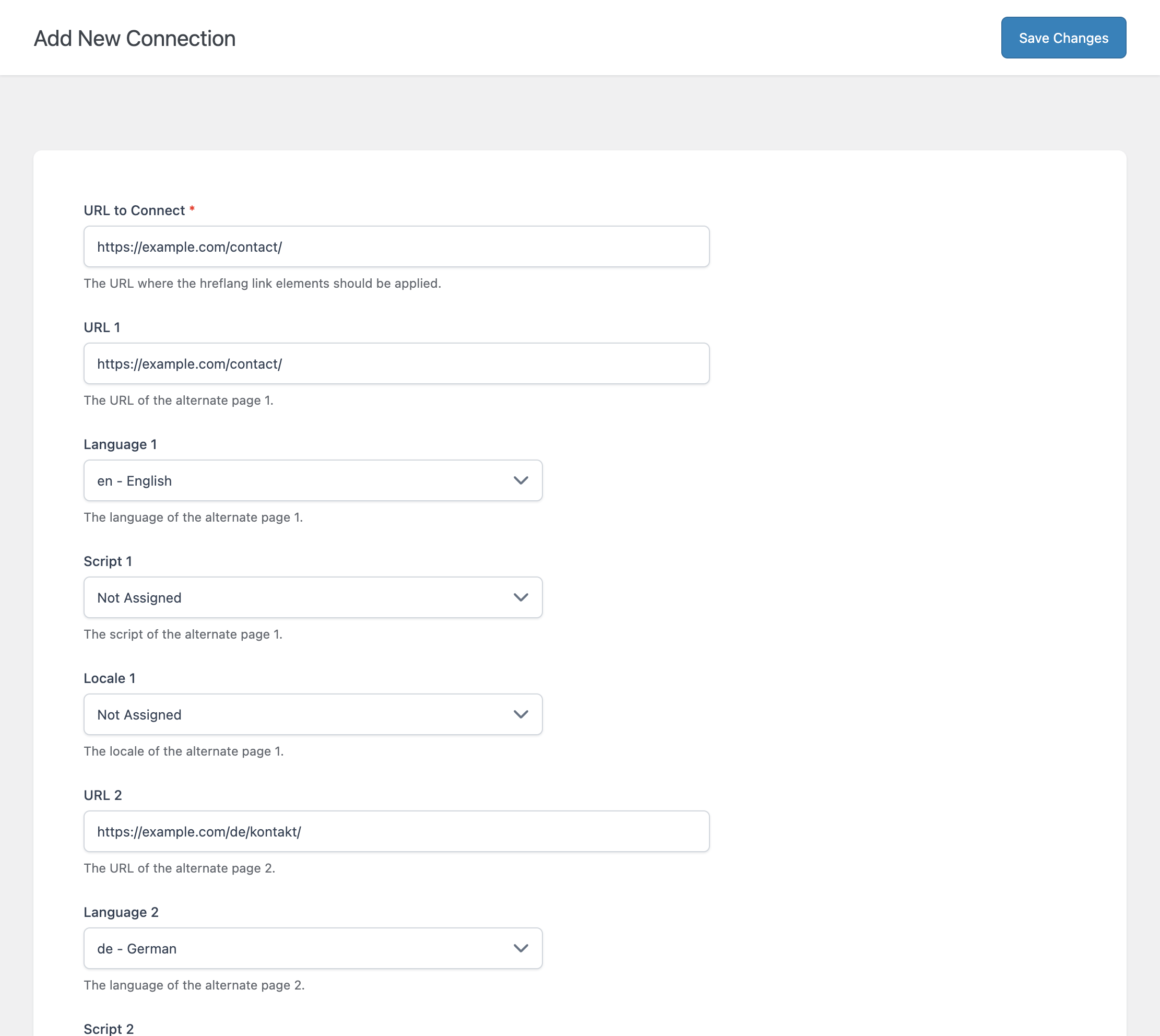
After entering the URL and locale information, click Save Changes to store the connection.
It’s important to note that the connections displayed in the Connections menu and the hreflang data configured via the Block Editor or Classic Editor represent the same data. The only difference is that they are accessed from different parts of WordPress to better match the workflow of different users.
Using X-Default
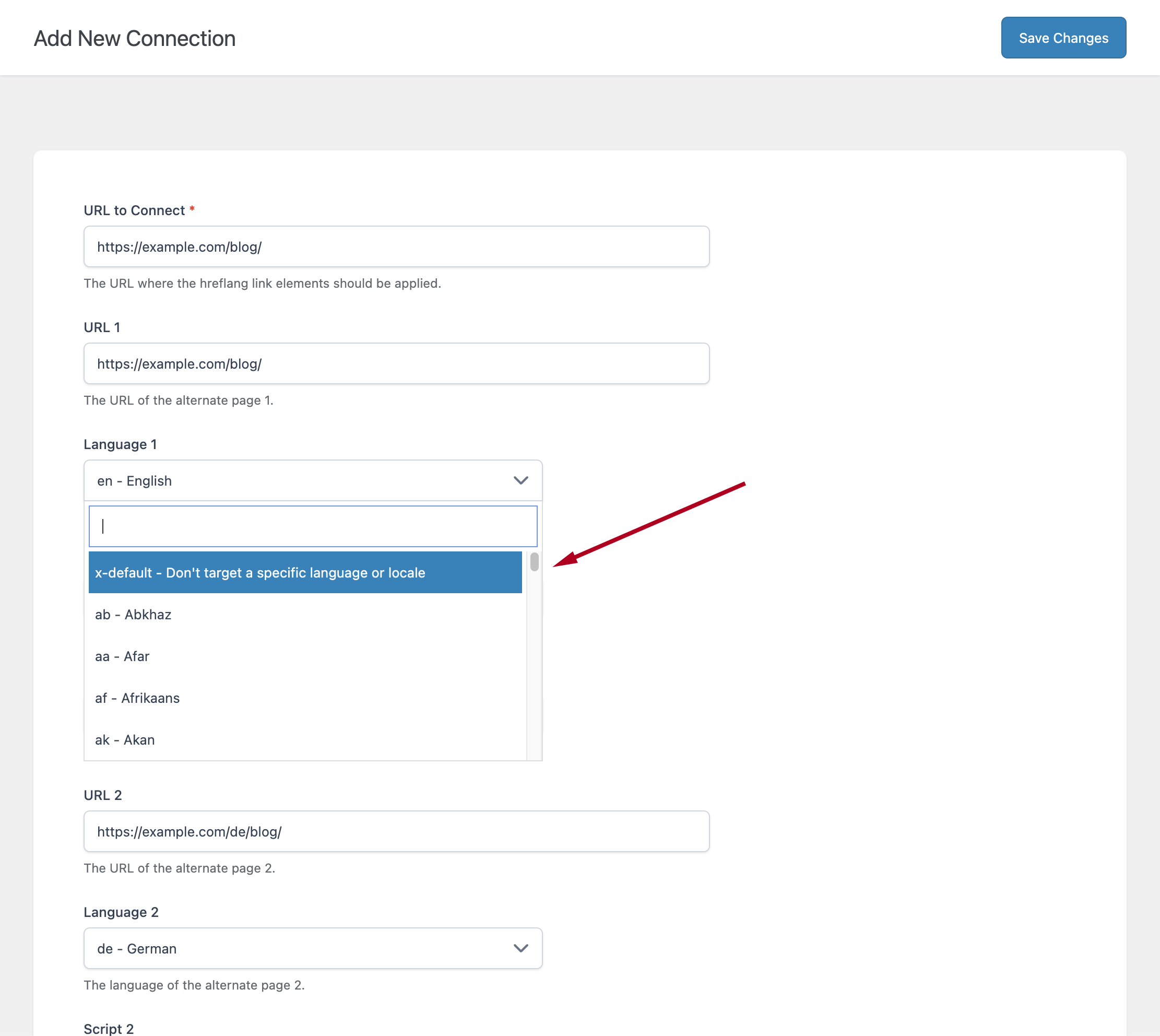
x-default is an hreflang value used to define an alternate version with no specific language or geographic target. It is commonly used to indicate the default locale to be shown when no appropriate match is found by the search engine, or to designate pages such as language selector pages.
In Hreflang Manager, the x-default value is always available as the first option in each language selector. You can find it either by scrolling through the selector or by typing “x-default” in the search field.
Enabling or Disabling the Post Editor Feature in Specific Post Types
The free version enables post editor functionality for all post types. The Pro version allows you to choose which post types should include the editor features. This can be configured using the Post Editor → Meta Box Post Types option available under Hreflang → Options → General.