Hreflang Implementation Tutorials and Step-by-Step Examples
This page provides practical, real-world tutorials showing how to create hreflang relationships using the Hreflang Manager plugin.
Each tutorial includes step-by-step instructions, recommended configurations, and visual guidance to help you correctly connect multilingual or multi-regional pages. If you are new to the plugin, these examples will give you a solid understanding of how to structure your hreflang clusters in both single-site and multi-site setups.
Tutorial 1: Connect Two Pages on the Same Website
This example demonstrates the simplest scenario: connecting two language versions of the same page within a single WordPress installation, for example, an English page titled “Running Shoes” and a French page titled “Chaussures Course”.
Example URLs:
- English:
https://example.com/running-shoes/ - French:
https://example.com/chaussures-course/
Step 1 — Configure the English Page (“Running Shoes”)
Go to Hreflang → Connections and configure the English page.
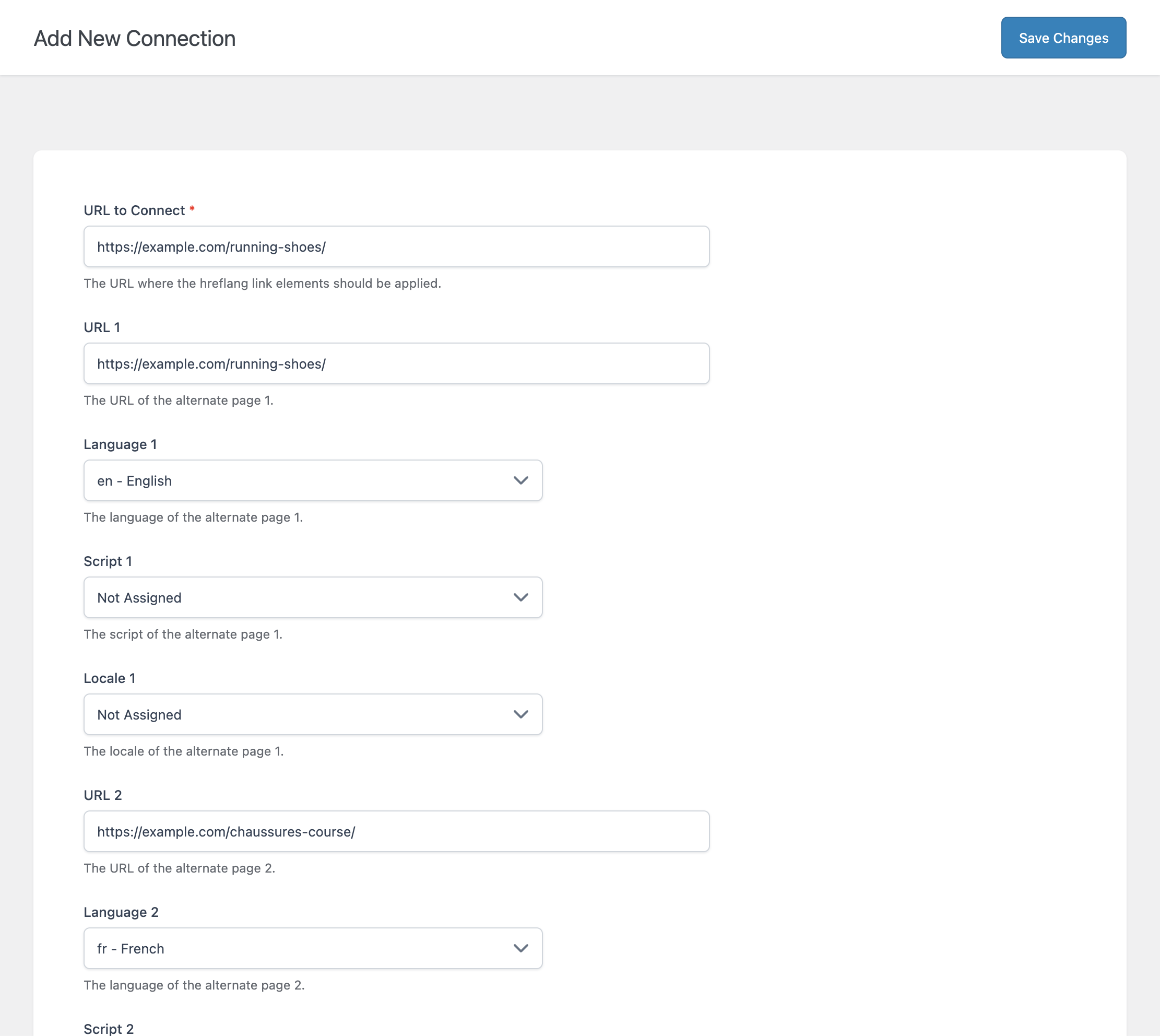
When configuring the English page, note that you are not only adding the URLs and their corresponding language/script/locale combinations, but you are also setting the URL to Connect value. This field tells the plugin which page the current hreflang configuration should be applied to.
Step 2 — Configure the French Page (“Chaussures Course”)
While remaining on the same site dashboard, configure the French version.
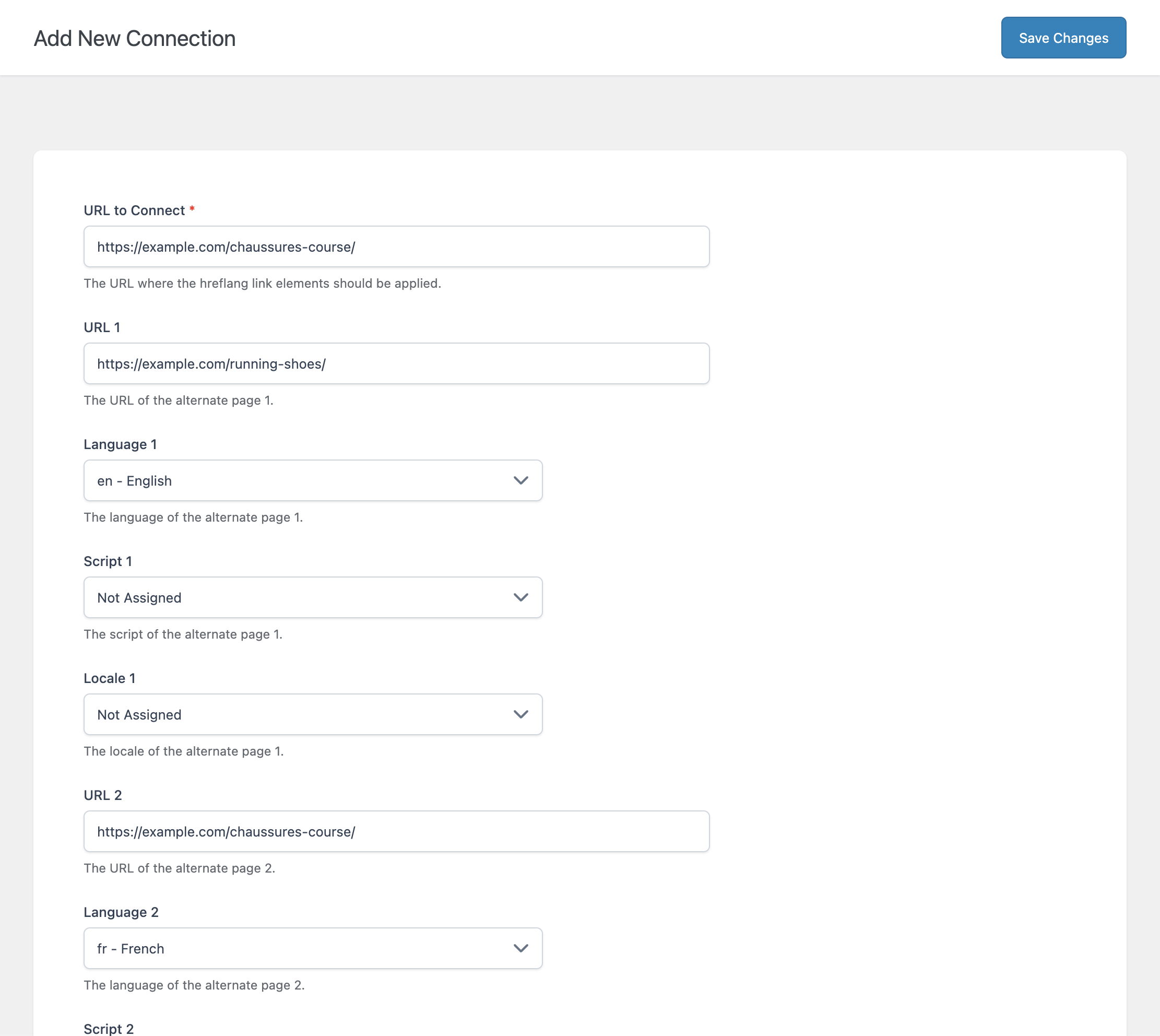
In the French connection, the URL to Connect field is now set to the French version of the page. This ensures that the hreflang configuration entered in this connection is applied specifically to the French URL defined in the URL to Connect field.
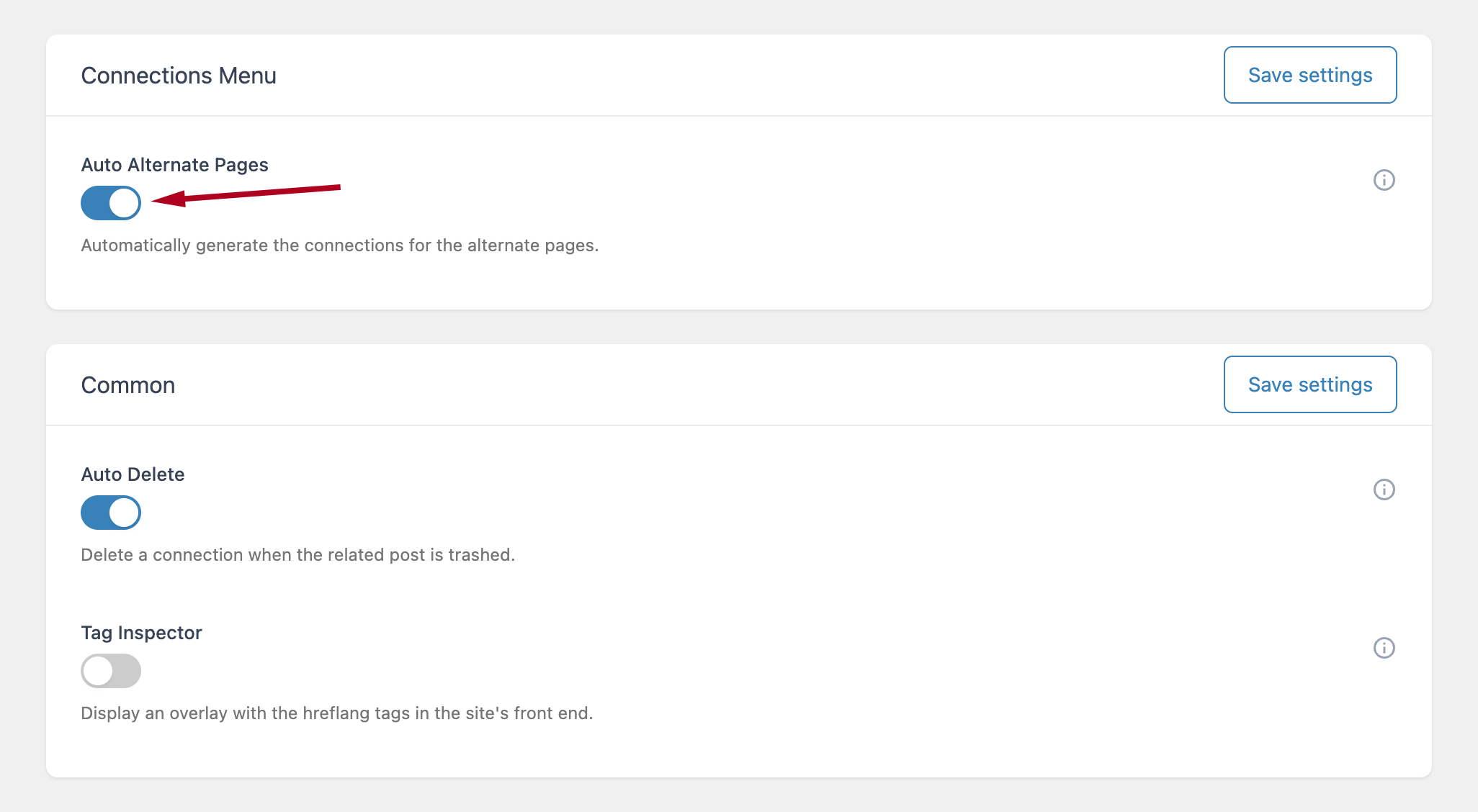
If the alternate pages are hosted on the same WordPress site, the plugin also provides an option to automatically generate the connections for the alternate pages. When the Auto Alternate Pages option is enabled, creating a single connection in the Connections screen will cause the plugin to automatically create the matching connections for all detected alternate versions.
To enable this feature, open the plugin settings, go to the General section, and activate the Auto Alternate Pages toggle.
Tutorial 2: Connect Two Pages on Different Website
This is also a common multilingual scenario, connecting a translated page across different WordPress sites.
Example:
- English:
https://example.com/how-to-improve-seo/ - French:
https://example.com/fr/comment-ameliorer-le-seo/(on a separate WordPress site)
Step 1 — Configure the English Post
On the English site dashboard, create a new connection for the English page and configure its two alternate pages.
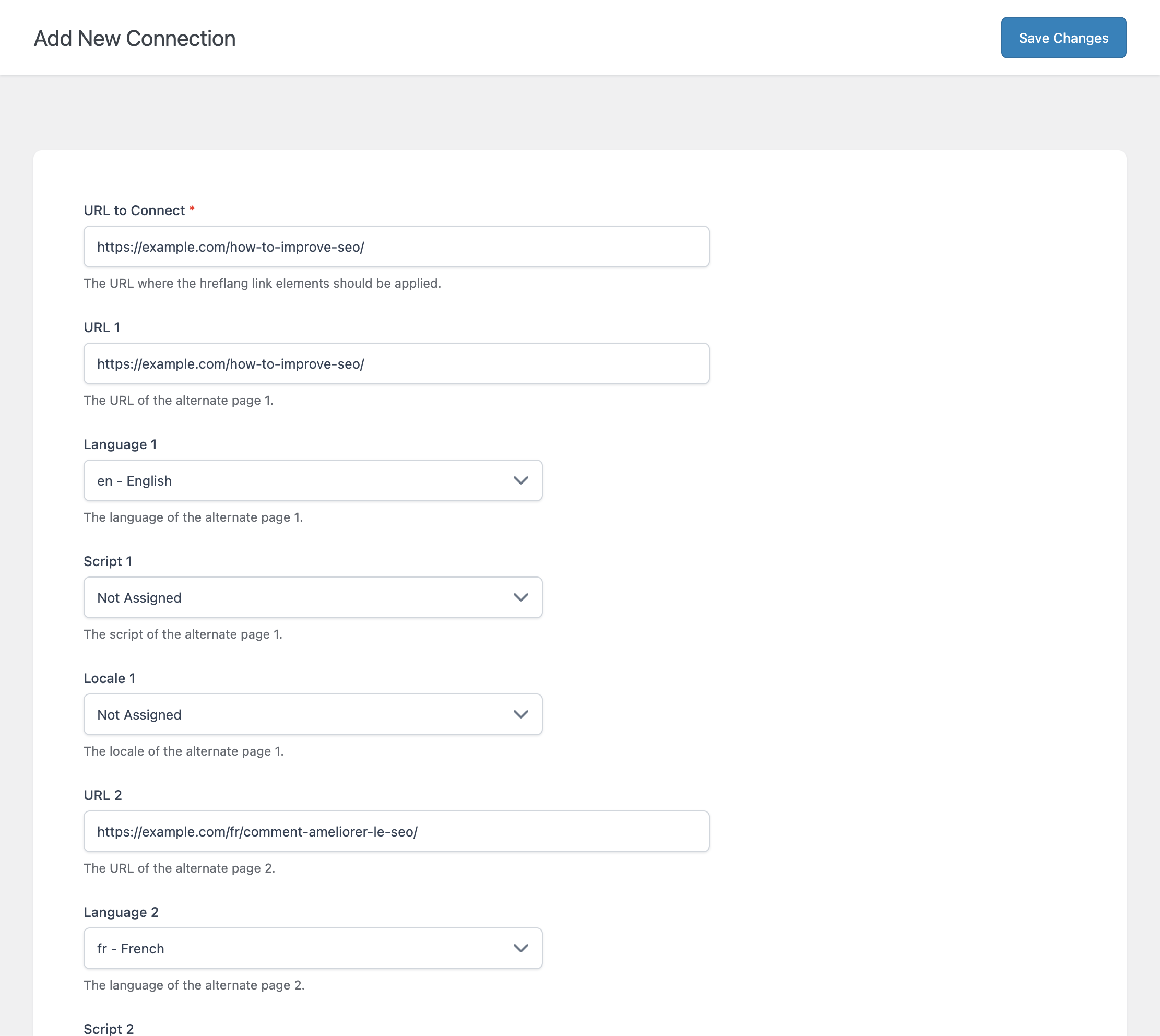
Step 2 — Configure the French Post
On the French site dashboard, create a new connection for the French page and configure the same two alternate pages.
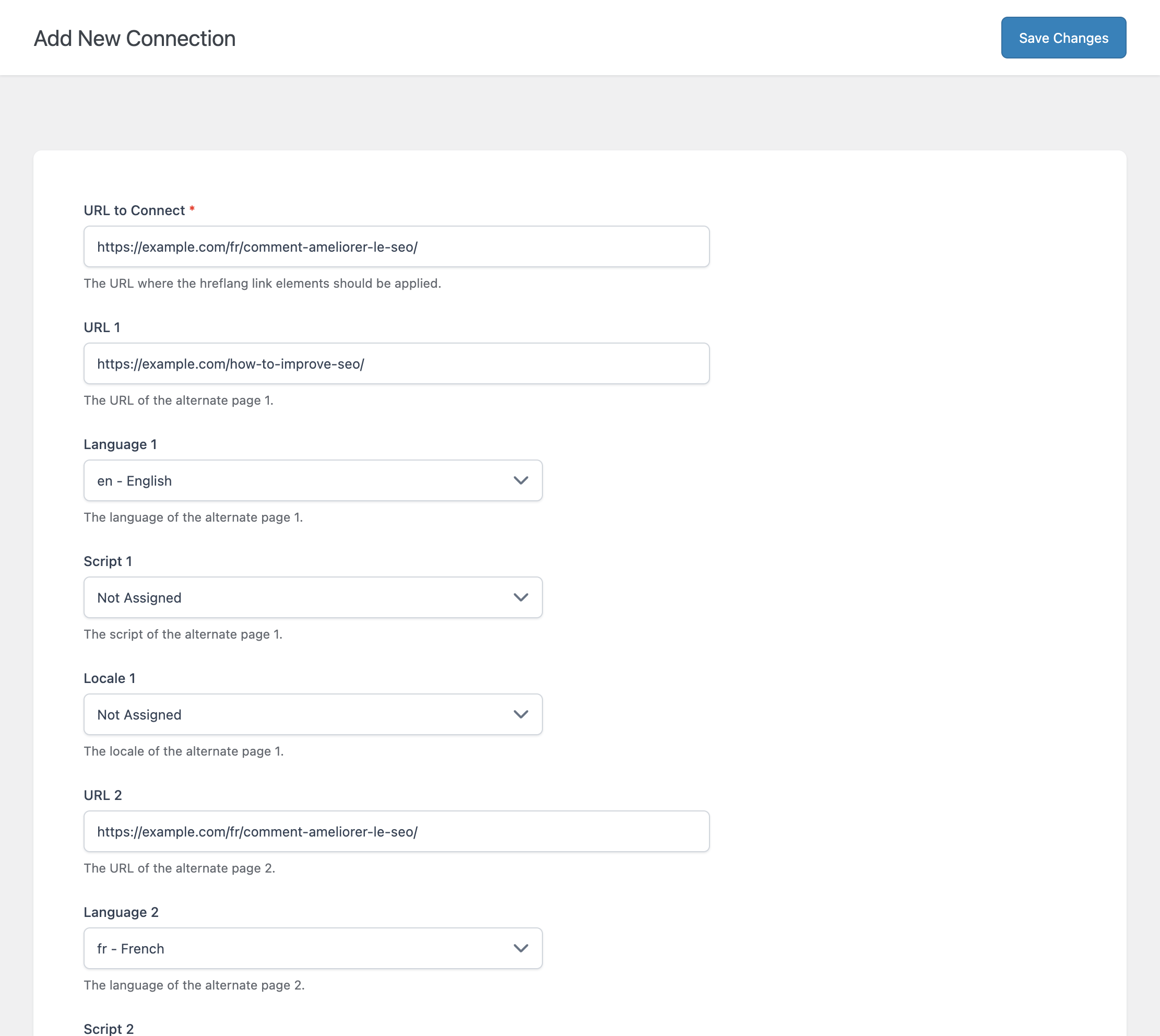
Tip: Instead of manually creating the connection for the French site, you can use the Sync feature or the Import/Export tools to transfer hreflang connections between sites. This recommendation also applies when working with multiple subsites inside a WordPress multisite/network. The Sync and Import/Export features provide a more efficient way to replicate connections across different installations or subsites.