Importing and Exporting Hreflang Data
The Hreflang Manager plugin provides tools to import and export the hreflang connections stored in your WordPress installation. These features allow you to create backups, move hreflang configurations between staging and production environments, or speed up the initial configuration of multiple sites in a network.
Creating Backup and Restoring Backups
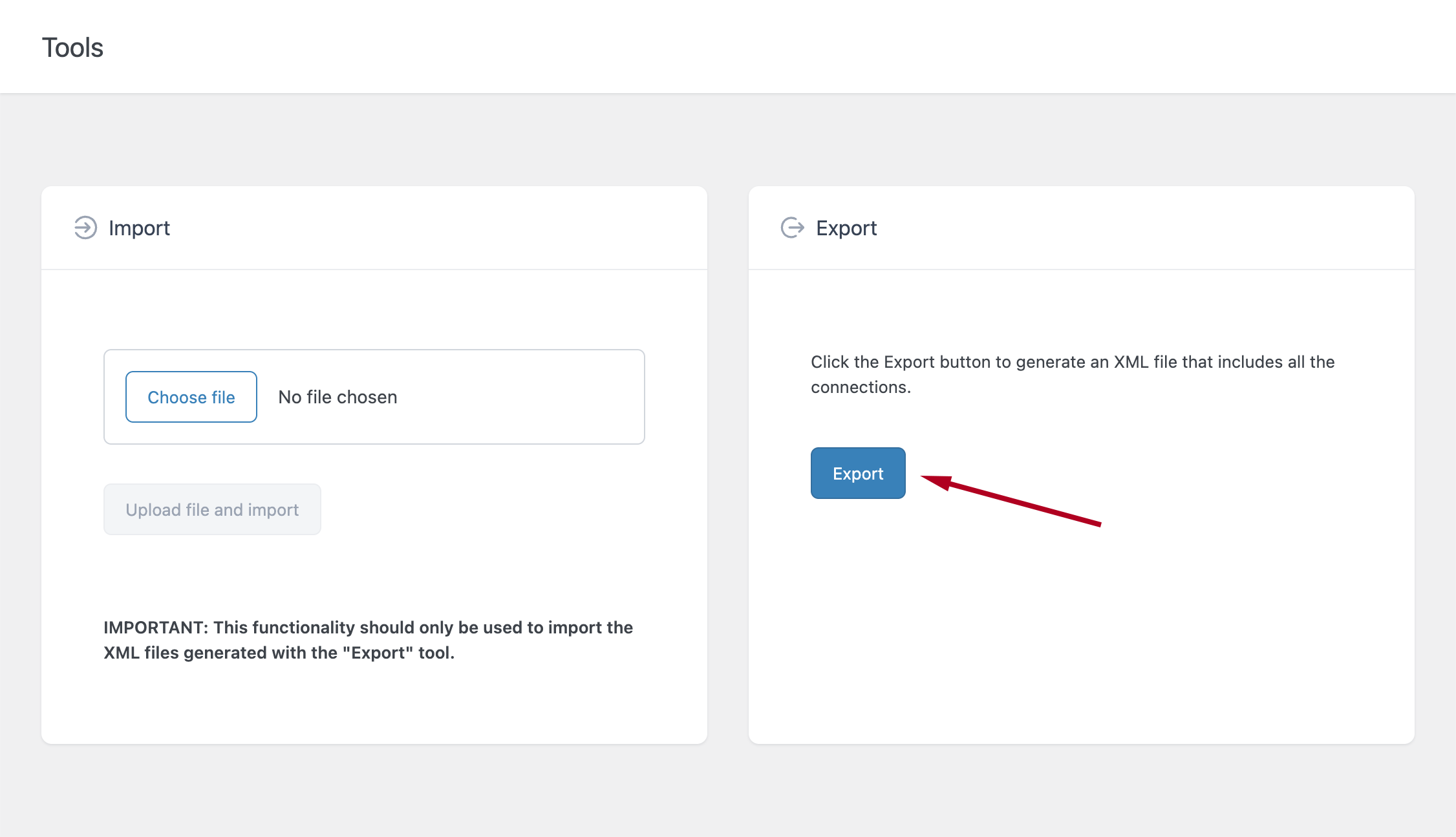
Creating a backup of your hreflang data is simple. Go to the Tools menu of the site for which you want to create the backup and click Export. The plugin will generate and download an XML file containing all connection data stored in that site.
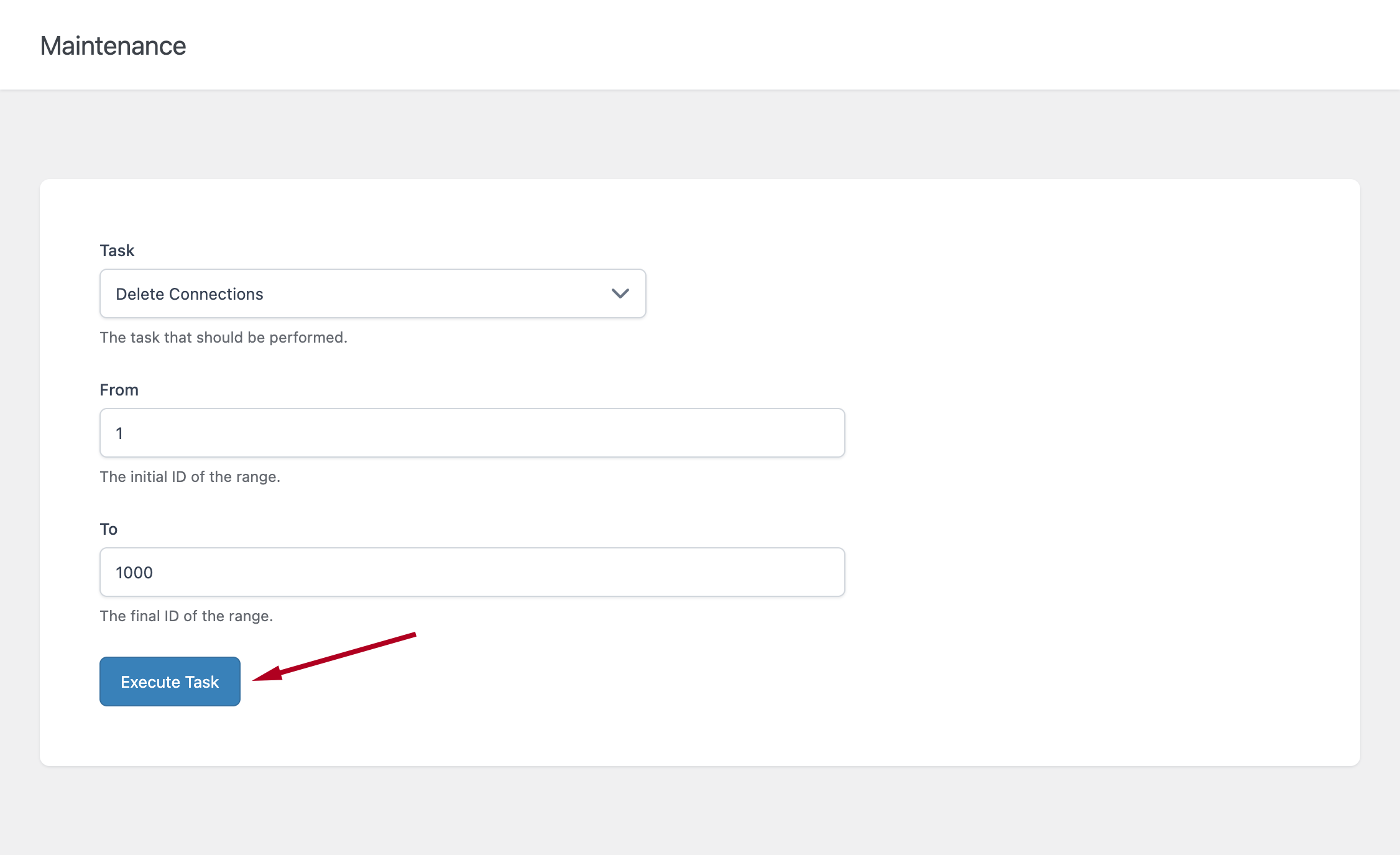
When you need to restore the data from this backup, begin by deleting the existing connections. Go to Maintenance → Delete Connections and select an interval large enough to cover all existing entries.
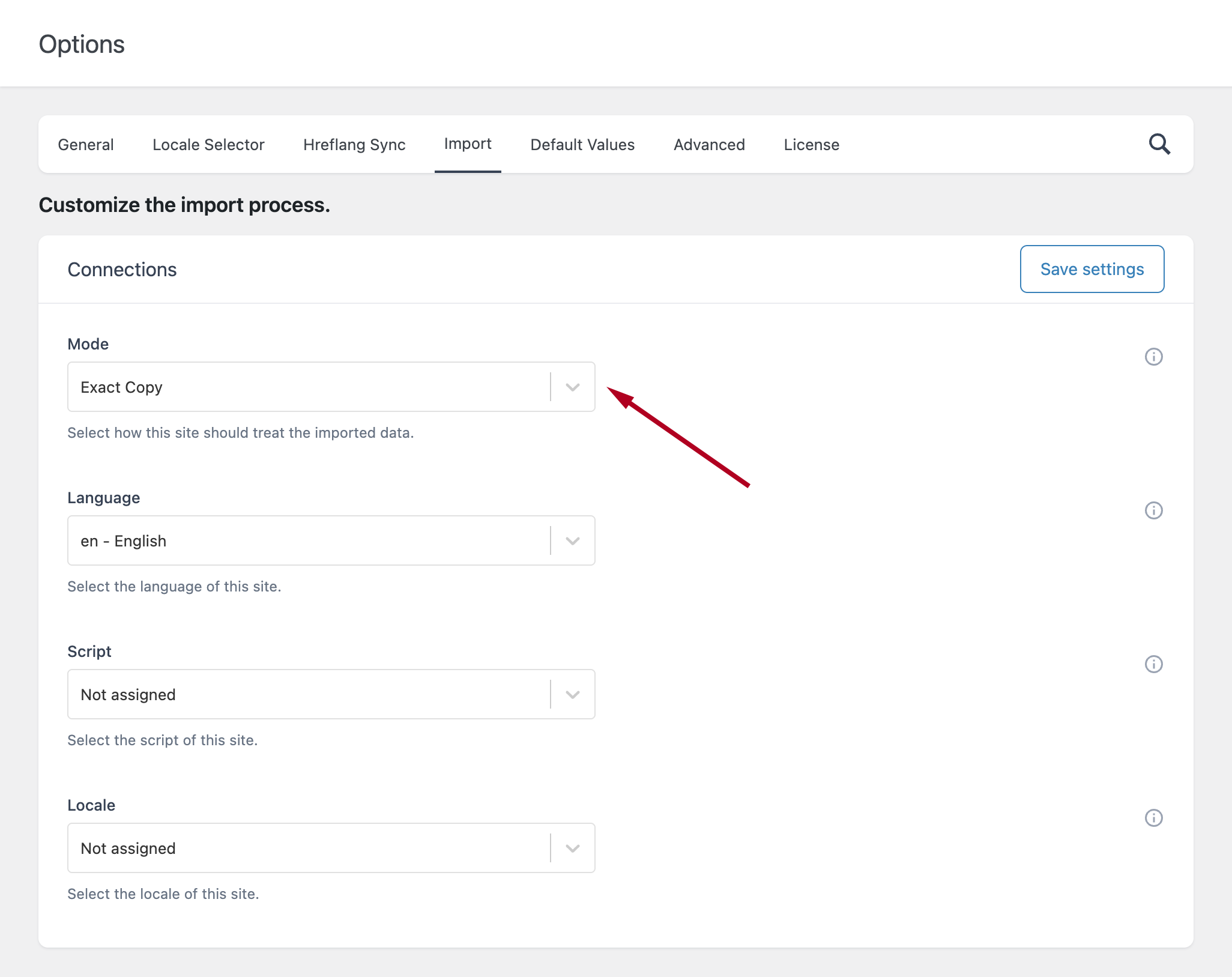
Before importing the backup, ensure that the Import Mode option in Hreflang → Options is set to “Exact Copy.” This ensures that the importer creates exact duplicates of the data in the XML file without modifying URLs or locale values.
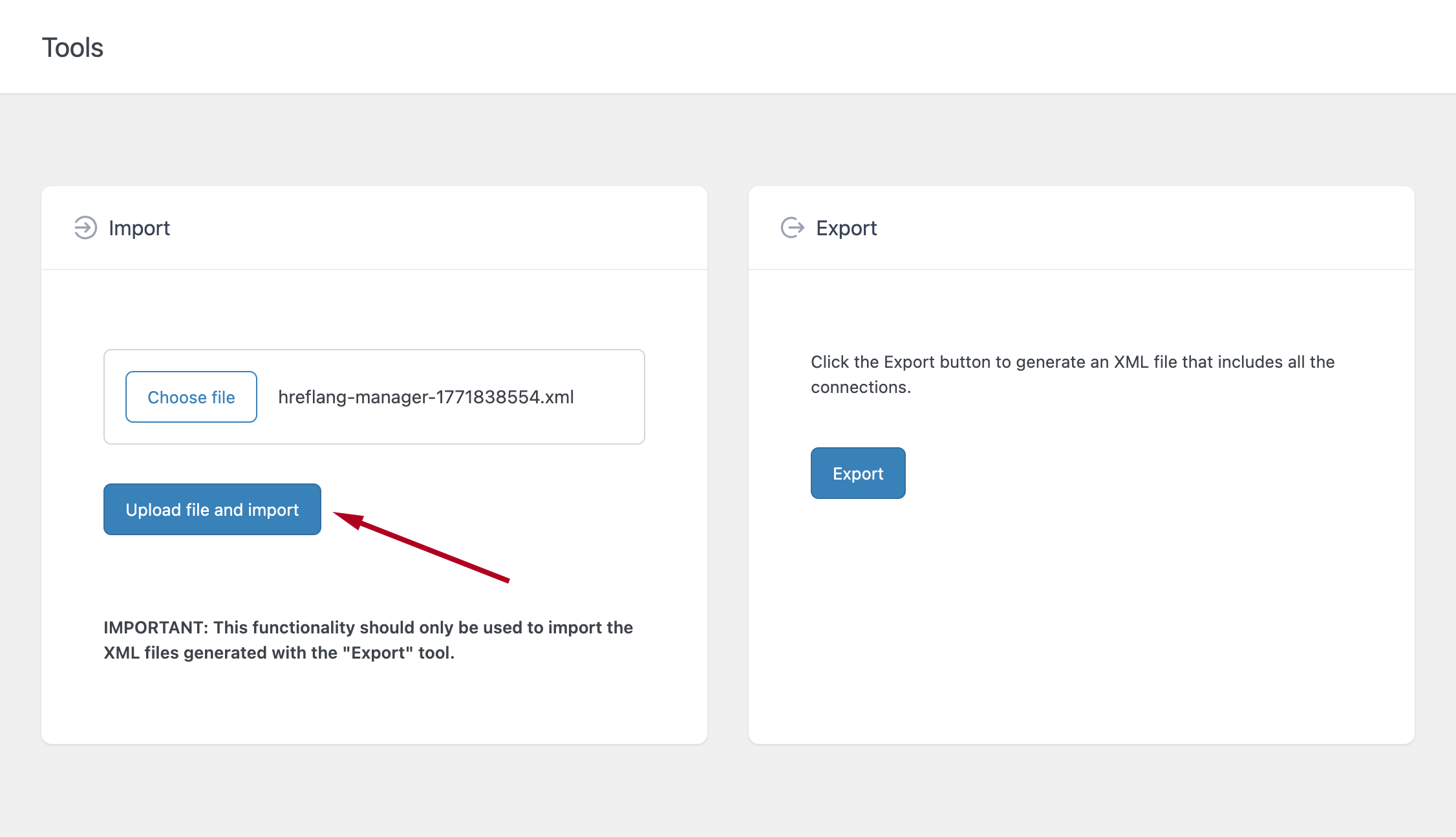
Once this option is set, go to Tools → Import, upload the XML file, and complete the import process.
Creating Exact Copies for Staging-To-Production Moves
When moving hreflang data from a staging site to a production site, the process is nearly identical to restoring a backup.
- On the staging site, visit Tools → Export and download the XML file.
- On the production site, verify that Import Mode is set to “Exact Copy.”
- Go to Tools → Import and upload the XML file.
Important: This method assumes that the connections created on the staging site already contain the production URLs in the “URL to Connect” field and in the URLs of the alternate pages. If the staging URLs are still present in those fields, you will need to adjust and replace them after import to ensure correct hreflang output on the production site.
Moving Connections Between the Sites of Your Network
This section explains how to move connections manually between sites in your network. You can use this approach when you have added hreflang data on one site and want to configure the same connections on the other sites.
Note that this method is an alternative to enabling the Hreflang Sync feature, which is recommended in most cases. Manual import is suitable only for sites that do not change frequently, since any update to hreflang data would need to be manually applied to each site.
In this example, assume the network includes two sites: a source site (the site from which you export hreflang connections) and a destination site (the site where you import them and where URLs must adapt to the destination site’s structure and locale).
Procedure
Go to the Connections menu in the source site and note the total number of connections.
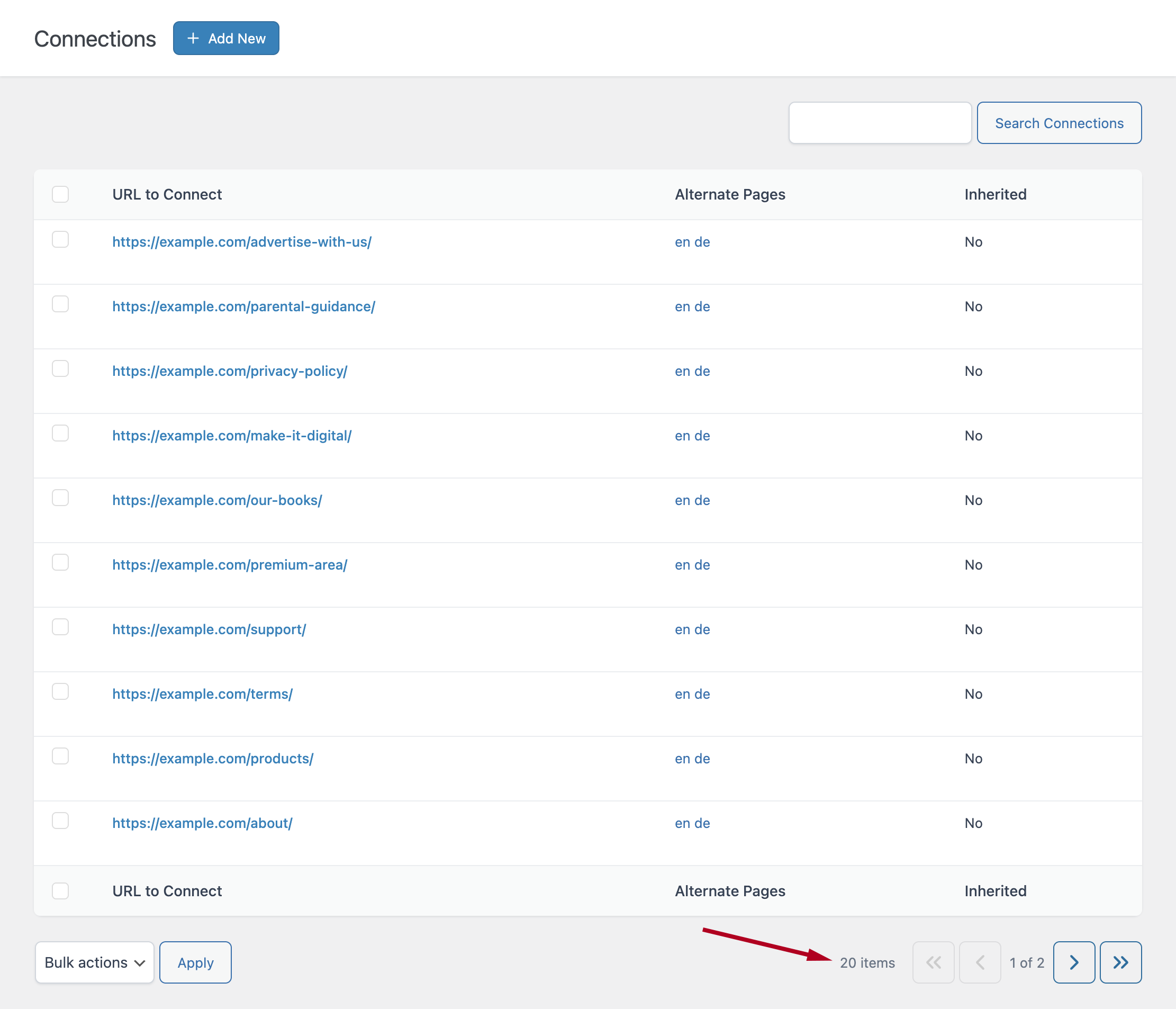
Go to Tools → Export on the source site and download the XML file.
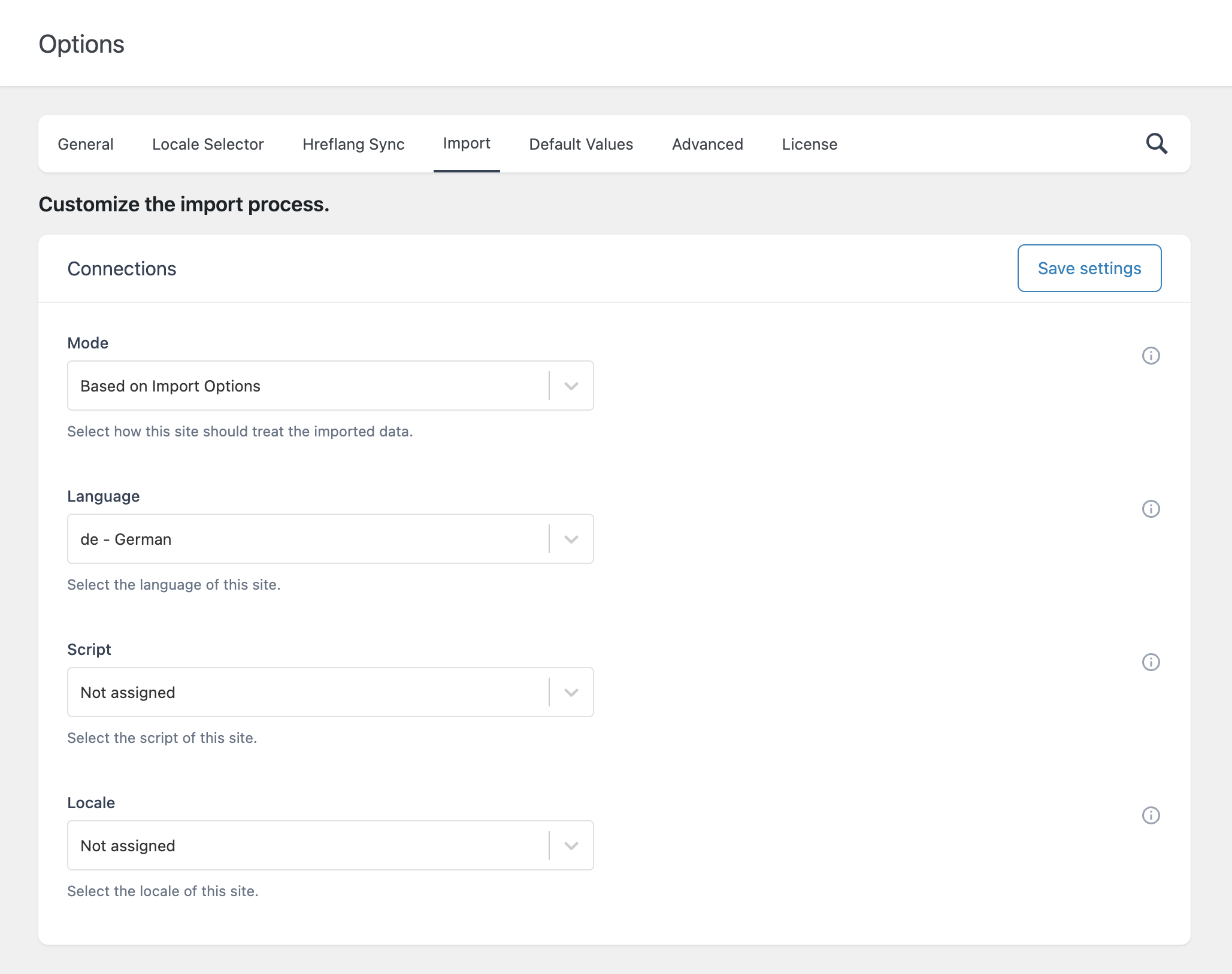
Switch to the destination site and go to Hreflang → Options. Since we do not want an exact copy (the “URL to Connect” must follow the destination site’s URL structure), adjust the following settings:
- Mode: set to “Based on Import Options”
- Language: set to the language of the destination site. For example, if the source site is in English and the destination site is in German, set this option to “German”.
- Script: set to the script of the destination site or leave it to “Not assigned” if the script is not used in this destination site.
- Locale: set to the language of the destination site or leave it to “Not assigned” if the locale is not used in this destination site.
- Click Save settings.
Go to Tools → Import, upload the XML exported from the source site, and complete the import.
Open the Connections menu on the destination site. The connections have now been imported using the destination site’s own URL structure and locale settings, no additional manual configuration required.