Mass Import Hreflang Data From a Spreadsheet
The Bulk Import menu allows you to import large amounts of hreflang data directly from a spreadsheet.
This is useful if:
- You prefer preparing your hreflang data in a spreadsheet.
- You already have data exported from other plugins or external platforms.
- You need to migrate or reorganize hreflang connections in bulk.
The Import Process
Follow the steps below to import hreflang data from a spreadsheet:
1. Start With an Empty Connections Table
The plugin does not delete existing connections when you submit a new bulk import.
If your goal is to start from zero, check the Connections menu to ensure no data is present. If needed, you can remove all existing connections using the Maintenance → Delete Connections task.
If you intend to add new hreflang connections without removing old ones, you may skip this step.
2. Prepare Your Spreadsheet
Format your spreadsheet according to the structure shown in the example below.
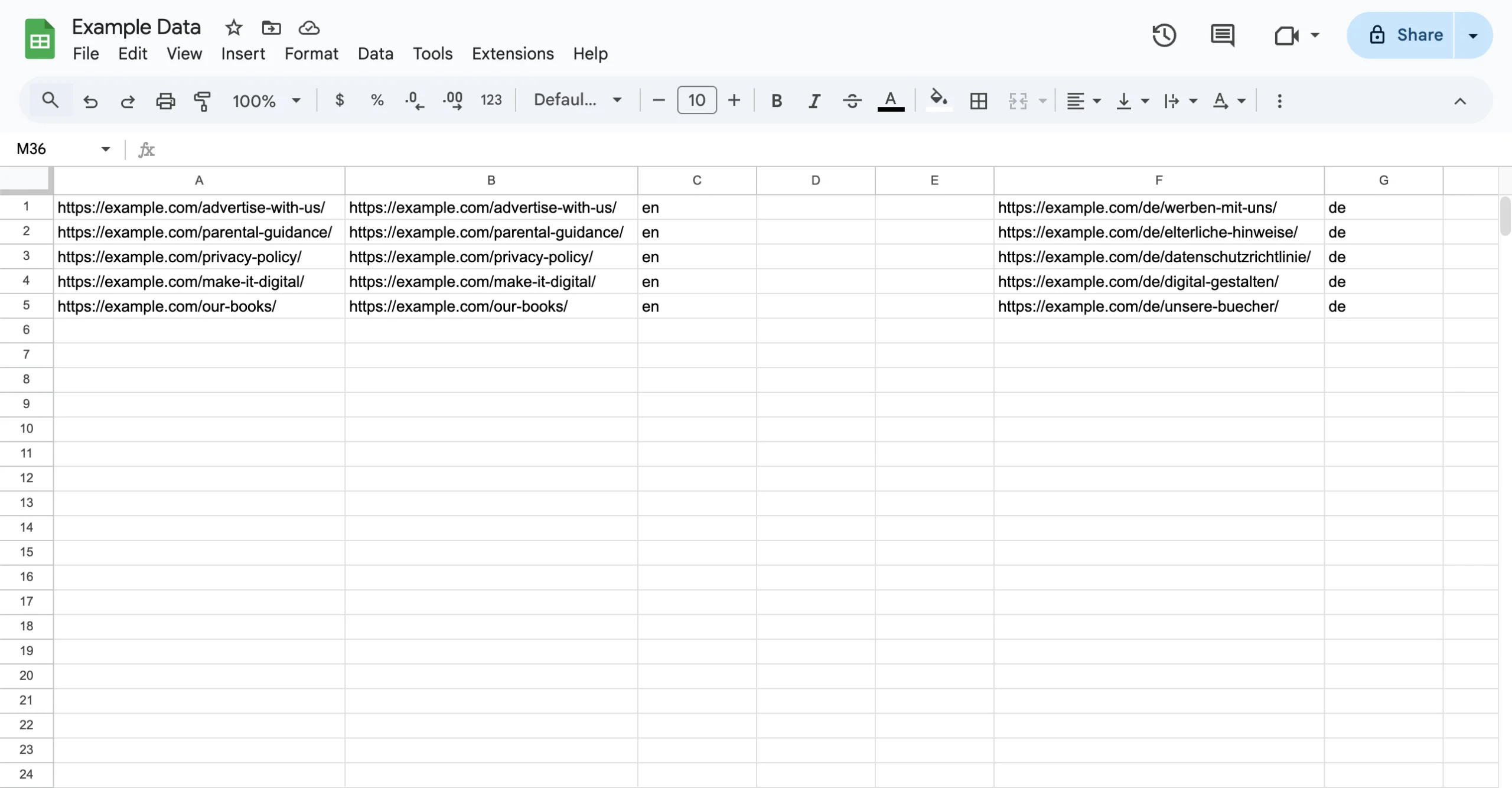
Notes:
- You may use any spreadsheet application (Excel, Google Sheets, LibreOffice, etc.). The file format does not matter because the plugin imports data from the clipboard, not from an uploaded file.
- In this example, the columns used for assigning script and locale values are left empty (column D, column E, etc.). If your implementation requires these values, simply fill them in according to your hreflang setup.
- When you assign values to the language, script, and locale columns, make sure to use the correct ISO codes: ISO 639‑1 for languages, ISO 15924 for scripts, and ISO 3166‑1 alpha‑2 for locales.
3. Copy the Data to Your Clipboard
Select the relevant cells in your spreadsheet and copy them using:
- Ctrl + C (Windows/Linux)
- Command + C (macOS)
4. Paste the Data in the Bulk Import Screen
Go to Hreflang Manager → Bulk Import and paste the copied data into the embedded spreadsheet editor.
Paste starting from the top-left cell using:
- Ctrl + V (Windows/Linux)
- Command + V (macOS)
5. Generate the Connections
Click the Generate Connections button to process the pasted data and create the corresponding hreflang connections.
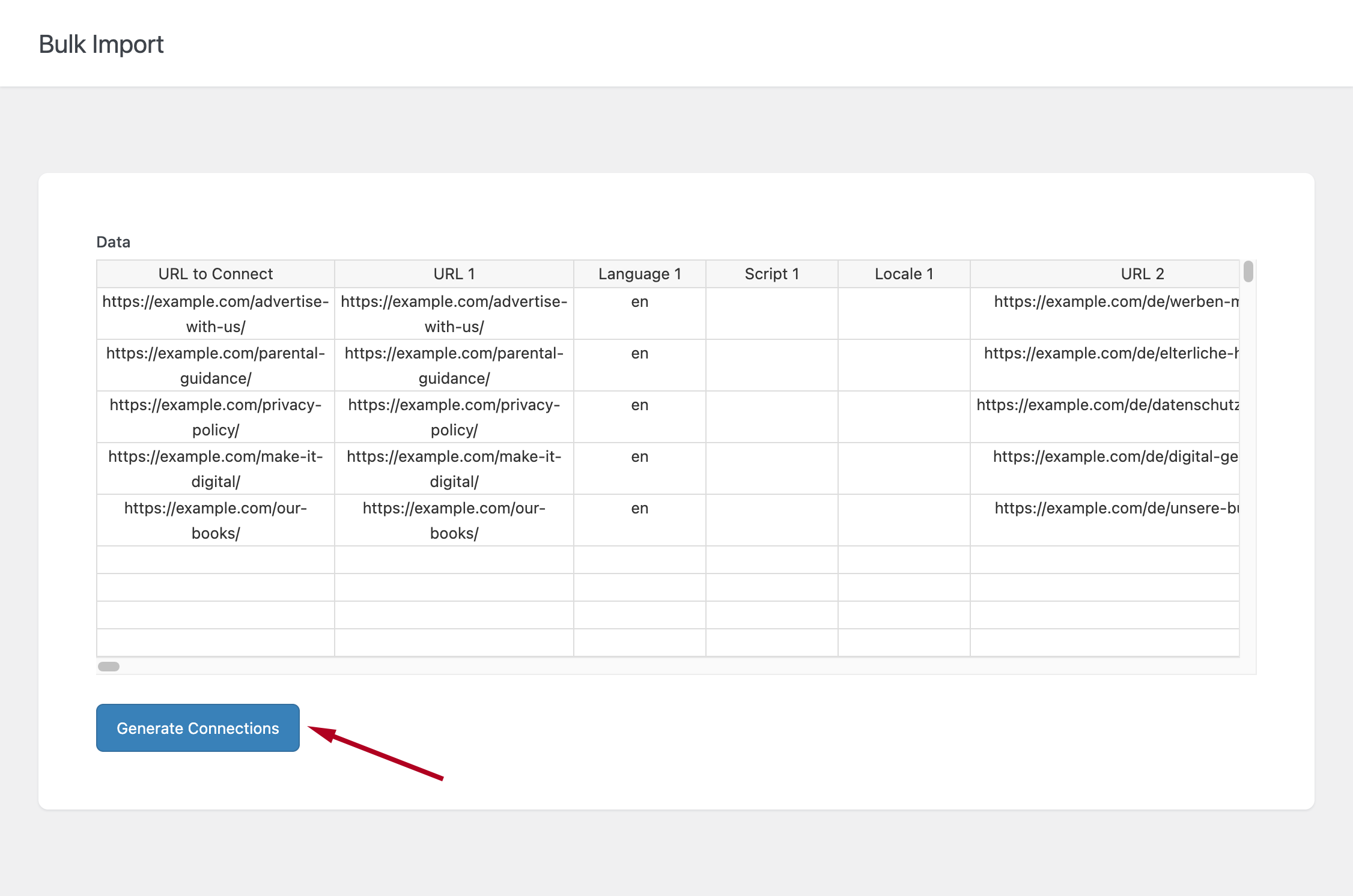
You can now review the generated connections in the Connections menu.
How Validation Works
When you click Generate Connections, the plugin validates each row of your imported data.
Examples of invalid data include:
- Incorrect or non-standard ISO language codes
- Invalid script or region codes
- Missing required fields
If any rows fail validation, the total number of connections created will be lower than the total number of rows in your spreadsheet.
Bulk Import Limits
A single bulk import operation is limited to 10,000 rows.
This limit is in place because importing more than 10,000 rows at once may exceed memory limits in many typical WordPress hosting environments, causing the import to fail.
If you need to import more than 10,000 connections:
- Split your spreadsheet into multiple batches.
- Perform several bulk imports of up to 10,000 rows each.