Configuring the Cookie Notice
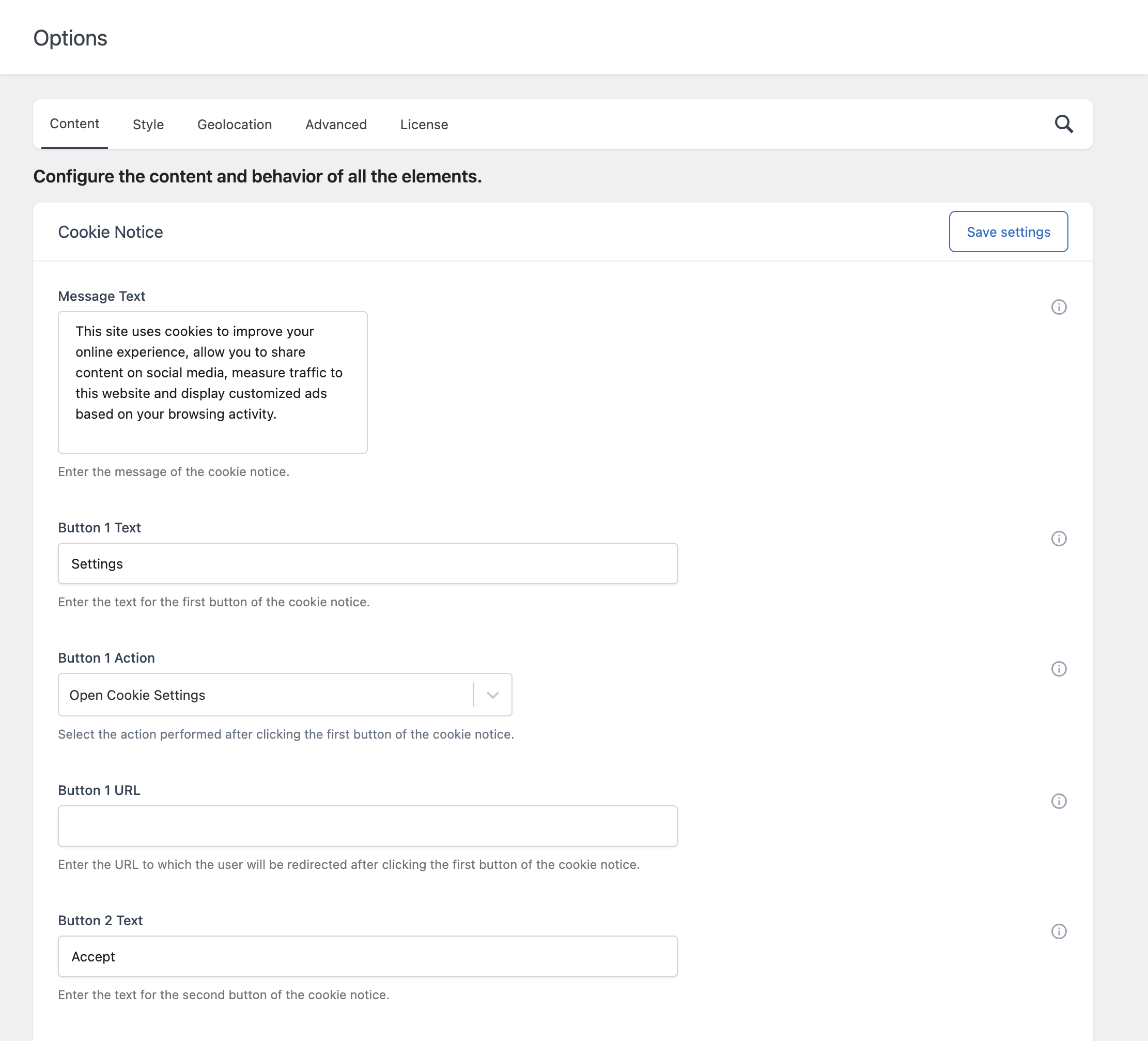
The cookie notice is the banner displayed to visitors who have not made a choice yet. This article explains how to set its text, buttons, position, and mask.
The content options are in Cookie Notice → Options → Content → Cookie Notice. Position and mask are in the Style tab.
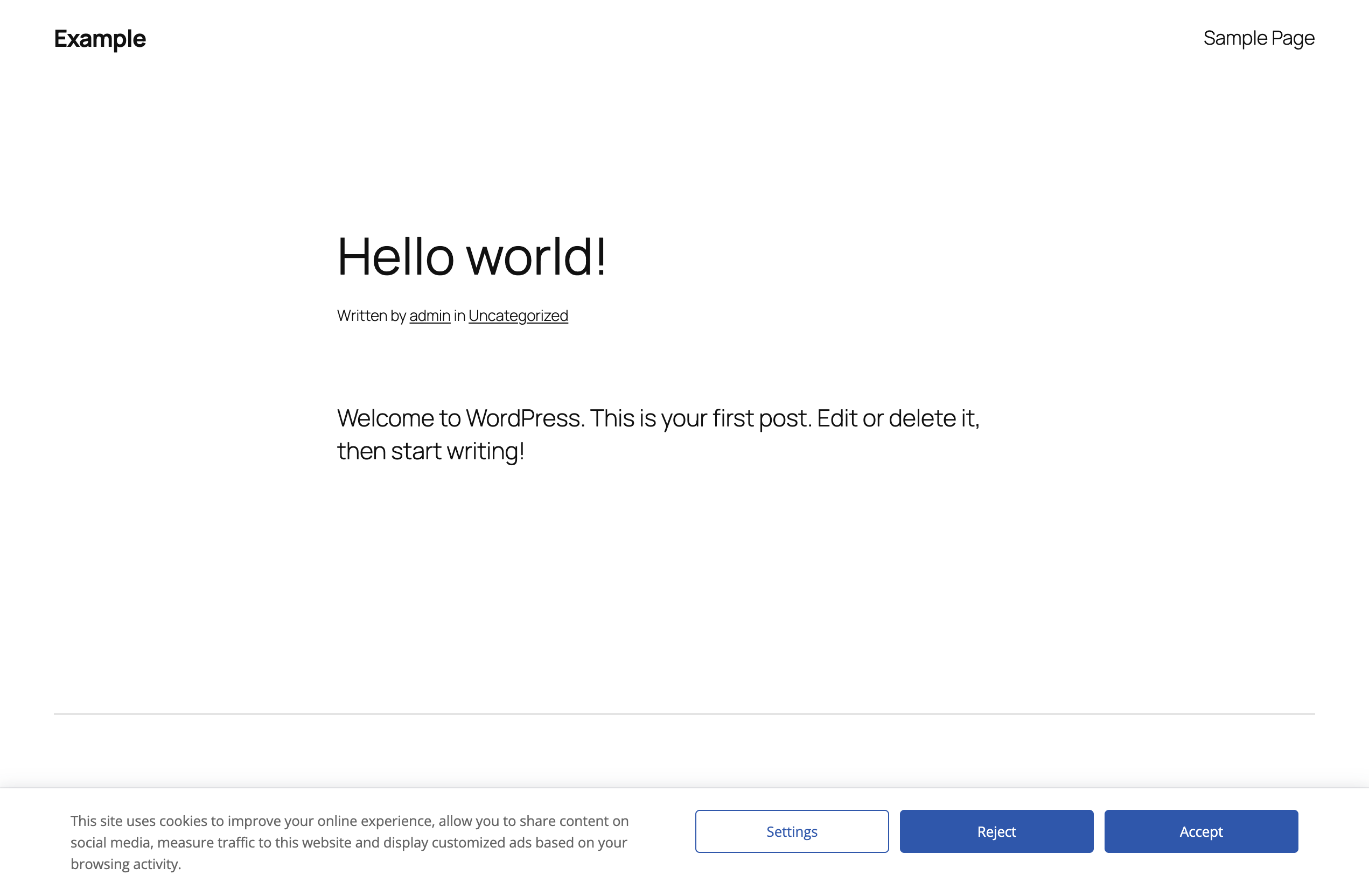
Message
Enter the text of the notice in Message Text.
The message accepts these HTML tags: p, a, strong, br, ol, ul, li. Other tags are removed when you save.
Example with a link to the privacy policy:
We use cookies to analyze our traffic. Read our <a href="https://example.com/privacy-policy/">privacy policy</a>.Buttons
The notice can display up to three buttons and a dismiss button. Each button has three options:
| Option | Description |
|---|---|
| Button 1 Text, Button 2 Text, Button 3 Text | The label of the button. |
| Button 1 Action, Button 2 Action, Button 3 Action | What happens when the button is clicked. |
| Button 1 URL, Button 2 URL, Button 3 URL | The destination URL. Used only when the action is Redirect to URL. |
A button is displayed only when its action is different from Disabled. To remove a button from the notice, set its action to Disabled.
With the default settings, Button 1 is “Settings” (action Open Cookie Settings), Button 2 is “Accept” (action Accept Cookies), and Button 3 is disabled.
The available actions are:
| Action | Result |
|---|---|
| Disabled | The button is not displayed. |
| Open Cookie Settings | Opens the cookie settings window. |
| Accept Cookies | Saves the current state of the categories and closes the notice. |
| Close Cookie Notice | Closes the notice for the current page view only. |
| Redirect to URL | Sends the visitor to the URL entered in the related URL option. |
| Accept All Cookies | Enables all categories, saves, and closes the notice. |
| Reject All Cookies | Disables all categories, saves, and closes the notice. |
The actions are explained in detail, with examples, in Understanding Button Actions.
Dismiss button
The dismiss button is a small close icon displayed in the notice. It is disabled by default.
- Dismiss Button Action sets what happens when the icon is clicked. The available actions are the same as for the other buttons.
- Dismiss Button URL is used only when the action is Redirect to URL.
Choose the action of the dismiss button with care. If you set it to Close Cookie Notice, the notice is displayed again on the next page. If you set it to Reject All Cookies, closing the notice counts as a rejection and the notice is not displayed again.
Common button layouts
Accept only (informative notice)
| Button | Text | Action |
|---|---|---|
| Button 1 | Read more | Open Cookie Settings |
| Button 2 | Accept | Accept Cookies |
Accept and reject
| Button | Text | Action |
|---|---|---|
| Button 1 | Reject | Reject All Cookies |
| Button 2 | Accept | Accept All Cookies |
Settings, reject, and accept
| Button | Text | Action |
|---|---|---|
| Button 1 | Settings | Open Cookie Settings |
| Button 2 | Reject | Reject All Cookies |
| Button 3 | Accept | Accept All Cookies |
Link to a cookie policy page instead of the settings window
| Button | Text | Action | URL |
|---|---|---|---|
| Button 1 | Cookie policy | Redirect to URL | https://example.com/cookie-policy/ |
| Button 2 | Accept | Accept Cookies |
Position
Go to Options → Style → Cookie Notice and set Container Position:
- Top: the notice is displayed at the top of the screen.
- Center: the notice is displayed in the middle of the screen.
- Bottom: the notice is displayed at the bottom of the screen. This is the default.
Wrapper Width sets the maximum width of the notice content in pixels.
Mask and shake effect
The mask is a semi-transparent layer displayed over the page behind the notice. While the mask is displayed, visitors cannot interact with the page until they click one of the notice buttons.
- Go to Options → Style → Cookie Notice.
- Turn on Mask.
- Set Mask Color and Mask Opacity.
With the mask on, you can also turn on Shake Effect in Options → Content → Cookie Notice. When a visitor clicks on the mask, the notice shakes to draw attention. The shake effect works only when the mask is enabled.
Mobile layout
On small screens the notice switches to a mobile layout. The switch happens when the browser width goes below the value of Responsive Breakpoint in Options → Advanced → Content (default: 700 pixels).
Who sees the notice
The notice is displayed to every visitor who has not made a choice, with these exceptions:
- With Test Mode on (Options → Advanced → Behavior), only site administrators see the notice.
- With Geolocation on, the notice is displayed only to visitors from the selected countries. See Showing the Notice Only in Selected Countries.
After a visitor clicks a button with an accept or reject action, the notice is not displayed again until the saved choice expires (see Expiration in Advanced Settings Reference) or the visitor clicks the revisit consent button.