Creating Sections and Categories
This article explains how to create sections and categories and describes every field of the two forms. If you are not sure what sections and categories are, read How Sections, Categories and Cookies Work Together first.
Create a section
- Go to Cookie Notice → Sections.
- Click Add New.
- Fill in the fields described below.
- Click Save Changes.
| Field | Description |
|---|---|
| Name | The name of the section, displayed in the cookie settings window. Required, up to 100 characters. |
| Description | The description of the section, displayed in the cookie settings window when the section is expanded. Required, up to 255 characters. |
| Priority | A value from 0 to 100, in the Advanced part of the form. It sets the position of the section in the cookie settings window. |
In the cookie settings window, the sections are displayed from the lowest to the highest Priority. Sections with the same priority are displayed in the order in which they were created.
A section is displayed in the cookie settings window only when at least one category is assigned to it.
Create a category
- Go to Cookie Notice → Categories.
- Click Add New.
- Fill in the fields described below.
- Click Save Changes.
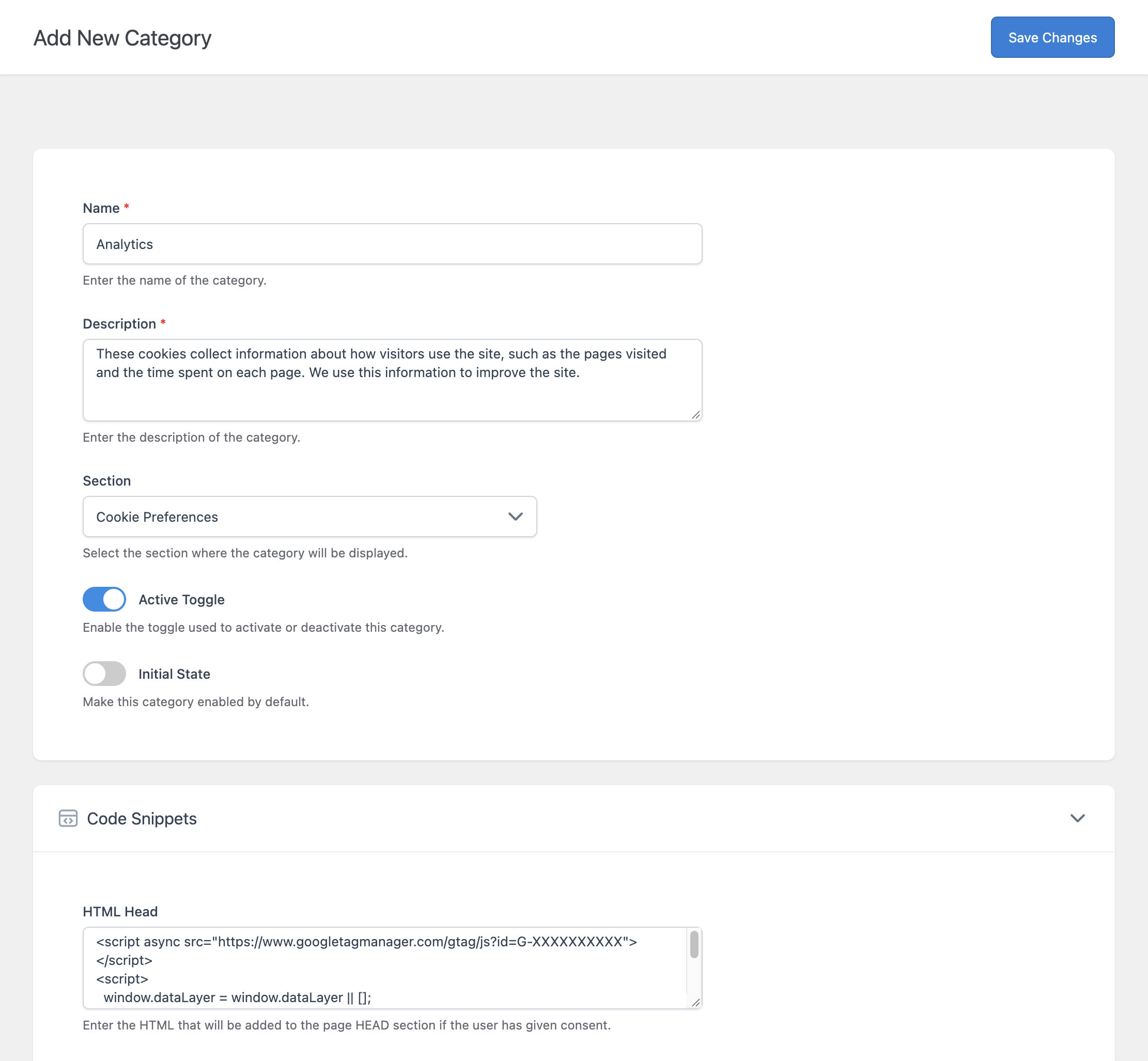
Main
| Field | Description |
|---|---|
| Name | The name of the category, displayed in the cookie settings window. Required, up to 100 characters. |
| Description | The description of the category, displayed when the visitor expands the category. Required. |
| Section | The section where the category is displayed. Select a section. A category with “None” selected is not displayed and its scripts are never added. |
| Active Toggle | When on, visitors can enable or disable the category with its toggle. When off, the toggle is disabled and the category always keeps its initial state. |
| Initial State | The state of the category before the visitor makes a choice. On means enabled by default, off means disabled by default. |
Code Snippets
| Field | Description |
|---|---|
| HTML Head | HTML added to the <head> section of the page for the visitors who have this category enabled. |
| HTML Body | HTML added at the end of the <body> section of the page for the visitors who have this category enabled. |
| Accept Cookies Script (Pro) | JavaScript code executed at the moment the visitor clicks a button with an accept action, if this category is enabled. |
These fields are explained with examples in Running Scripts Based on Visitor Consent.
Advanced
| Field | Description |
|---|---|
| Consent Mode Parameters (Pro) | The Google consent mode parameters granted when the visitor enables this category. See Setting Up Google Consent Mode. |
| Priority | A value from 0 to 100. Inside a section, the categories are displayed from the lowest to the highest priority. |
Active Toggle and Initial State combinations
| Active Toggle | Initial State | Result | Typical use |
|---|---|---|---|
| Off | On | Always enabled. Visitors cannot disable it. | Necessary cookies. |
| On | Off | Disabled until the visitor enables it (opt-in). | Analytics and marketing cookies where consent is required before use. |
| On | On | Enabled by default. Visitors can disable it (opt-out). | Categories that you are allowed to enable by default. |
| Off | Off | Always disabled. | Not useful. |
Which combination you may use for each type of cookie depends on the laws that apply to your site.
How Initial State interacts with the buttons: a button with the Accept Cookies action saves the categories in their current state. If the visitor did not change the toggles, the current state is the Initial State. With opt-in categories, use the Accept All Cookies action for your main accept button. See Understanding Button Actions.
Examples
Necessary
| Field | Value |
|---|---|
| Name | Necessary |
| Description | These cookies are required for the site to work and cannot be disabled. |
| Section | Cookies used on this site |
| Active Toggle | Off |
| Initial State | On |
| Priority | 0 |
Analytics
| Field | Value |
|---|---|
| Name | Analytics |
| Description | These cookies help us understand how visitors use the site. |
| Section | Cookies used on this site |
| Active Toggle | On |
| Initial State | Off |
| HTML Head | Your analytics script |
| Priority | 1 |
Marketing
| Field | Value |
|---|---|
| Name | Marketing |
| Description | These cookies are used to show you relevant advertising. |
| Section | Cookies used on this site |
| Active Toggle | On |
| Initial State | Off |
| HTML Head | Your advertising script |
| Priority | 2 |
With these priorities, the categories are displayed in the order Necessary, Analytics, Marketing.
Manage sections and categories
The Sections and Categories menus list the existing items.
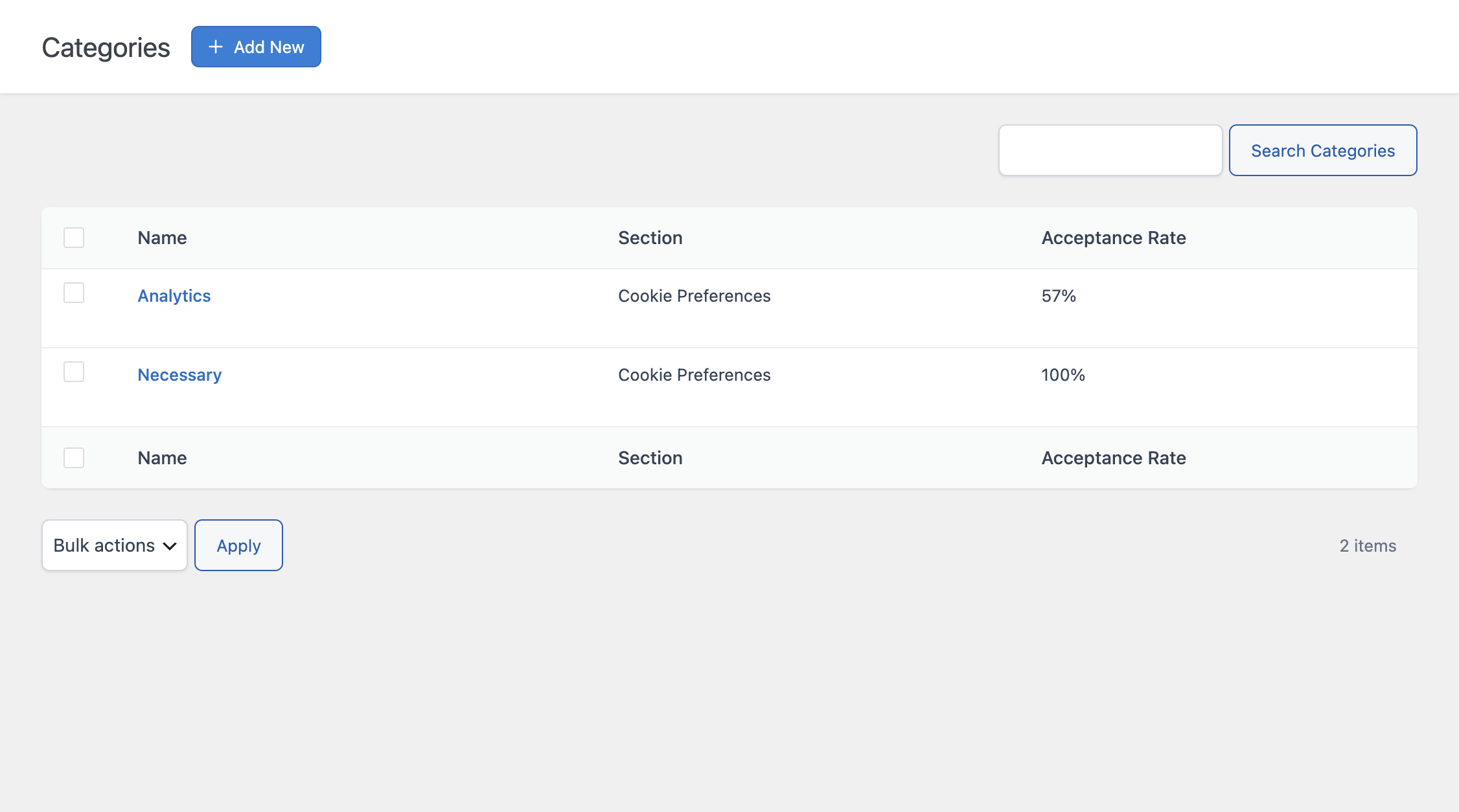
- Move the pointer over an item to display the Edit, Duplicate, and Delete links.
- Select several items and use Bulk actions to delete them together.
- Use the search field to filter the list.
The Categories list has an Acceptance Rate column. It shows how often the category was enabled in the consents of the Consent Log. It is calculated on the latest 5,000 records and refreshed about every 10 minutes.
Items that cannot be deleted
- A section assigned to one or more categories cannot be deleted. Assign the categories to another section first.
- A category assigned to one or more cookies cannot be deleted. Assign the cookies to another category first.
After you change a category
Visitors who already made a choice keep the choice saved in their browser. A new category is not part of that saved choice, so its scripts are not added for those visitors until they make a new choice (when the saved choice expires or when they revisit the consent).