Listing Your Cookies
In the Cookies menu you describe the cookies used on your site. The plugin displays them to your visitors, grouped by category, in the cookie settings window. In the Pro version you can also display them in a table inside your posts and pages.
Listing the cookies is optional. It does not change which scripts run. Its purpose is to inform visitors.
What the cookie list is used for
- Cookie settings window: each category displays a table with its cookies.
- Posts and pages (Pro): the Cookies block and the
[cookies]shortcode display a table of cookies. See Blocks and Shortcodes. - Revisit consent: when a visitor revisits the consent, the plugin tries to delete the listed cookies from the browser. See Letting Visitors Change Their Preferences.
The plugin does not detect the cookies of your site. You add each cookie yourself.
Find the cookies used on your site
- Open your site in a private browser window.
- Accept all the cookies in the cookie notice and browse a few pages.
- Open the developer tools of the browser. In Chrome: More tools → Developer tools → Application → Cookies.
- Take note of the name, domain, and expiration of each cookie.
For the purpose of each cookie, check the documentation of the service that sets it.
Add a cookie
- Go to Cookie Notice → Cookies.
- Click Add New.
- Fill in the fields described below.
- Click Save Changes.
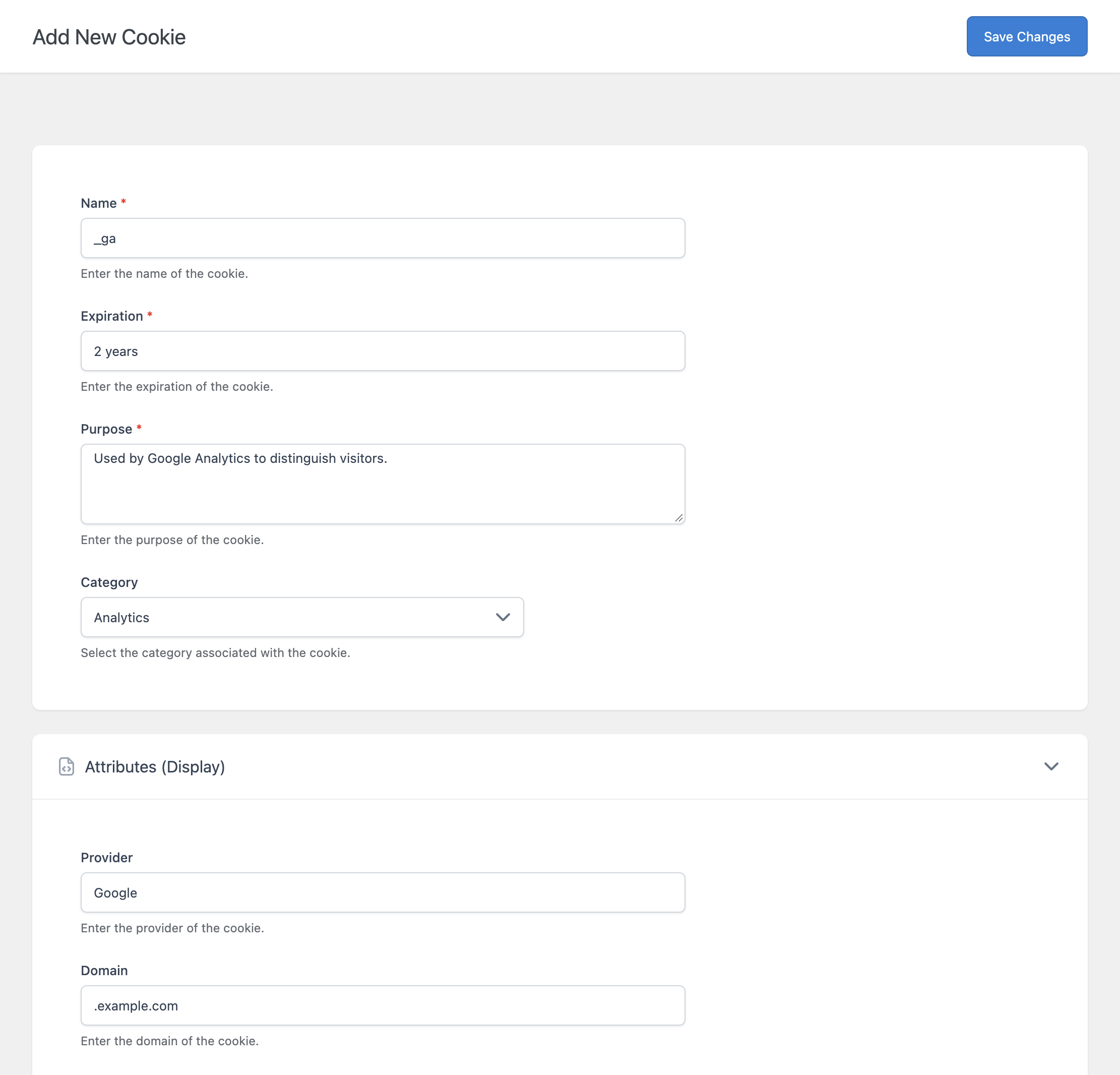
Main
| Field | Description |
|---|---|
| Name | The name of the cookie, for example _ga. Required. |
| Expiration | How long the cookie lasts, as free text. For example “2 years” or “Session”. Required. |
| Purpose | What the cookie is used for. Required. Accepts the HTML tags p, a, strong, br, ol, ul, li. |
| Category | The category the cookie belongs to. The cookie is displayed inside this category in the cookie settings window. |
Attributes (Display)
These fields are optional and are only displayed to visitors. Enter them as free text.
| Field | Description | Example |
|---|---|---|
| Provider | Who sets the cookie. | |
| Domain | The domain of the cookie. | .example.com |
| Type | The type of cookie. | HTTP cookie |
| Sensitivity | The sensitivity of the data stored. | Low |
| Security | The security attributes of the cookie. | Secure |
Attributes (Deletion)
These fields are used when the plugin deletes the cookie from the visitor’s browser: when the visitor revisits the consent and, in the Pro version, when the visitor clicks the Delete Cookies button. They are not displayed to visitors.
| Field | Description |
|---|---|
| Domain | The domain attribute of the cookie, used for the automatic deletion. When empty, no domain is used and the cookie of the current host is deleted. |
| Path | The path attribute of the cookie, used for the automatic deletion. When empty, the path / is used. |
Leave both fields empty for cookies set on the same host as your site with the path /.
A browser deletes a cookie only when the domain and the path of the request match the ones the cookie was set with. For a cookie set for the whole domain, enter that domain in Domain. For example, the _ga cookie of Google Analytics is normally set for .example.com, so enter .example.com.
Both fields are applied in the free version from version 1.23 and in the Pro version from version 1.56.
When the visitor revisits the consent, the listed cookies are deleted only if at least one category is assigned to a section.
Advanced
| Field | Description |
|---|---|
| Priority | A value from 0 to 100. In the cookie settings window, the cookies of a category are displayed from the highest to the lowest priority. |
Example
| Field | Value |
|---|---|
| Name | _ga |
| Expiration | 2 years |
| Purpose | Used by Google Analytics to distinguish visitors. |
| Category | Analytics |
| Provider | |
| Domain | .example.com |
| Domain (in Attributes — Deletion) | .example.com |
Choose the columns of the cookie table
The table of cookies does not display all the fields. To choose the columns:
- Go to Cookie Notice → Options → Advanced.
- In the Content section, find Cookie Table Columns.
- Select the columns to display: Name, Expiration, Purpose, Provider, Domain, Type, Sensitivity, Security.
- Click Save settings.
By default the table displays Name, Expiration, and Purpose.
The same columns are used in the cookie settings window and in the tables generated by the Cookies block and shortcode (Pro).
[IMAGE] A category expanded in the cookie settings window on the front end, with the table of its cookies.
Keep the number of columns low. The cookie settings window is narrow, especially on phones, and a table with many columns is hard to read.
Cookies without a category
A cookie with Category set to “None” is not displayed in the cookie settings window. In the Pro version it is still displayed by the Cookies block and shortcode when no category is selected.
Manage cookies
The Cookies menu lists the existing cookies. Each item has Edit, Duplicate, and Delete links. Duplicate is useful to add similar cookies quickly, for example _ga and _ga_XXXXXXXXXX.