How Sections, Categories and Cookies Work Together
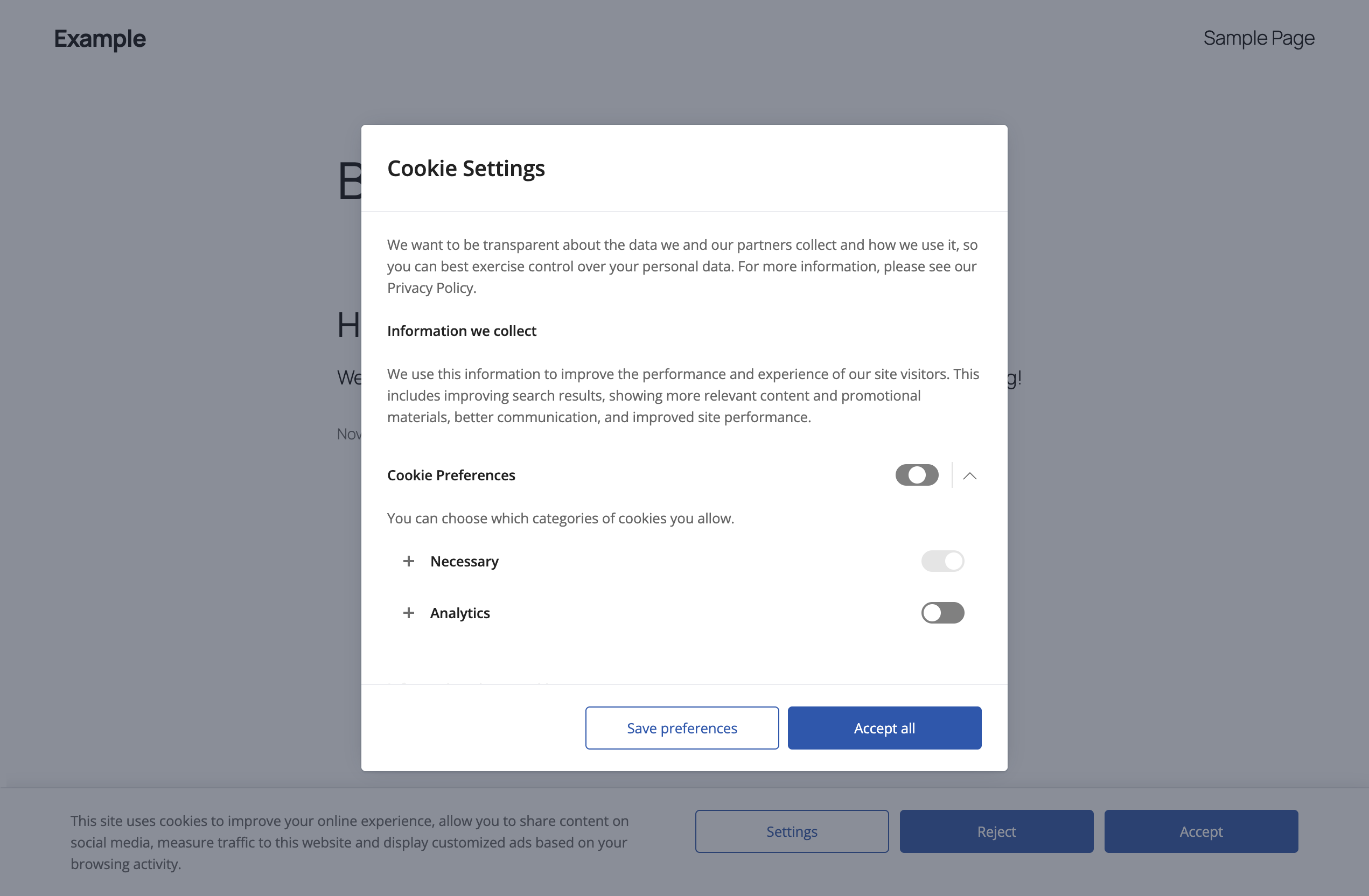
Sections, categories, and cookies are the three types of items you create to let visitors choose which cookies they accept. This article explains what each one is for and how they relate to each other. Read it before you create your first category.
The three levels
Section: "Cookies used on this site"
├── Category: "Necessary"      (always enabled)
│   └── Cookie: wordpress_logged_in
├── Category: "Analytics"      (visitor can enable or disable)
│   ├── Cookie: _ga
│   └── Cookie: _ga_XXXXXXXXXX
└── Category: "Marketing"      (visitor can enable or disable)
└── Cookie: _fbp| Item | Menu | What it is | What it controls |
|---|---|---|---|
| Section | Cookie Notice → Sections | A group of categories. | Only how the categories are grouped in the cookie settings window. |
| Category | Cookie Notice → Categories | A type of cookies that the visitor can accept or reject. | Which scripts are added to the page. The visitor’s consent is given per category. |
| Cookie | Cookie Notice → Cookies | The description of one cookie used on your site. | Information for the visitor. The listed cookies are also deleted when the visitor revisits the consent. |
The category is what matters
The visitor’s consent is given per category. A category has two jobs:
- It holds the visitor’s choice. Each category is either enabled or disabled for a visitor.
- It holds your scripts. The scripts you enter in the HTML Head and HTML Body fields of a category are added to the page only for the visitors who have that category enabled.
Sections and cookies do not affect which scripts run. A section only groups categories. A cookie entry only describes a cookie.
Important: listing a cookie in the Cookies menu does not block that cookie. A cookie is prevented by not loading the script that sets it. To do that, the script must be in the fields of a category, and the visitor must have that category disabled.
A category needs a section
A category is used only when it is assigned to a section with its Section option. A category with Section set to “None”:
- is not displayed in the cookie settings window, and
- is not included in the visitor’s choice, so its scripts are never added to the page.
For this reason, create at least one section first, then assign every category to a section.
Do I need all three?
| Your goal | What to create |
|---|---|
| Inform visitors and show a policy text | Nothing. Use the notice and the texts of the cookie settings window. |
| Load scripts only after consent, with a single accept or reject choice | One section and one or more categories with your scripts. |
| Let visitors choose between types of cookies | One section and one category per type (for example Necessary, Analytics, Marketing). |
| Show visitors the list of cookies of each category | Add the cookies in the Cookies menu and assign each one to its category. |
Most sites need one section. Use more than one section only when you have many categories and want to group them, for example “First-party cookies” and “Third-party cookies”.
Recommended structure for a typical site
Section
| Name | Description |
|---|---|
| Cookies used on this site | Choose which categories of cookies you allow. You can change your choice at any time. |
Categories
| Name | Active Toggle | Initial State | Scripts |
|---|---|---|---|
| Necessary | Off | On | None. These cookies are set by WordPress and by your plugins. |
| Analytics | On | Off | Your analytics script, for example Google Analytics. |
| Marketing | On | Off | Your advertising scripts, for example a tracking pixel. |
- Active Toggle off and Initial State on creates a category that is always enabled and that visitors cannot turn off.
- Active Toggle on and Initial State off creates a category that is disabled until the visitor enables it.
Order of creation
- Create the sections. See Creating Sections and Categories.
- Create the categories and assign each one to a section.
- Add your scripts to the categories. See Running Scripts Based on Visitor Consent.
- Optionally, add the cookies and assign each one to a category. See Listing Your Cookies.
- Configure the buttons so that visitors can accept, reject, or open the settings. See Understanding Button Actions.