Configuring the Cookie Settings Window
The cookie settings window is the modal window opened by a button with the Open Cookie Settings action. It displays your cookie information and, if you created sections and categories, the toggles used by visitors to accept or reject each category.
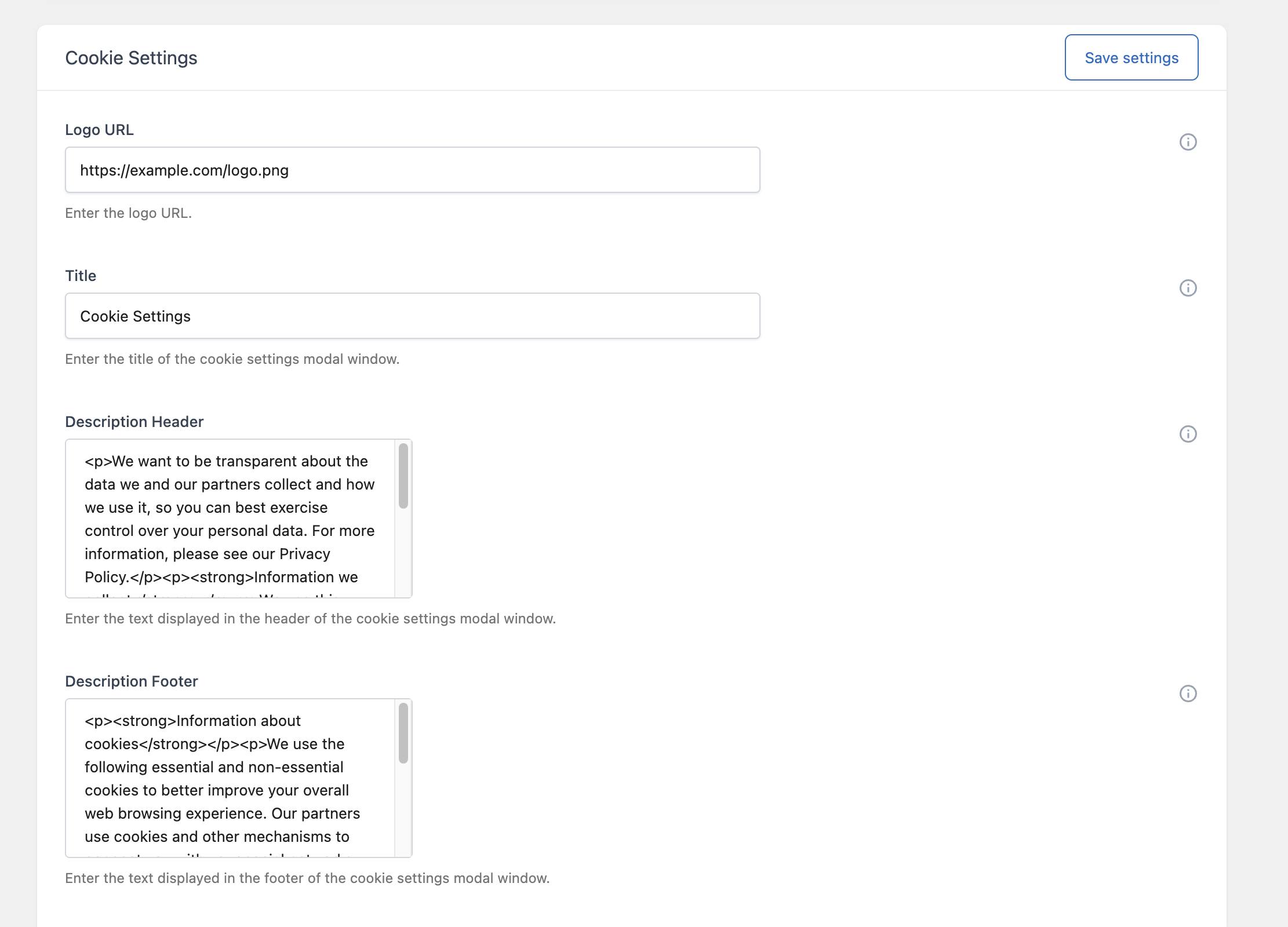
The content options are in Cookie Notice → Options → Content → Cookie Settings.
Parts of the window
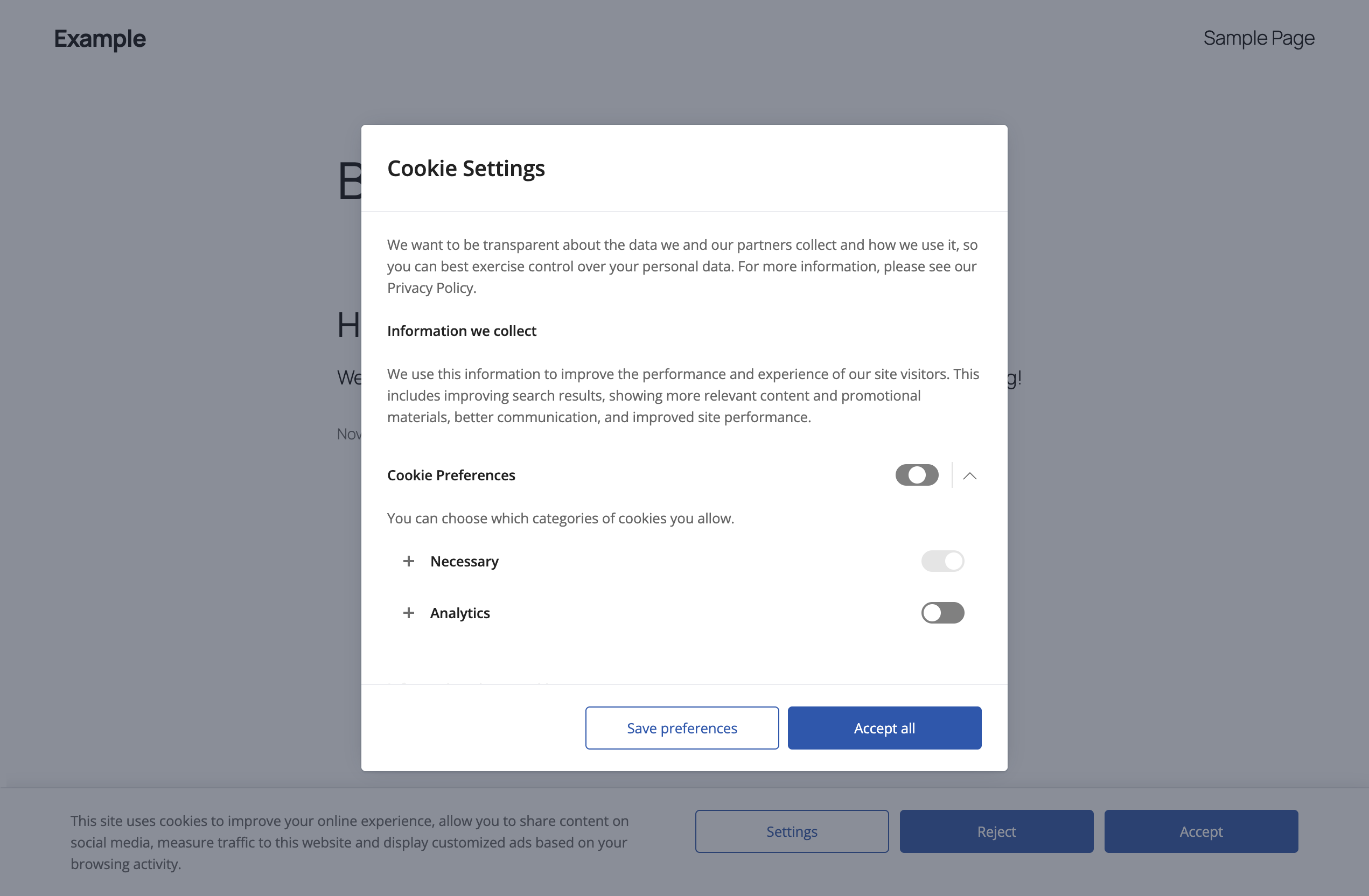
From top to bottom, the window displays:
- Header: the logo (optional) and the title.
- Description header: your introductory text.
- Sections: each section displays its name and a toggle. The sections are closed when the window opens. The visitor clicks the arrow of a section to open it and see its description and its categories.
- Categories: each category displays its name and its toggle. The visitor clicks the icon next to the name of a category to see its description and the table of its cookies.
- Description footer: your closing text.
- Buttons: up to two buttons.
Sections, categories, and cookies are created in their own menus. See How Sections, Categories and Cookies Work Together.
If you have not created any section, the window displays only the header, the two descriptions, and the buttons. This is the simplest way to show a cookie policy without sending visitors to another page.
Content options
| Option | Description |
|---|---|
| Logo URL | The URL of an image displayed in the header of the window. Leave it empty to display no logo. |
| Title | The title of the window. Default: “Cookie Settings”. |
| Description Header | The text displayed above the sections. |
| Description Footer | The text displayed below the sections. |
| Button 1 Text, Button 2 Text | The labels of the two buttons. |
| Button 1 Action, Button 2 Action | What happens when the button is clicked. |
| Button 1 URL, Button 2 URL | The destination URL. Used only when the action is Redirect to URL. |
Description Header and Description Footer accept these HTML tags: p, a, strong, br, ol, ul, li.
To add a logo, upload the image in Media → Add New, copy its file URL, and paste it in Logo URL.
Buttons
The available actions for the two buttons are:
| Action | Result |
|---|---|
| Disabled | The button is not displayed. |
| Accept Cookies | Saves the toggles as the visitor set them, then closes the window and the notice. |
| Close Cookie Settings | Closes the window without saving the acceptance. The cookie notice stays on screen. |
| Redirect to URL | Sends the visitor to the URL entered in the related URL option. |
| Accept All Cookies | Enables all categories, saves, then closes the window and the notice. |
| Reject All Cookies | Disables all categories, saves, then closes the window and the notice. |
With the default settings, Button 1 is “Close” (Close Cookie Settings) and Button 2 is “Accept” (Accept Cookies).
If you use categories, a clear configuration is:
| Button | Text | Action |
|---|---|---|
| Button 1 | Save preferences | Accept Cookies |
| Button 2 | Accept all | Accept All Cookies |
See Understanding Button Actions for the details of each action.
How the toggles work
Category toggles
Each category has a toggle with two positions:
- On: the category is accepted.
- Off: the category is rejected.
When the window opens for a visitor who has not made a choice, each toggle is in the position set by the Initial State option of the category.
A category with Active Toggle off displays a disabled toggle that visitors cannot change. Use it for categories that cannot be rejected, such as necessary cookies.
Section toggles
Each section has a toggle that changes all the categories of the section at once. The section toggle has three positions:
| Position | Meaning |
|---|---|
| On | All the categories of the section are on. |
| Mixed | Some categories of the section are on and some are off. |
| Off | All the categories of the section are off. |
The section toggle is disabled when none of the categories in the section has Active Toggle on.
The colors of the four toggle states are set with Toggle On Color, Toggle Off Color, Toggle Mixed Color, and Toggle Disabled Color in Options → Style → Cookie Settings.
When the selection is saved
Changing a toggle does not complete the consent. The visitor’s choice is recorded when the visitor clicks a button with the Accept Cookies, Accept All Cookies, or Reject All Cookies action.
Cookie tables
When a category has cookies assigned in the Cookies menu, a table with those cookies is displayed inside the category. The columns of the table are set with Cookie Table Columns in Options → Advanced → Content. See Listing Your Cookies.
Mask
By default a mask is displayed behind the window, so visitors cannot interact with the page while the window is open. To change it, go to Options → Style → Cookie Settings and use Mask, Mask Color, and Mask Opacity.
Example: a cookie policy without categories
- Go to Options → Content → Cookie Settings.
- In Title, enter “Cookie Policy”.
- In Description Header, enter the text of your policy, for example:
<p><strong>What are cookies</strong></p>
<p>Cookies are small text files saved in your browser when you visit a website.</p>
<p><strong>Cookies used on this site</strong></p>
<ul>
<li>Session cookies required to log in.</li>
<li>Analytics cookies used to count the visits.</li>
</ul>- Clear the Description Footer option, or use it for your contact details.
- Set Button 1 to “Close” with the Close Cookie Settings action, and Button 2 to “Accept” with the Accept Cookies action.
- Click Save settings.