Letting Visitors Change Their Preferences
Visitors must be able to change their choice after they have accepted or rejected the cookies. The plugin provides a floating revisit consent button for this purpose, and lets you turn any element of your site into a revisit consent trigger.
What happens when a visitor revisits the consent
When a visitor clicks the revisit consent button or a custom trigger:
- The cookies used by the plugin to store the choice are deleted.
- The cookies listed in the Cookies menu are deleted from the visitor’s browser, when the browser allows it (see the limits below). Each cookie is deleted with its Domain and Path deletion attributes.
- With Google Consent Mode enabled (Pro), all the consent mode parameters are set back to “denied”.
- The page is reloaded.
After the reload, the visitor is in the same situation as a first-time visitor: the cookie notice is displayed, the scripts of the categories are not added, and the visitor can make a new choice.
The revisit consent button
The revisit consent button is a small round button fixed at the bottom of the page. It is displayed after the visitor has made a choice.
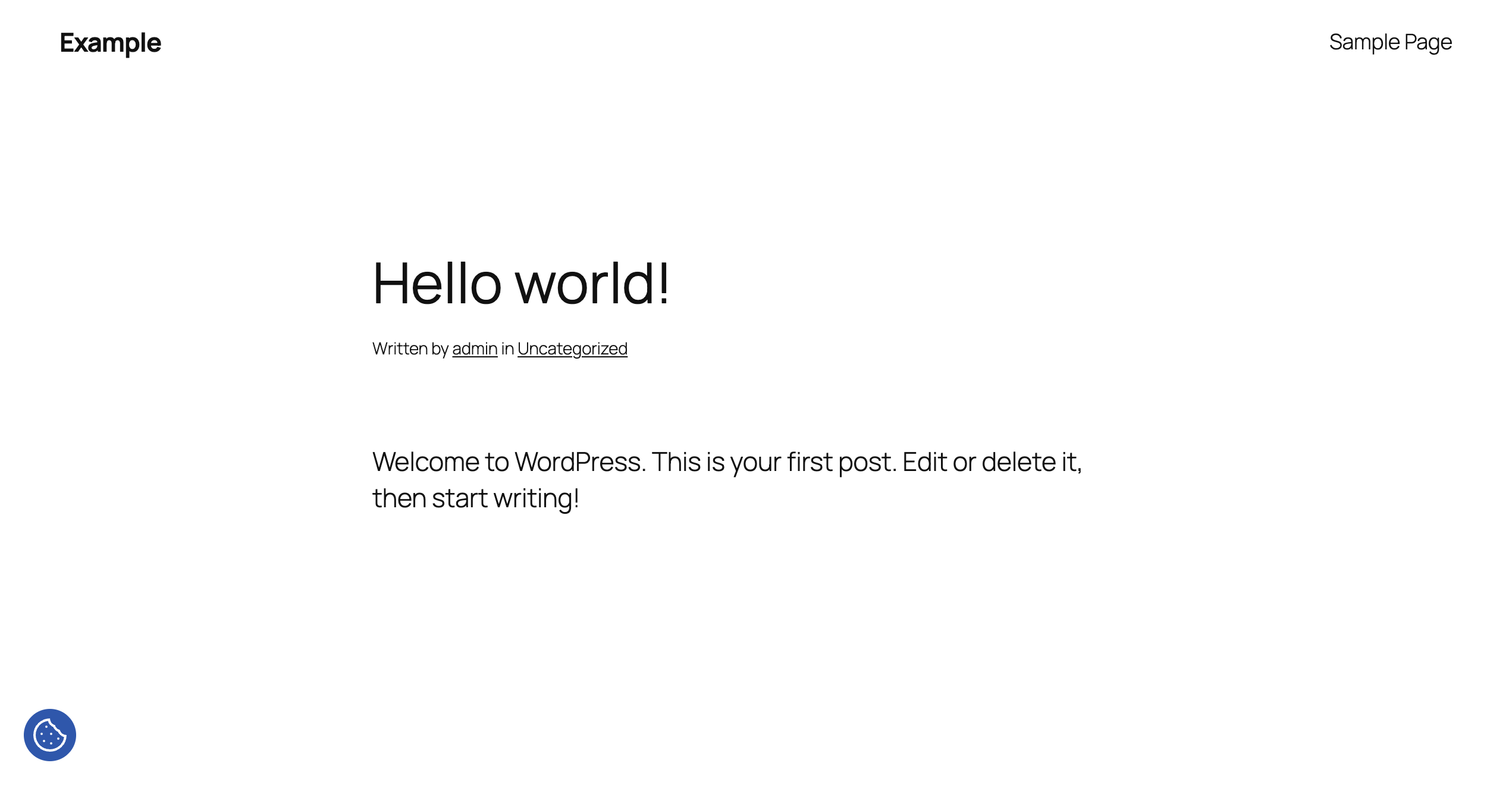
The button is enabled by default. Its options are in two places.
Options → Content → Revisit Consent
| Option | Description |
|---|---|
| Enable | Displays or hides the revisit consent button. |
| Tooltip Text | The text displayed when the visitor moves the pointer over the button. Default: “Cookie Settings”. |
Options → Style → Revisit Consent
| Option | Description |
|---|---|
| Position | Left or Right. The corner of the screen where the button is displayed. |
| Background Color | The background color of the button. |
| Icon Color | The color of the icon. |
Use your own link or button
You can let visitors revisit the consent from any element of your site, for example a “Cookie preferences” link in the footer. Add this class to the element:
| Version | Class |
|---|---|
| Free | daextlwcnf-revisit-consent-trigger |
| Pro | daextlwcn-revisit-consent-trigger |
Important: the class name is different in the two versions. The free version has an “f” after “daextlwcn”. If the element does nothing when clicked, check that you are using the class of your version.
Example: a button (free version)
<button class="daextlwcnf-revisit-consent-trigger">Cookie preferences</button>Example: a link inside a sentence (free version)
<p>You can change your cookie preferences <span class="daextlwcnf-revisit-consent-trigger">here</span>.</p>Example: a button (Pro version)
<button class="daextlwcn-revisit-consent-trigger">Cookie preferences</button>Where to add the element depends on your theme. Common places are a Custom HTML block or widget in the footer, or the footer template of your theme. In the block editor you can also select any block, open Advanced in the block sidebar, and enter the class in Additional CSS class(es).
Custom triggers work also when the floating button is turned off with the Enable option. To use only your own link, turn Enable off.
A custom trigger has an effect after the visitor has made a choice. Before that, the cookie notice is already on screen.
Revisit Consent block and shortcode (Pro)
The Pro version includes a Revisit Consent block and the [revisit-consent] shortcode. Both add a “Revisit Consent” button to the content of a post or page. See Blocks and Shortcodes.
Limits of cookie deletion
When the consent is revisited, the plugin tries to delete the cookies listed in the Cookies menu. A website can delete only its own cookies, so:
- Cookies set for your own domain and readable by JavaScript can be deleted.
- Third-party cookies, set by another domain, cannot be deleted by the plugin.
- Cookies with the
HttpOnlyattribute cannot be deleted by the plugin.
This is a browser limit and applies to every cookie plugin. For the cookies that cannot be deleted, what matters is that their scripts are no longer added after the visitor rejects the category.
Two more conditions apply to the cookies of your own domain:
- A cookie set for a specific domain or path, for example
.example.com, is deleted only if the same values are entered in its Domain and Path deletion attributes. See Listing Your Cookies. - The listed cookies are deleted only if at least one category is assigned to a section.
When the button is not displayed
- The visitor has not made a choice yet. The cookie notice is displayed instead.
- Enable is off in Options → Content → Revisit Consent.
- Geolocation is on, the visitor is outside the selected countries, and the notice is disabled for that visitor. See Showing the Notice Only in Selected Countries.
- Test Mode is on and you are not logged in as administrator.