Blocks and Shortcodes
The Pro version adds three blocks to the WordPress block editor, each with an equivalent shortcode. Use them in your cookie policy page to list the cookies and to give visitors the controls to change their choice.
| Block | Shortcode | What it adds |
|---|---|---|
| Cookies | [cookies] | A table with the cookies listed in the Cookies menu. |
| Delete Cookies | [delete-cookies] | A button that deletes the cookies. |
| Revisit Consent | [revisit-consent] | A button that lets the visitor choose again. |
The blocks and shortcodes are displayed in single posts, pages, and custom post types. They are not displayed in archive pages or feeds.
Cookies block
The Cookies block displays a table of the cookies you added in the Cookies menu.
Add the block
- Edit the post or page, for example your cookie policy page.
- Click the button to add a block and search for “Cookies”.
- Select the Cookies block.
- In the block sidebar, open Settings and use Category to choose which cookies to display:
- All: all the cookies of the Cookies menu.
- A category: only the cookies assigned to that category.
- Update the page.
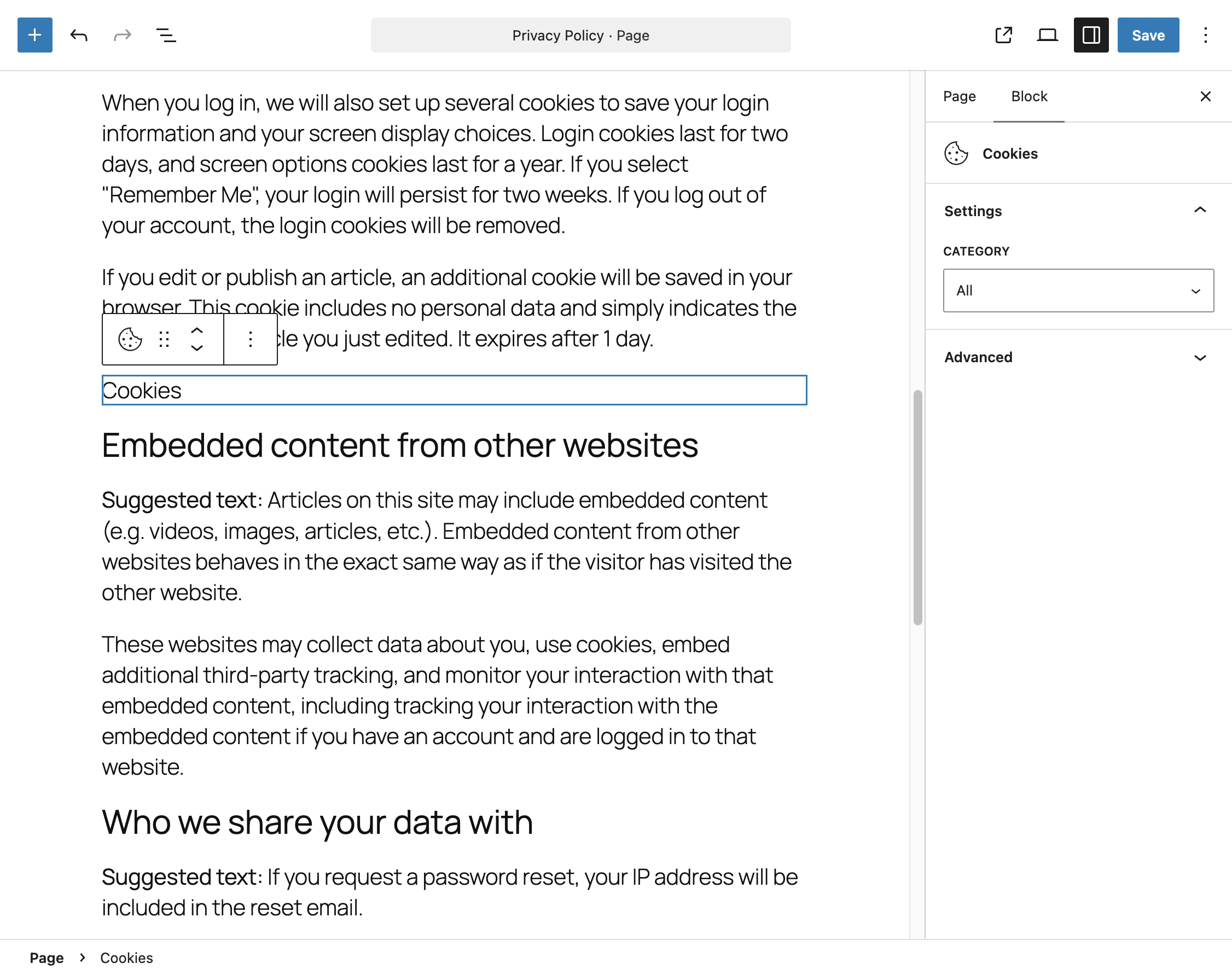
To display a separate table for each category, add one Cookies block per category, each under its own heading:
Heading: Analytics cookies
Cookies block (Category: Analytics)

Heading: Marketing cookies
Cookies block (Category: Marketing)
Use the shortcode
Display all the cookies:
[cookies]Display the cookies of one category:
[cookies category-id="2"]category-id is the ID of the category. To find it, go to Cookie Notice → Categories and click Edit on the category. The ID is the number at the end of the page address, after edit_id=.
Columns
The columns of the table are set with Cookie Table Columns in Options → Advanced → Content. The setting is shared with the tables of the cookie settings window. See Listing Your Cookies.
Style
The table has the CSS class daextlwcn-list. It uses the table style of your theme. To change it, add your own CSS rules for that class, for example in Appearance → Customize → Additional CSS:
.daextlwcn-list th,
.daextlwcn-list td {
  padding: 8px;
  border: 1px solid #ddd;
}
Delete Cookies block
The Delete Cookies block adds a “Delete Cookies” button. When a visitor clicks it:
- The cookies used by the plugin to store the visitor’s choice are deleted, including the cookie with the key of the consent record. The Domain and Path options of Options → Advanced → Cookie Attributes are used, so the cookies are deleted also when the Domain option is set.
- The cookies listed in the Cookies menu are deleted, when the browser allows it. Each cookie is deleted with its Domain and Path deletion attributes. See Listing Your Cookies.
- The page is reloaded.
After the reload, the cookie notice is displayed again.
To add it, search for “Delete Cookies” in the block editor, or use the shortcode:
[delete-cookies]The button has the ID daextlwcn-clear-cookies, which you can use to style it.
Add only one Delete Cookies button per page. All the buttons have the same ID, and only the first button of the page works.
Revisit Consent block
The Revisit Consent block adds a “Revisit Consent” button. It works like the floating revisit consent button: it deletes the saved choice and reloads the page, so the visitor can choose again.
To add it, search for “Revisit Consent” in the block editor, or use the shortcode:
[revisit-consent]The button has the ID daextlwcn-revisit-consent-button.
The button has an effect after the visitor has made a choice. See Letting Visitors Change Their Preferences for the details and for the alternative based on a CSS class, which also works with your own links.
Limits of cookie deletion
A website can delete only its own cookies. Third-party cookies, set by another domain, and cookies with the HttpOnly attribute cannot be deleted by the plugin. See Letting Visitors Change Their Preferences.
Example: a cookie policy page
A typical cookie policy page built with these blocks:
- A paragraph that explains what cookies are and how your site uses them.
- A heading “Necessary cookies” followed by a Cookies block with the Necessary category.
- A heading “Analytics cookies” followed by a Cookies block with the Analytics category.
- A heading “Change your choice” followed by a Revisit Consent block.