Showing the Notice Only in Selected Countries
With geolocation you display the cookie notice only to visitors located in the countries you select, for example the countries where a cookie law applies. This article explains the options, the two geolocation services, and what happens to the visitors outside the selected countries.
The options are in Cookie Notice → Options → Geolocation.
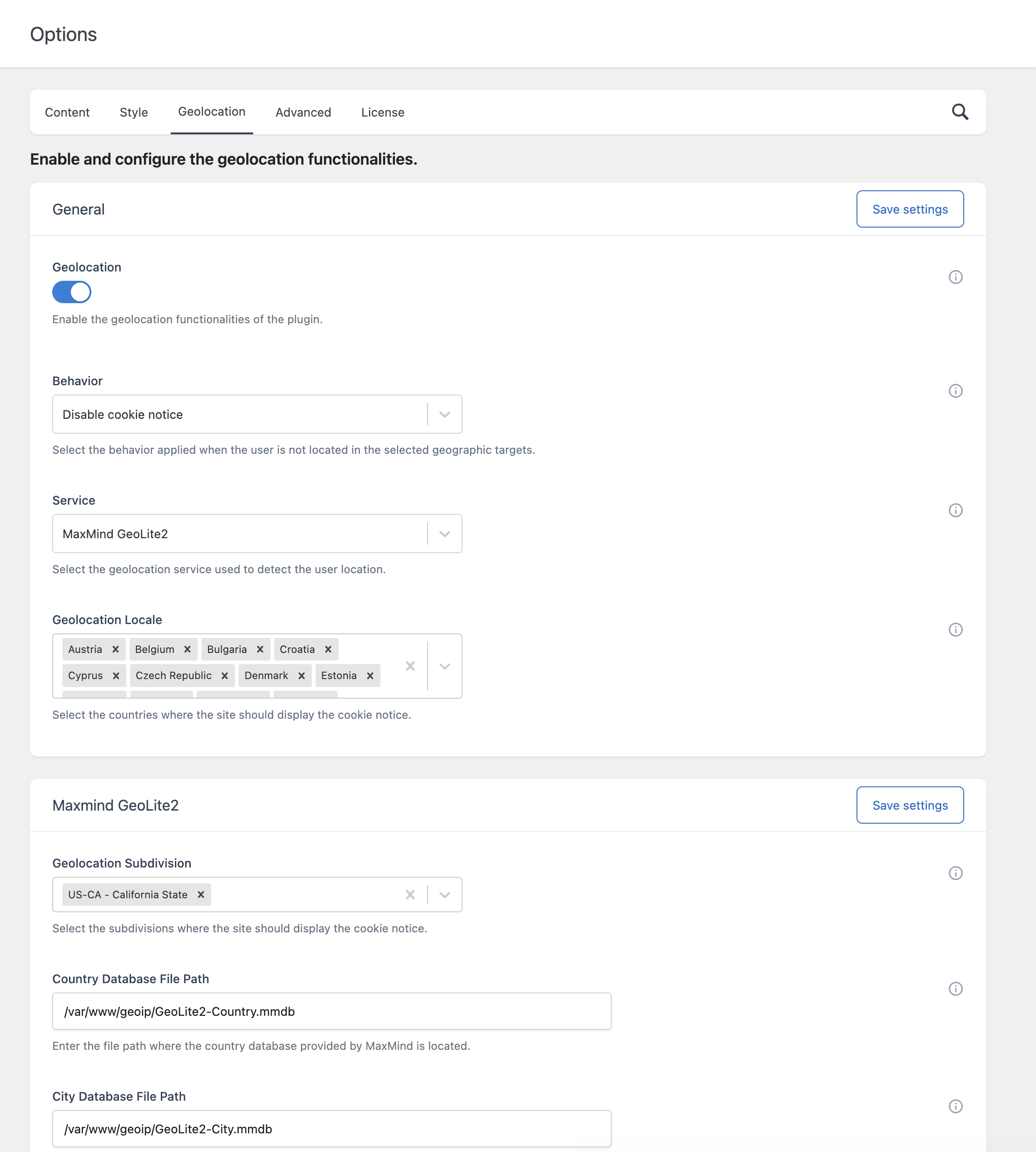
Options
General
| Option | Description |
|---|---|
| Geolocation | Turns the geolocation on or off. Default: off. |
| Behavior | What happens for visitors who are not located in the selected countries. See below. |
| Service | The service used to detect the country of the visitor: HostIP.info or MaxMind GeoLite2. |
| Geolocation Locale | The countries where the notice is displayed. |
Maxmind GeoLite2
These options are used only when Service is set to MaxMind GeoLite2.
| Option | Description |
|---|---|
| Geolocation Subdivision | The subdivisions (United States states and territories) where the notice is displayed. |
| Country Database File Path | The path on your server of the MaxMind country database file. |
| City Database File Path | The path on your server of the MaxMind city database file. Required only if you use Geolocation Subdivision. |
Behavior: what happens outside the selected countries
Visitors located in the selected countries always see the notice. The Behavior option decides what happens for everyone else.
| Behavior | Notice | Categories and scripts | Typical use |
|---|---|---|---|
| Disable cookie notice | Not displayed | No choice is saved. The scripts of the categories are not added. | You want the scripts to run only in the selected countries and only after consent. |
| Disable cookie notice and enable all cookie categories | Not displayed | All the categories are enabled automatically and the scripts of the categories are added. A record is added to the Consent Log. | You ask for consent in the selected countries, and run your scripts without asking everywhere else. |
| None | Displayed to everyone | Same as without geolocation. | You only want to save the visitor’s country in the Consent Log. |
Important: with Disable cookie notice, the visitors outside the selected countries never get the scripts you added to the categories, because they never make a choice. If you want your analytics to work for those visitors without showing the notice, select Disable cookie notice and enable all cookie categories.
With Disable cookie notice and enable all cookie categories, the categories with Active Toggle off keep their Initial State, and the scripts are added from the next page the visitor opens.
With Google Consent Mode (Pro), the same option decides whether the consent state is sent and the Google Tag Manager container is loaded for the visitors outside the selected countries. See Setting Up Google Consent Mode.
When geolocation is on, the detected country is also saved in the Country column of the Consent Log.
Select the countries
In Geolocation Locale, select the countries where the notice must be displayed.
On a new installation, 31 countries are already selected: the 27 countries of the European Union, Iceland, Liechtenstein, Norway, and the United Kingdom. Switzerland is not selected. Add or remove countries as needed.
If the plugin was installed before version 1.23 (free) or 1.56 (Pro), the update does not change your saved selection. The default selection of the earlier versions did not include Croatia, Germany, Greece, Romania, Iceland, Liechtenstein, and Norway. Review the list and add the countries you need.
Service 1: HostIP.info
HostIP.info is a free service that does not require an account.
- Turn on Geolocation.
- Select a Behavior.
- In Service, select HostIP.info.
- Select the countries in Geolocation Locale.
- Click Save settings.
How it works: the browser of the visitor sends a request to the HostIP.info service, which returns the country associated with the visitor’s IP address.
If HostIP.info cannot identify the country of a visitor, the notice is displayed.
Service 2: MaxMind GeoLite2
MaxMind GeoLite2 uses database files stored on your own server. It requires a free MaxMind account. The country lookup is performed on your server, with no request to an external service at each visit.
Step 1 — Download the databases
- Create an account on the MaxMind website.
- Download the GeoLite2 Country database in the binary format (a file with the
.mmdbextension). - If you want to target United States states, also download the GeoLite2 City database.
Step 2 — Upload the files to your server
Upload the .mmdb files to a folder of your server, for example with FTP or with the file manager of your hosting panel. For example:
/var/www/html/wp-content/uploads/geolite2/GeoLite2-Country.mmdb
/var/www/html/wp-content/uploads/geolite2/GeoLite2-City.mmdb
Step 3 — Configure the plugin
- Turn on Geolocation.
- Select a Behavior.
- In Service, select MaxMind GeoLite2.
- Select the countries in Geolocation Locale.
- In Country Database File Path, enter the full server path of the country database file.
- If you use subdivisions, enter the full server path of the city database file in City Database File Path.
- Click Save settings.
The path is a file path on the server, not a URL. It starts from the root of the server file system, as in the example above. If you do not know the path of your WordPress installation, ask your hosting provider.
Important: if the path is wrong or the file is missing, the plugin cannot detect the country and treats every visitor as outside the selected countries. With Disable cookie notice selected, the notice is then not displayed to anyone. If the notice disappears after you enable MaxMind GeoLite2, check the path first.
MaxMind publishes updated databases regularly. Replace the files from time to time to keep the detection accurate.
Target United States states
With MaxMind GeoLite2 you can display the notice in specific United States states and territories.
The notice is displayed when the visitor’s country is selected in Geolocation Locale or the visitor’s state is selected in Geolocation Subdivision.
Example: display the notice in the European countries and in California only
| Option | Value |
|---|---|
| Geolocation Locale | The European countries you need. Do not select United States. |
| Geolocation Subdivision | US-CA – California State |
| City Database File Path | The path of the GeoLite2 City file |
If you select United States in Geolocation Locale, the notice is displayed in all the states and the subdivisions have no additional effect.
Test the geolocation
- Turn on Test Mode in Options → Advanced → Behavior while you configure.
- Open the site from a country in your list. The notice must be displayed.
- Open the site with a VPN set to a country that is not in your list. The notice must not be displayed.
- Check the Country column in Cookie Notice → Consent Log.
Clear the cookies of your browser between the tests, or use a private window, because the choice and the geolocation result of a previous visit are saved in the browser.
Accuracy and terms of use
- Geolocation based on the IP address is not fully accurate. Some visitors can be assigned to the wrong country, for example when they use a VPN or a mobile network.
- You are responsible for using the geolocation services according to their terms.