Reviewing and Exporting Consent Records
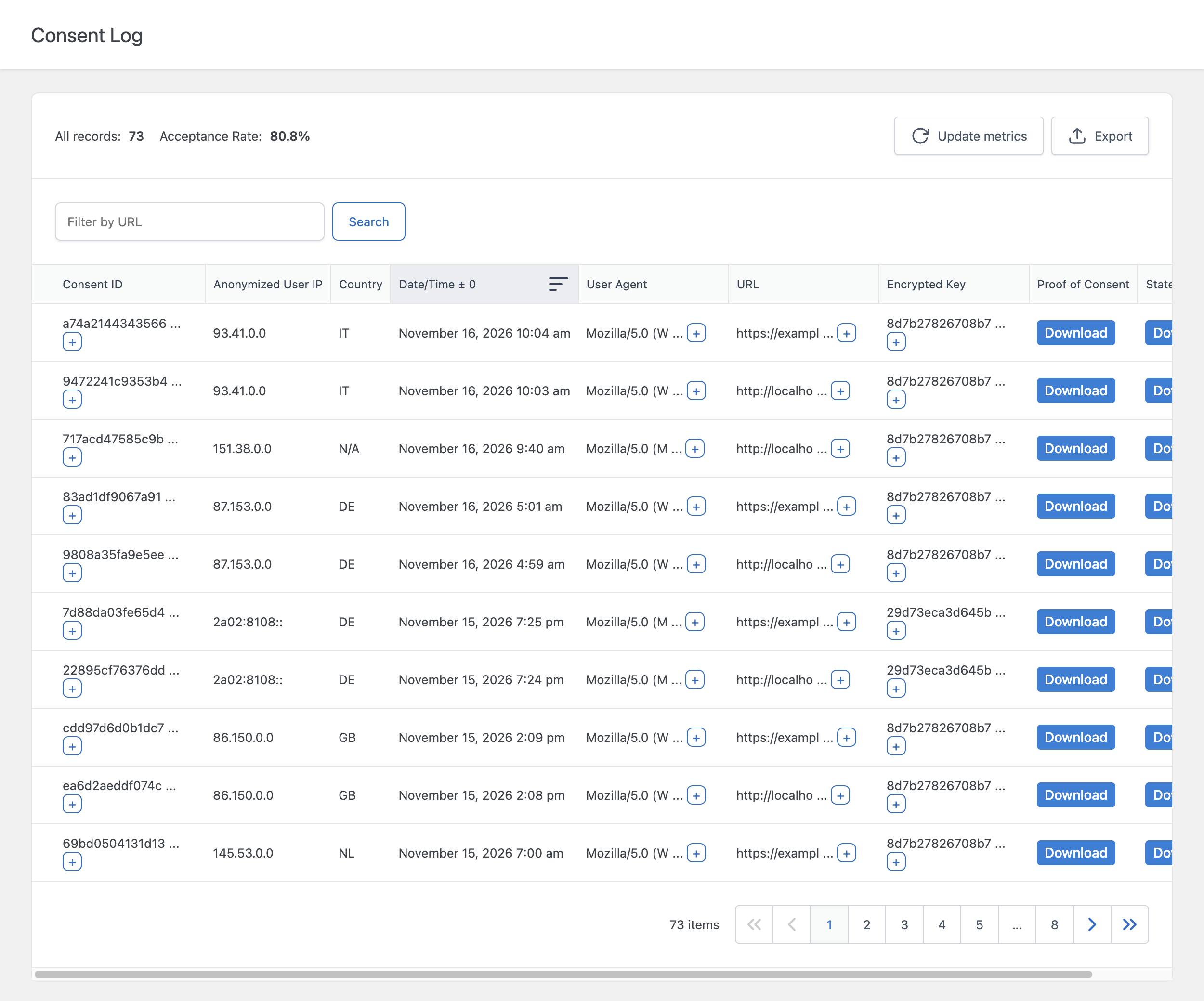
The Consent Log is the list of the consents given by your visitors. Each time a visitor accepts or rejects the cookies, the plugin saves a record with the details of that choice. You can use these records to demonstrate that a consent was collected and what the visitor was shown.
Open it from Cookie Notice → Consent Log.
When a record is created
A record is added when a visitor clicks a button with the Accept Cookies, Accept All Cookies, or Reject All Cookies action, in the cookie notice or in the cookie settings window.
A record is also added when the notice is disabled by geolocation with the Disable cookie notice and enable all cookie categories behavior.
The same visitor can generate more than one record, for example when the visitor revisits the consent and chooses again.
What a record contains
| Column | Content |
|---|---|
| Consent ID | A unique identifier of the consent. |
| Anonymized User IP | The IP address of the visitor, anonymized. For IPv4 addresses the last 16 bits are removed, for IPv6 addresses the last 96 bits are removed. |
| Country | The country code of the visitor. Available only when Geolocation is on. Otherwise “N/A”. |
| Date/Time ± 0 | The date and time of the consent, in UTC. |
| User Agent | The browser identification string of the visitor. |
| URL | The page where the consent was given. |
| Encrypted Key | The SHA-512 hash of the consent state. |
| Proof of Consent (Pro) | A button to download the proof of consent as a PDF file. |
| State | A button to download the consent state as a JSON file. |
Long values are shortened in the table. Click the + button in a cell to display the full value.
The consent state
The state is a snapshot of what the visitor was shown and what the visitor chose. It includes:
- The state (enabled or disabled) of each category.
- The sections, categories, and cookies displayed in the cookie settings window.
- The texts of the notice and of the cookie settings window: the message, the button texts, the description header, and the description footer.
- In the Pro version, the consent mode parameters of the categories.
Because the texts are saved with each record, you keep the evidence of what was displayed at the time of the consent, also after you change the texts.
The encrypted key
The encrypted key is a hash calculated from the consent state. The same key is saved in a cookie in the visitor’s browser (daextlwcnf-encrypted-key in the free version, daextlwcn-encrypted-key in the Pro version). This lets you match a record of the log with the browser that gave the consent.
Read the statistics
| Statistic | Meaning |
|---|---|
| All records | The number of records in the log, or the number of records that match the current filter. |
| Acceptance Rate | The percentage of category states that are enabled, calculated on the latest 5,000 records. |
Click Update metrics to recalculate the statistics.
Example: with three categories, a visitor who enables two of them and disables one contributes two accepted states and one rejected state. Categories that visitors cannot disable are always counted as accepted, so they raise the rate.
The acceptance rate of each single category is displayed in the Acceptance Rate column of the Categories menu.
Find and sort records
- Filter by URL: enter a part of a URL and click Search to display only the consents given on the matching pages. The statistics are recalculated on the filtered records.
- Sort: click the header of the Anonymized User IP, Country, Date/Time ± 0, User Agent, or URL column. Click again to reverse the order.
Download the state of a record
Click Download in the State column. A JSON file with the consent state of that record is downloaded.
Download the proof of consent (Pro)
Click Download in the Proof of Consent column. A PDF file is downloaded with the Consent ID, the anonymized IP address, the country code, the date, the user agent, the URL, and the encrypted key of the record.
Export the log in CSV (Pro)
Click Export at the top of the Consent Log to download all the records in a CSV file. The file has one row per record with the Consent ID, Anonymized User IP, Country, Date/Time, User Agent, URL, Encrypted Key, and State columns.
In both versions you can also export the consent log in XML format, together with the other plugin data, from the Tools menu. See Importing and Exporting Plugin Data.
Turn the log on or off
- Go to Cookie Notice → Options → Advanced.
- In the Behavior section, use Store User Consent.
- Click Save settings.
The option is on by default. When it is off, no records are saved.
Delete old records automatically
Use Consent Log Retention in Options → Advanced → Behavior to delete the records older than a period.
| Value | Result |
|---|---|
| Disabled | All the records are kept. This is the default. |
| Six Months, One Year, Two Years, Three Years | The records older than the selected period are permanently deleted. |
The deletion runs right after you save the option, and then once a day.
Important: the deletion is permanent. To keep a copy of the log, export it from the Tools menu before you select a period.
Delete all the records
Go to Cookie Notice → Maintenance, select Reset Consent Log, and click Execute Task. See Using the Maintenance Tools.
If the records are not saved
- Store User Consent is off.
- The visitors click a button that does not save the choice, such as Close Cookie Notice. See Understanding Button Actions.
- A security plugin or a firewall blocks the requests that visitors’ browsers send to the WordPress REST API or to
admin-ajax.php. The plugin uses both to save a record.