Importing and Exporting Plugin Data
With the Tools menu you save the plugin data in a file and load it on another site. Use it to copy your sections, categories, and cookies from a staging site to the live site, to move from the free version to the Pro version, or to keep a backup.
- Export is available in the free and in the Pro version.
- Import is available in the Pro version only.
Open the tools from Cookie Notice → Tools.
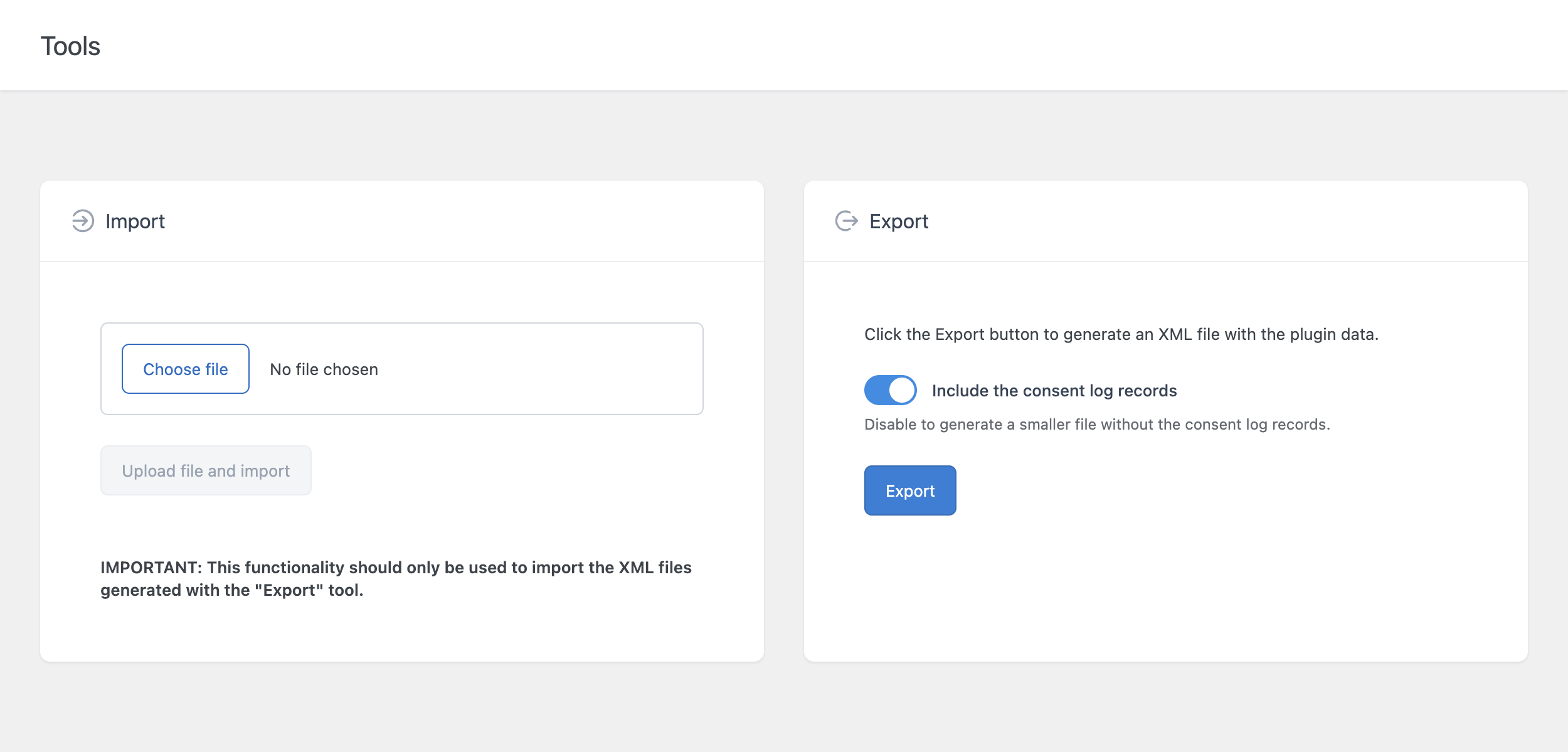
What the file contains
| Data | Included in the export |
|---|---|
| Sections | Yes |
| Categories, with their scripts | Yes |
| Cookies | Yes |
| Consent log | Yes, optional |
| Options (texts, buttons, style, geolocation, advanced settings) | No |
The options are not part of the file. To copy a complete configuration to another site, export and import the data, then set the options on the destination site by hand.
Export the data
- Go to Cookie Notice → Tools.
- In the Export section, choose whether to include the consent log with Include the consent log records. Turn it off to generate a smaller file without the consent log.
- Click Export.
An XML file is downloaded to your computer.
The consent log can contain a large number of records. If you only need to copy the configuration, turn Include the consent log records off.
Import the data (Pro)
- Go to Cookie Notice → Tools.
- In the Import section, click Choose file and select an XML file generated with the Export tool.
- Click Upload file and import.
A message reports how many consent log records, sections, categories, and cookies have been added.
Important: import only XML files generated with the Export tool of Lightweight Cookie Notice, free or Pro.
How the import works
- The import adds, it does not replace. The items of the file are added to the items already present. Importing the same file twice creates duplicates. To start from a clean state, run Reset Plugin in the Maintenance menu before the import. Note that the reset also restores the default options.
- The relations are kept. Each imported category stays assigned to its section, and each imported cookie to its category.
- The IDs can change. The imported items receive new IDs on the destination site. If you use the
[cookies category-id="…"]shortcode, check the IDs after the import. See Blocks and Shortcodes.
Common uses
Copy the configuration from staging to production
- On the staging site, export without the consent log.
- On the production site (Pro), import the file.
- On the production site, set the options in Cookie Notice → Options.
Move from the free version to the Pro version
Export from the free version and import in the Pro version. The complete procedure is in Migrating from Free to Pro.
Keep a copy of the consent log
Export with Include the consent log records on, and store the file in a safe place. Do this before you set Consent Log Retention or run Reset Consent Log, because both delete records permanently.
In the Pro version you can also export the consent log in CSV format from the Consent Log menu. See Reviewing and Exporting Consent Records.