Automatic Links Panel
The Automatic Links panel is a single-option panel available in the post editor that lets you enable or disable automatic linking for an individual post, overriding the site-wide default for that post only.
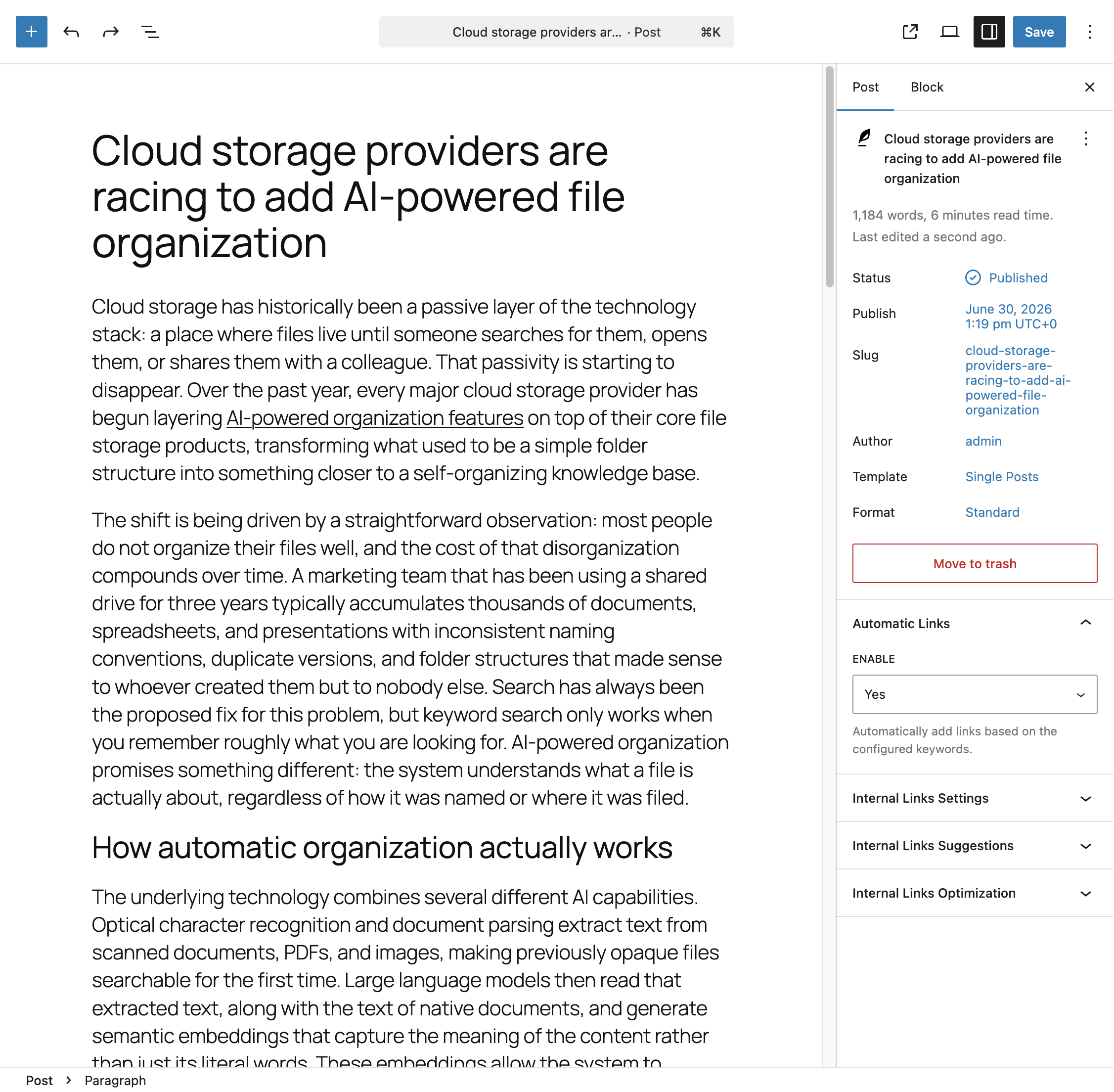
Where to Find It
In the block editor, the panel appears in the document settings sidebar under Automatic Links. In the classic editor, the same option appears as a metabox labeled Automatic Links in the post editing screen.
The Enable Option
The panel contains a single field:
- Enable – Set to Yes to allow your Auto Link Rules to be applied to this post, or No to exclude this post from automatic linking entirely, regardless of which rules would otherwise match its content.
If you haven’t explicitly set this option on a given post, it falls back to the Enable Auto Links default defined in the Options card of the Automatic Links section in the Settings menu. Changing the value here only affects this individual post and does not change the site-wide default.
When to Use This
Use this panel when a specific post needs to be excluded from (or explicitly included in) automatic linking, without changing your Auto Link Rules or your site-wide settings. Common cases include:
- A post where automatic links would interfere with carefully placed manual links
- A legal, policy, or disclaimer page where you don’t want any unexpected links inserted
- A post created before you enabled automatic links sitewide, which you don’t want to retroactively affect
Panel Visibility
This panel only appears for post types where the Internal Links Settings Post Types option, configured in the Advanced section of the Settings menu, includes the post type you’re currently editing. If the panel is missing from a post type where you expect it, check that the post type is included in that setting.