Quick Start Guide
Link Manager helps you analyze, optimize, and automate internal and external linking in WordPress. It combines link analytics, automatic link creation, broken link monitoring, and click tracking in a single plugin.
The plugin supports several distinct workflows, so how you use it depends on your goals. This guide gives you a quick overview of the core features so you can get started immediately, then dive into the full documentation as needed.
Why Use Link Manager
Internal and external links affect both SEO performance and user navigation, but managing them manually across a large site is impractical. Link Manager automates the repetitive work and gives you visibility into how links are distributed across your content.
- Automatic link creation – Define keywords once and let the plugin generate links across your content automatically
- Link analytics at a glance – See internal links, automatic links, and link equity distribution from a single dashboard
- Broken link monitoring – Get notified when linked URLs start returning error responses
- Click tracking – Understand which automatic links are actually being used by visitors
- Domain-level reporting – See which external domains your content links to and how often
Whether you are optimizing an existing site with thousands of posts or setting up a clean linking strategy from scratch, the plugin adapts to your workflow.
The Dashboard
The Dashboard is the central hub of the plugin. It gives you an overview of your site’s internal linking health, including the number of internal links, automatic links, and an optimization score for each post based on its content length.
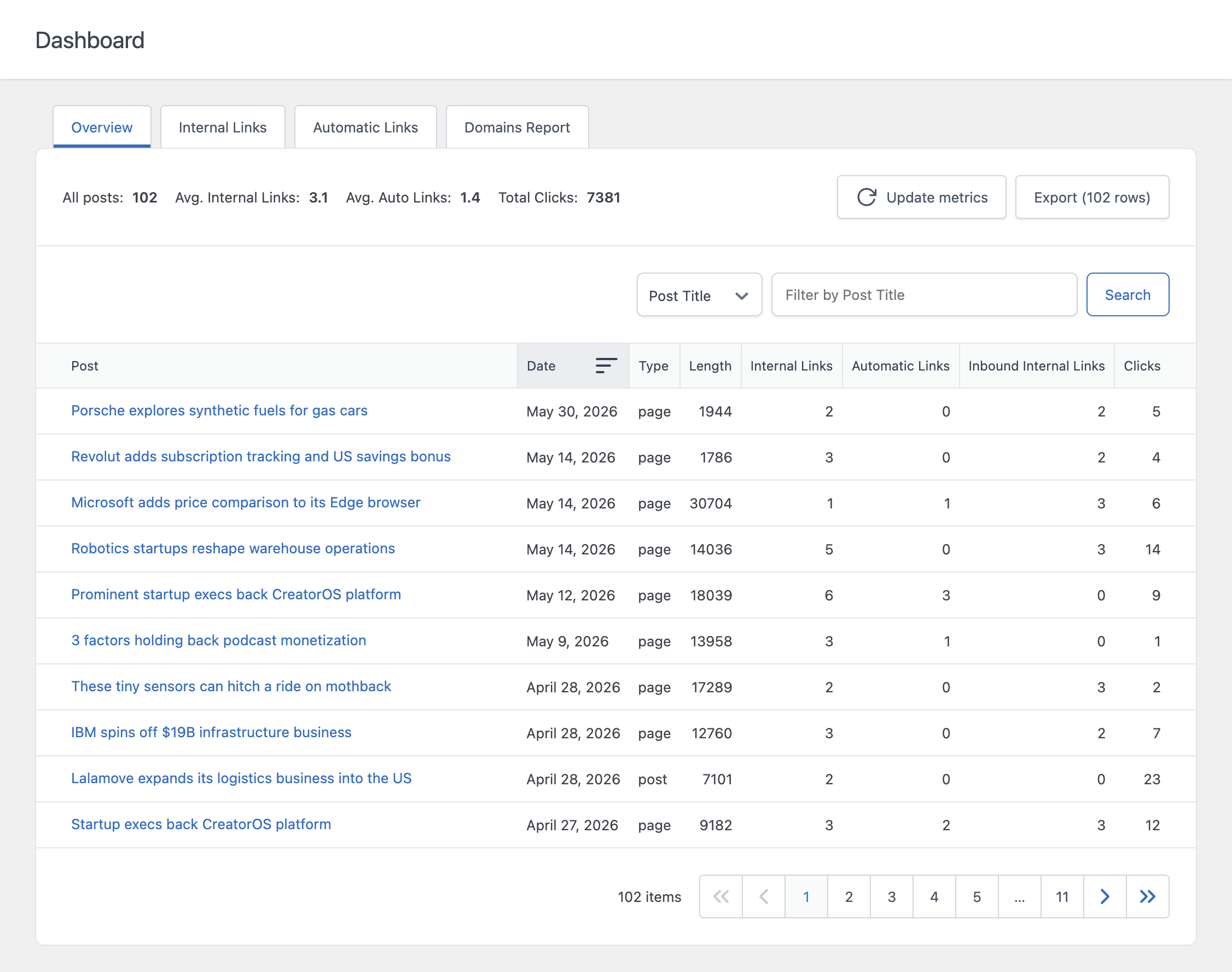
From the Dashboard you can also access the Domains Report, which breaks down every external domain your content links to, along with the number of posts and links pointing to each one.
For a full walkthrough, refer to the dedicated documentation on the Dashboard.
Creating Auto Link Rules
Auto Link Rules let you define a keyword and a target URL once, and the plugin automatically converts every matching occurrence of that keyword into a link across your content.
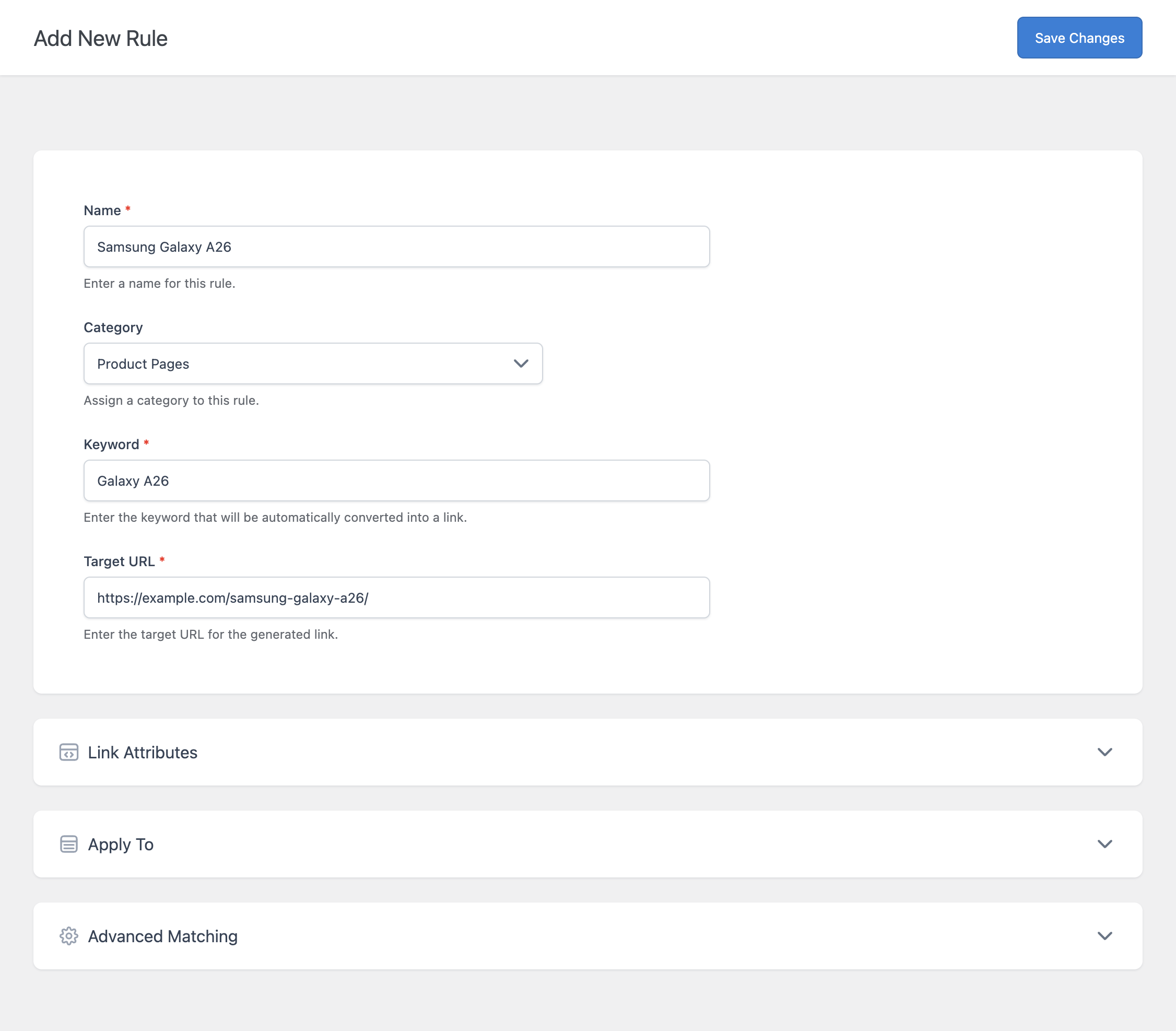
You can refine where each rule applies using:
- Categories – Group related rules together for easier organization
- Target Groups – Restrict a rule to specific post types, categories, or tags
- Bulk Add Rules – Create many rules at once using a spreadsheet-style interface
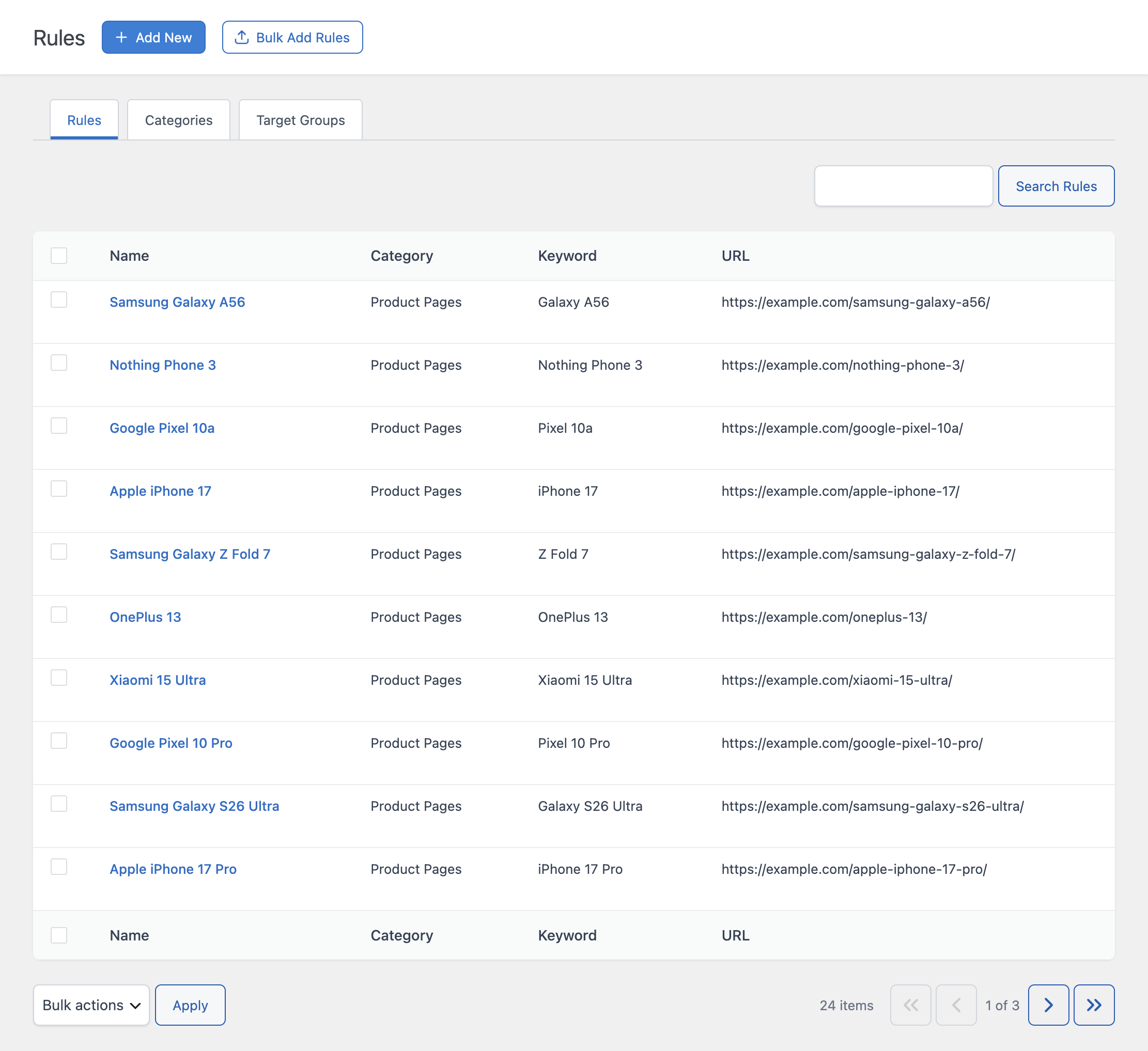
For step-by-step instructions, refer to the dedicated documentation on defining rules.
Monitoring Broken Links
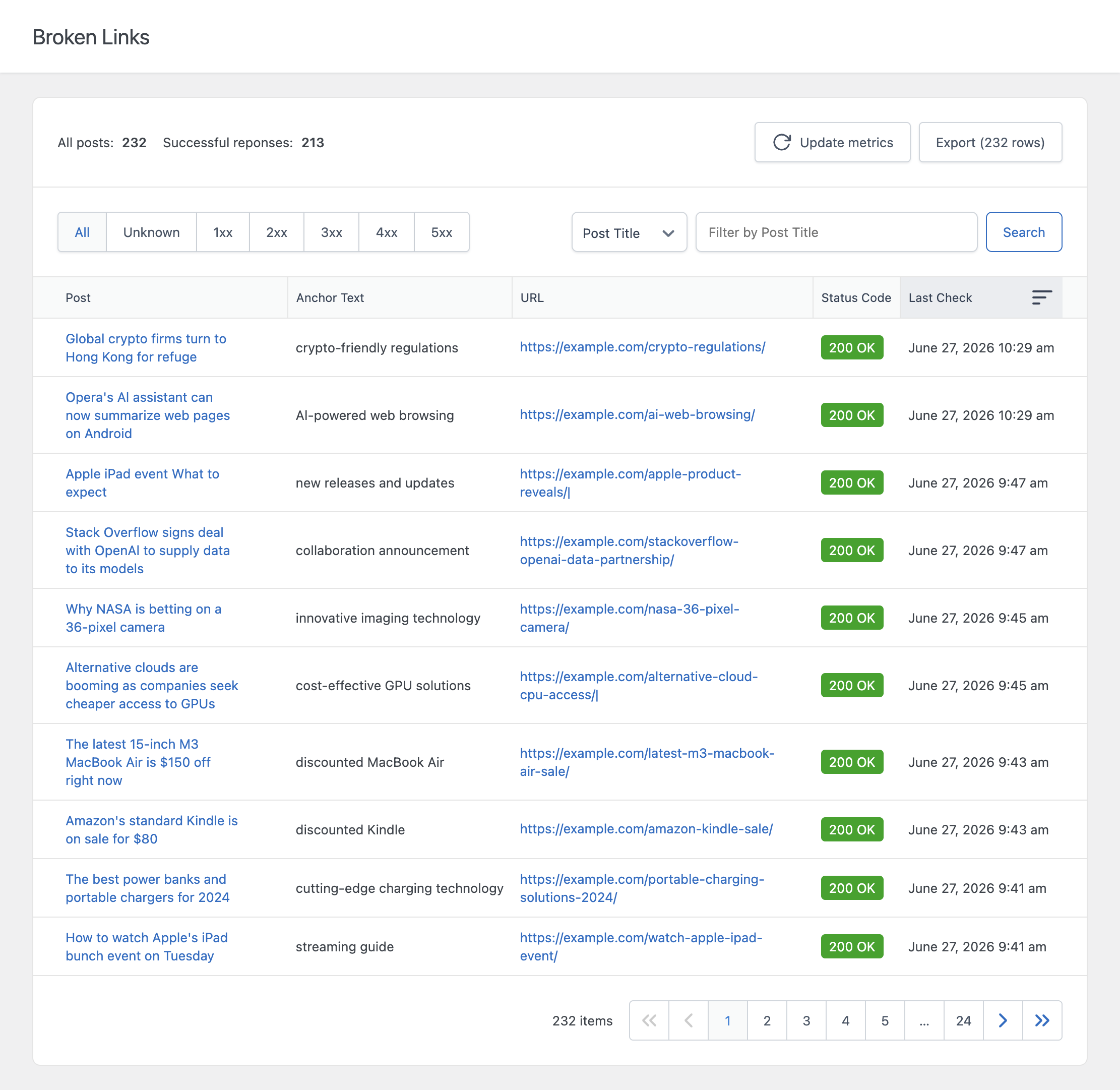
The Broken Links menu periodically checks the URLs used in your links and flags any that return an error response, so you can fix them before they affect your visitors or your SEO.
Tracking Clicks
If you want to understand which automatic links visitors actually interact with, enable click tracking from the Settings menu. Once enabled, every click on an automatic link is logged and available in the Clicks menu.
For step-by-step instructions, refer to the dedicated documentation on click tracking.
Understanding Link Equity
Link Equity estimates how much SEO value each of your posts passes to the pages it links to, based on a configurable value per post and the number and position of its links. This helps you identify which pages are accumulating the most internal authority.
For a full explanation, refer to the dedicated documentation on Link Equity.
Where to Start
Choose your starting point based on how you plan to use the plugin:
- Want to automatically link keywords across your site? Start with Creating and Managing Auto Link Rules to define your first rule.
- Have many keywords to link at once? Use Bulk Add Rules to create multiple rules from a spreadsheet.
- Want to see how your content is currently linked? Start with the Dashboard to review your internal linking statistics.
- Worried about broken links? Set up monitoring with Finding and Monitoring Broken Links.
- Want to know which links visitors click? Enable Click Tracking from the Settings menu.
- Curious which external domains you link to most? Check the Domains Report on the Dashboard.