Link Statistics in the Post Listing
The Link Stats column adds a per-post summary of internal and external linking directly to the WordPress post listing, so you can review the linking profile of your content without leaving the Posts or Pages screen.
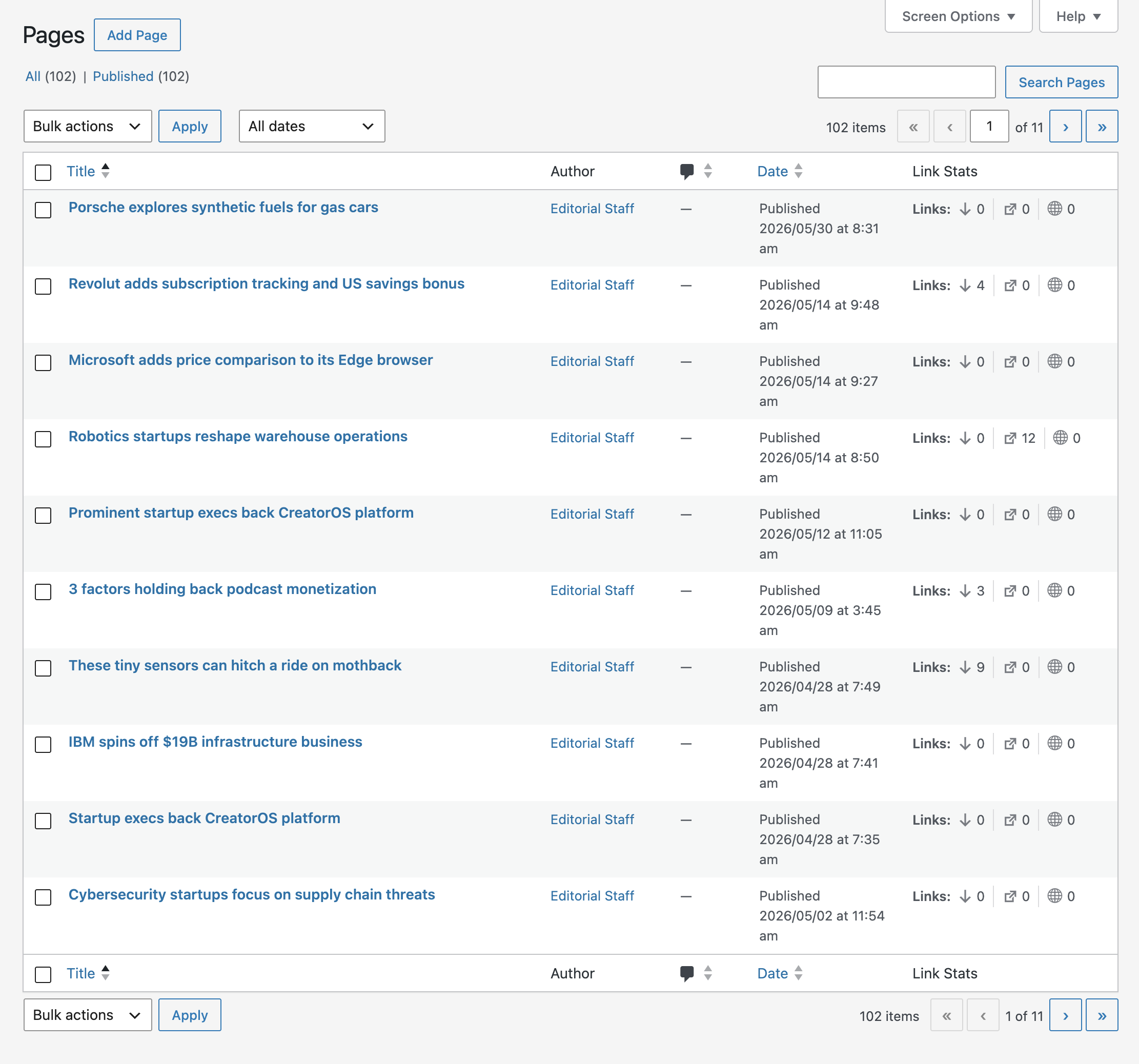
The Three Metrics
Every row displays three values, each with its own icon:
- Inbound Internal Links – The number of internal links pointing to this post from other content on your site
- Outbound Internal Links – The number of internal links leaving this post, combining manually placed links and links generated by your Auto Link Rules
- Outbound External Links – The number of links leaving this post towards external domains
Hover over any value to see the name of the metric.
The column is a read-only view of data that the plugin has already generated. It does not analyze your content on its own, which means the values it displays are always the values produced by the last update of the Dashboard data.
Where the Values Come From
The three metrics are not generated by a single process:
- Inbound Internal Links and Outbound Internal Links are generated when the data of the Overview tab or of the Internal Links tab of the Dashboard is updated
- Outbound External Links is generated when the data of the Domains Report tab of the Dashboard is updated
The data of these tabs is updated automatically when you open the tab and the existing data is more than one hour old. You can also update it at any time with the Update metrics button.
For details on each tab, refer to the dedicated documentation on the Dashboard.
Outdated Values
When a post has been modified after the last update of the data, the affected values are displayed in amber. This means the numbers no longer reflect the current content of the post and should be regenerated before you rely on them.
The color is applied per source. Since the internal and external metrics are updated by different tabs, it is normal and correct for the internal values to be flagged while the external value is not, or the other way around.
Hover over a flagged value to see which tab of the Dashboard regenerates it.
When Values Are Not Available
Instead of displaying a misleading zero, the column states why the data is missing. There are two cases.
Not Analyzed
The post is eligible for analysis, but the data has not been generated for it yet. Hover over the label to see the specific reason:
- The statistics have never been generated – The Dashboard data has not been generated yet on this site
- The post has been published after the last update – The post did not exist when the data was generated
- The post is outside the analysis limit – The last analysis included only the most recent posts, as defined by the Limit Posts Analysis option. The message reports the actual number of posts that were included
- The post was not part of the last update – The post became eligible only after the data was generated, for example because it was published, because its post type was added to the analyzed post types, or because the analysis limit was increased
In most cases the Analyze Links link opens the Internal Links tab of the Dashboard, where the data is regenerated.
The exception is the analysis limit. When a post falls outside it, regenerating the data would exclude the post again, so the link becomes Increase Limit and opens the Settings menu instead. Raise Limit Posts Analysis in the Technical Options card of the Link Analysis section, then update the Dashboard data. This link is shown only to administrators.
Not Included
The post is not published. Only published posts are analyzed, so drafts, pending posts, scheduled posts and private posts are excluded by design. The values appear after the post is published and the Dashboard data is updated.
Settings
The column is controlled by two options in the Advanced section of the Settings menu, in the Post Listing card:
- Link Stats Column – Enables or disables the column
- Link Stats Column Post Types – Determines which post types display the column
Why the Column May Not Appear
Selecting a post type in Link Stats Column Post Types is not sufficient on its own. The column is displayed only for post types that are selected here and analyzed by the Dashboard, because a post type the plugin never analyzes would produce a permanently empty column.
If the column does not appear where you expect it, check that the post type is also included in the Dashboard Post Types option, in the Technical Options card of the Link Analysis section. When that option is empty, all the post types are analyzed. Refer to the dedicated documentation on Link Analysis settings for details.
The column is also displayed only to users who can access the Dashboard menu, as defined by the Dashboard Menu capability. Refer to the dedicated documentation on capabilities for details.
Availability in the Free Version
The column is available in both versions, with one difference: the free version does not display Outbound External Links, because it does not generate the Domains Report. Free users see the two internal metrics only, which are generated from the Internal Links tab of the Dashboard.
Related Documentation
- Understanding Internal Links Statistics – the Dashboard tab that generates the internal metrics
- Domains Report: Outbound Link Distribution – the Dashboard tab that generates the external metric
- Configuring Link Analysis Options – the Dashboard Post Types and Limit Posts Analysis options that determine which posts are analyzed