Tracking Clicks on Your Links
Click tracking records every time a visitor clicks a link on your site, manual or automatic, internal or external, so you can see which links are actually being used rather than relying on link counts alone.
Enabling Click Tracking
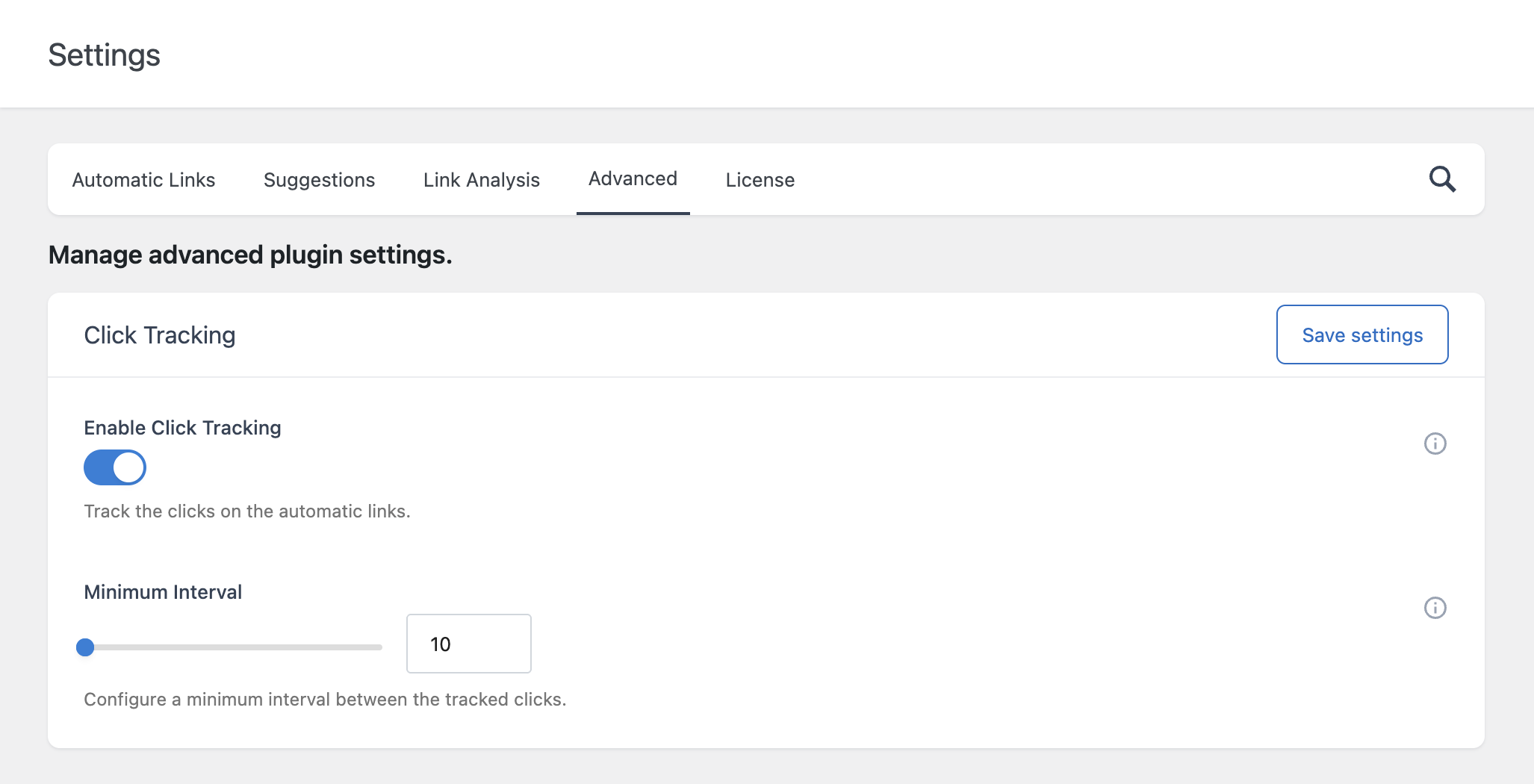
Click tracking is disabled by default. To turn it on, open the Click Tracking card in the Advanced section of the Settings menu and enable the Enable Click Tracking option.
Once enabled, every link rendered on your site, whether placed manually in the editor or generated by an Auto Link Rule, is tracked when clicked.
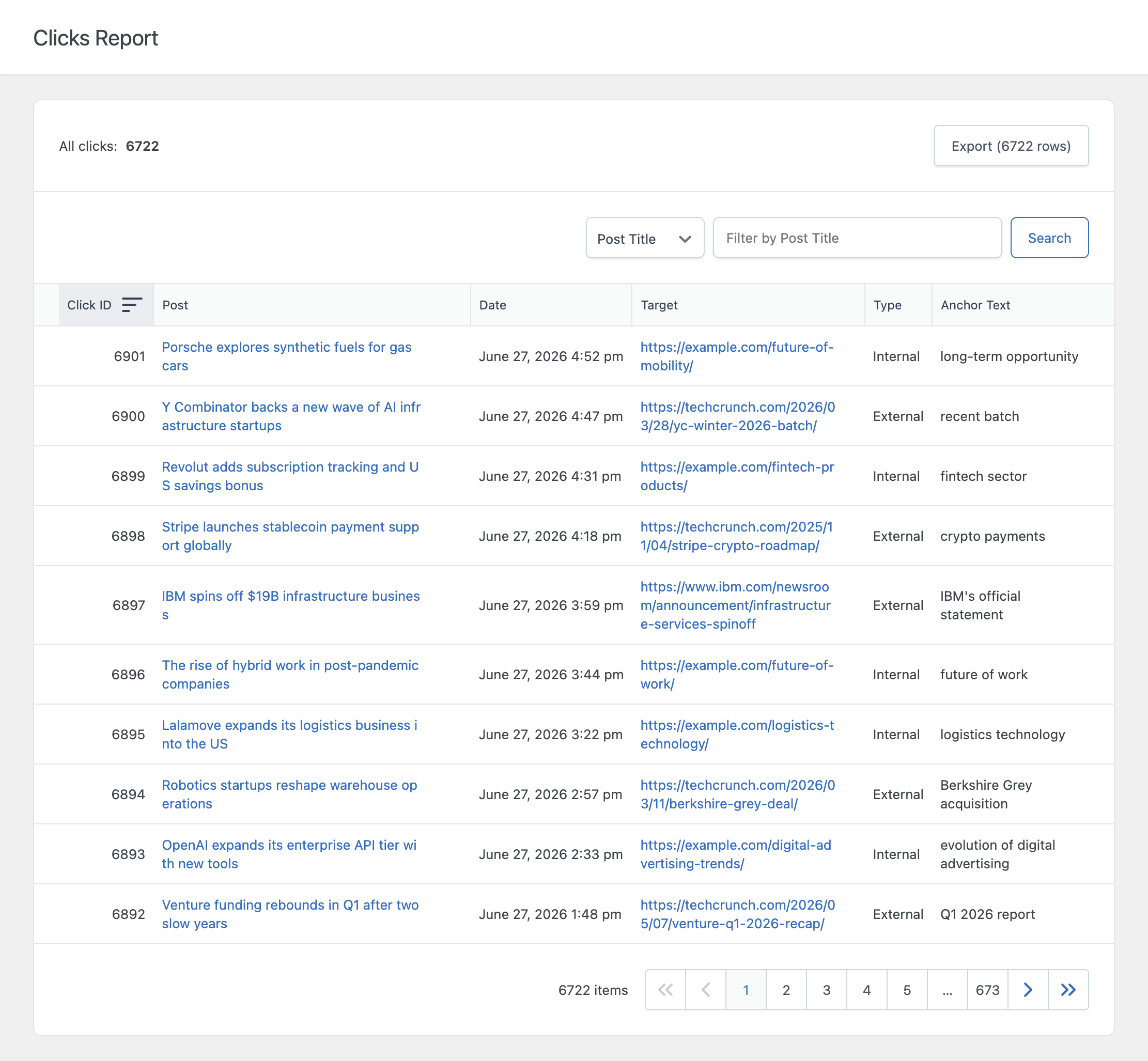
Columns
- Click ID – A unique identifier for this specific tracked click
- Post – The post where the clicked link was located
- Date – The date and time the click was registered
- Target – The destination URL the visitor was sent to
- Type – Whether the link was Internal or External, based on whether the target URL belongs to your own site. If the click came from an automatic link, this column also includes a quick link to edit the originating Auto Link Rule.
- Anchor Text – The visible text of the link that was clicked
Distinguishing Automatic Links From Manual Links
Every tracked click includes a reference to the Auto Link Rule that generated it, if applicable. Clicks on manually placed links don’t have an associated rule, since they weren’t generated by one. Use the edit link in the Type column to jump directly to the rule responsible for a given automatic link click, which is useful when reviewing the performance of a specific rule.
If you only want to see clicks generated specifically by your Auto Link Rules, the Automatic Links tab of the Dashboard provides a per-post click count scoped to automatic links only. Refer to the dedicated documentation on Automatic Links statistics for details.
Preventing Duplicate Clicks
To avoid inflating click counts when a visitor clicks the same link repeatedly in quick succession, or refreshes a page that re-fires a tracking event, the plugin enforces a Minimum Interval between tracked clicks from the same visitor. This value, measured in seconds, is configurable in the Click Tracking card of the Settings menu. Clicks from the same visitor within this interval are not recorded a second time.
Privacy and IP Handling
Click tracking records the visitor’s IP address only to enforce the Minimum Interval check described above, and the address is anonymized before being stored:
- For IPv4 addresses, the last 16 bits are removed (for example,
203.0.113.45is stored as203.0.0.0) - For IPv6 addresses, the last 96 bits are removed
The anonymized IP address is not displayed anywhere in the plugin interface and exists only to support the duplicate-click prevention mechanism.
Filtering and Sorting
The Clicks menu supports filtering by any column and sorting by clicking the column headers, which is useful for narrowing results down to a specific post, a specific date range, or a specific link type.