Understanding Internal Links Statistics
The Internal Links tab of the Dashboard gives you a per-post breakdown of internal linking, combining manually placed links, automatically generated links, and an optimization indicator that tells you whether each post is linked enough relative to its length.
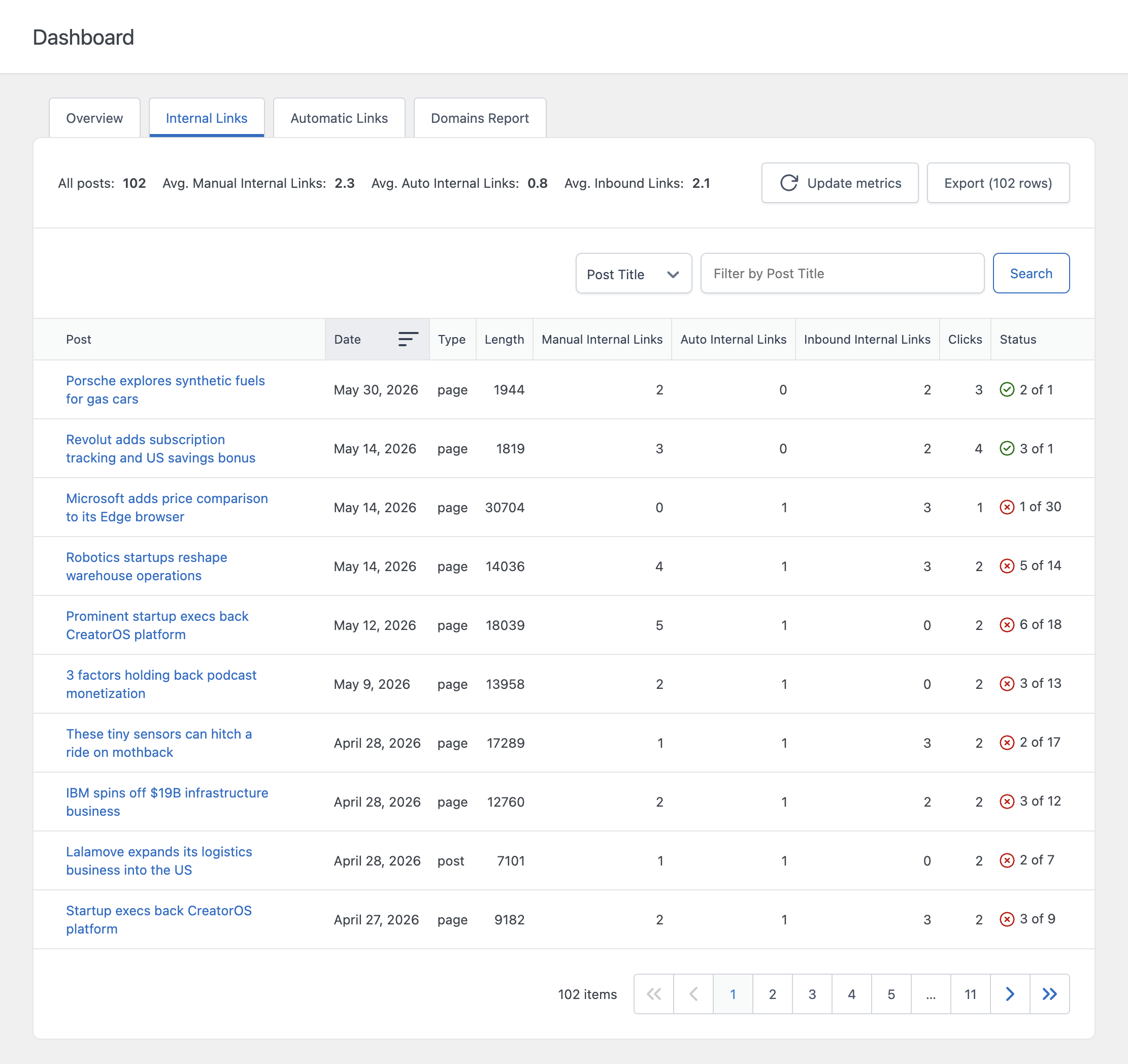
Columns
The table includes the following columns for every analyzed post:
- Post – The title of the post or page, with quick links to view it on the front end or open it in the editor
- Date – The publication date of the post or page
- Type – The content type, for example post or page
- Length – The content length of the post in characters
- Manual Internal Links – The number of internal links manually added to the content
- Auto Internal Links – The number of internal links automatically generated by your Auto Link Rules
- Inbound Internal Links – The number of internal links pointing to this post from other content on your site
- Clicks – The number of clicks recorded on internal links within this post
- Status – Indicates whether the total number of internal links is within the recommended range based on content length
Understanding the Status Column
The Status column is the most useful column for identifying which posts need attention. It combines your Manual Internal Links and Auto Internal Links counts into a single total and compares it against a recommended number calculated from the post’s content length.
The value is displayed as “X of Y”, where X is the current total number of internal links and Y is the recommended number. A green indicator means the post falls within the recommended range; a red indicator means it does not.
How the Recommended Number Is Calculated
The recommended number of internal links is calculated using two settings available in the Advanced section of the Settings menu:
- Characters per Internal Link – Determines how many characters of content justify one internal link. The recommended number of links is calculated by dividing the content length by this value.
- Optimization Delta – Defines an acceptable range around the recommended number. A post is considered optimized if its actual number of internal links falls within this range, not only when it matches the recommended number exactly.
Example
If Characters per Internal Link is set to 500 and a post has 2,000 characters, the recommended number of internal links is 4. If Optimization Delta is set to 2, any post with between 2 and 6 internal links will be marked as optimized.
For instructions on changing these values, refer to the dedicated documentation on Link Analysis settings.
Inbound Internal Links
Inbound Internal Links count differently from the other columns: instead of counting links that exist within the post, this column counts links from other posts that point to this post. A high inbound count generally indicates a page that is well integrated into your site’s internal linking structure and is more likely to be recognized as important by search engines.
How This Relates to the Editor Panels
The same optimization logic that powers the Status column in this table also drives the Internal Links Optimization panel available directly in the post editor, so you can monitor and improve a post’s internal linking while you are writing it, without needing to return to the Dashboard. Refer to the dedicated documentation on the Internal Links Optimization panel for details.
Refreshing and Filtering
Like the other Dashboard tabs, the data in this tab is cached and updated periodically. Use the Update metrics button to manually refresh the data, or adjust the Dashboard Data Update Frequency setting to control how often it updates automatically. You can filter the table by any column and sort by clicking the column headers.