Using the Maintenance Tools
The Maintenance menu lets you bulk-delete plugin data by ID range. This is useful for cleaning up large amounts of data at once, for example after testing, or when removing old tracked clicks that are no longer needed.
How It Works
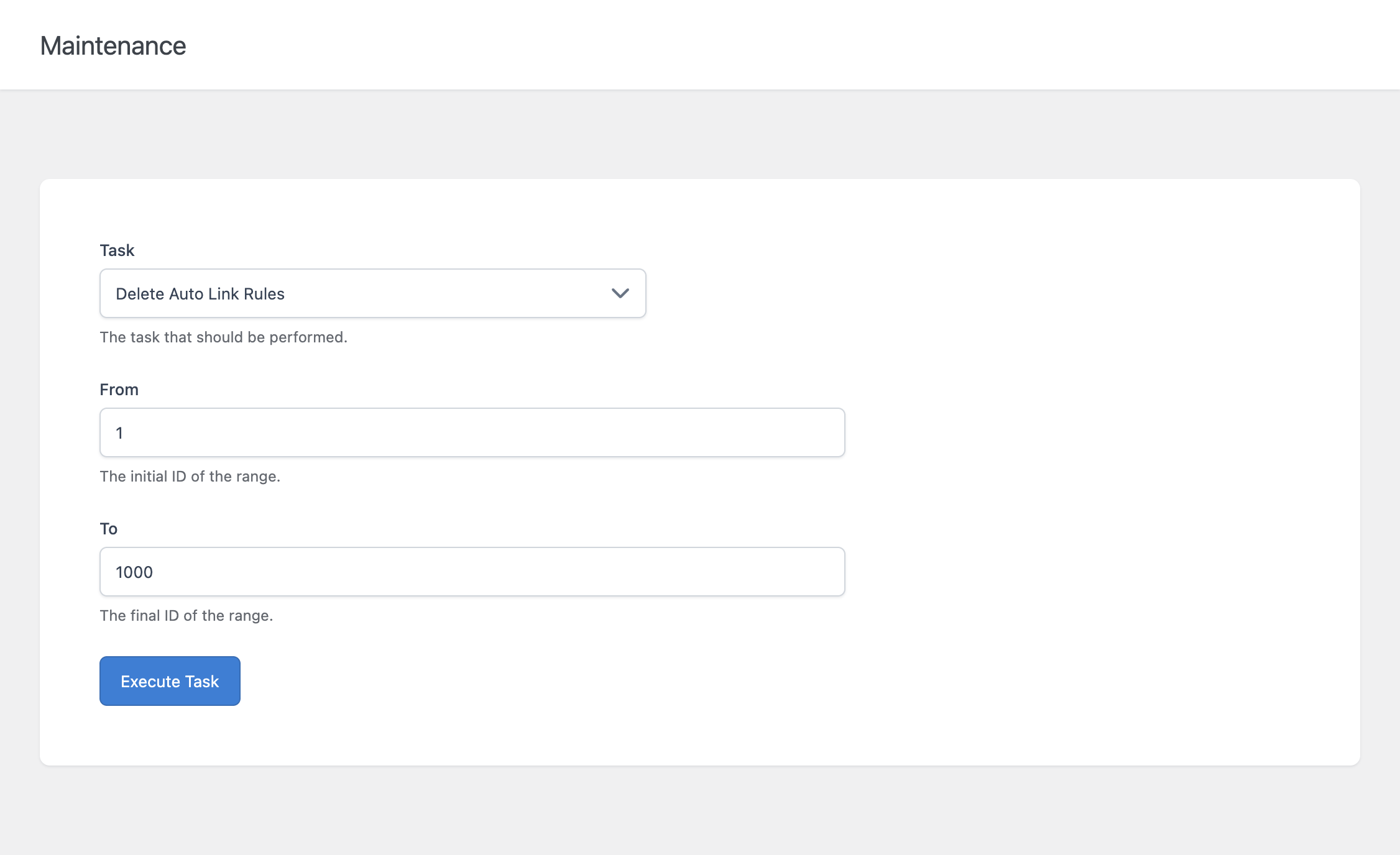
Select a Task, define a range using the From and To fields, then click Execute Task. The range refers to the internal database ID of the items being targeted, not their position in a list or their name.
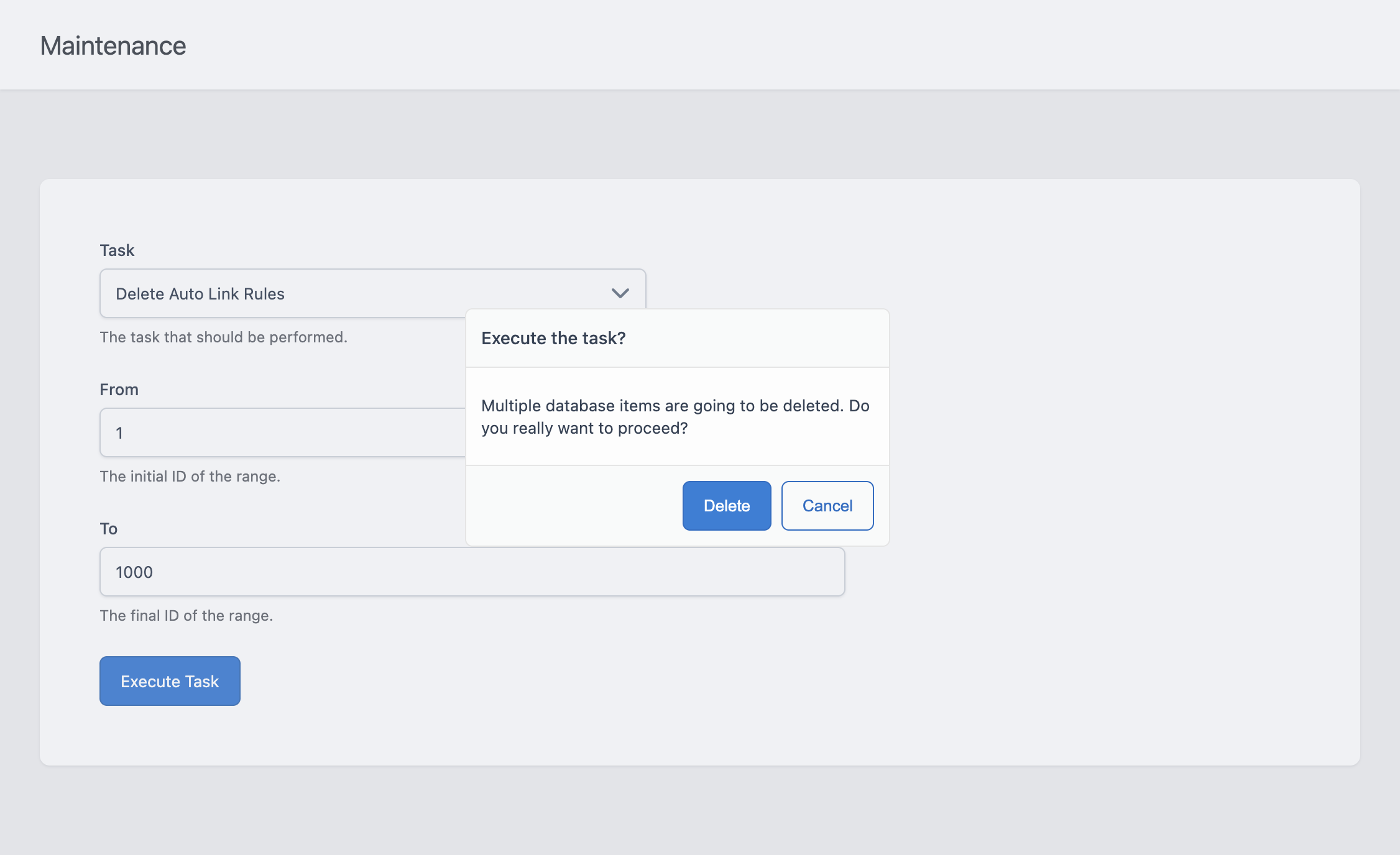
A confirmation dialog appears before the task runs, since these operations delete data and cannot be undone.
Available Tasks
- Delete Auto Link Rules – Permanently deletes every Auto Link Rule whose ID falls within the specified range, regardless of whether it is currently in use.
- Delete Categories – Deletes Categories within the specified range, but only the ones not currently assigned to any Auto Link Rule. Categories still in use are left untouched, even if their ID falls within the range.
- Delete Target Groups – Deletes Target Groups within the specified range, but only the ones not currently assigned to any Auto Link Rule. Target Groups still in use are left untouched, even if their ID falls within the range.
- Delete Clicks – Permanently deletes tracked click records whose ID falls within the specified range.
Unlike the Categories and Target Groups tasks, the Delete Auto Link Rules and Delete Clicks tasks do not check whether the data is in use elsewhere; every item in the range is deleted unconditionally.
Finding the Right ID Range
The Maintenance menu doesn’t display a list of items to pick from, since it operates purely on ID ranges. To find the IDs you need:
- For Auto Link Rules, Categories, or Target Groups, check the relevant tab in the Auto Link Rules menu. While the ID itself isn’t shown directly in the list, you can identify the items you want to remove by name and infer their relative order.
- For Clicks, use the Click ID column visible in the Clicks menu to find the range you want to delete.
If you’re unsure of the exact range, it’s safer to run a smaller, more conservative range first and verify the result before running a larger one.
Range Limits
For performance reasons, a single task cannot process more than 10,000 items at once. If the difference between From and To exceeds this limit, the task is rejected and you’ll need to split it into multiple smaller operations.
After Running a Task
A notice confirms how many items were affected by the operation. If a task reports zero items deleted, it means nothing in the specified range matched the deletion criteria, for example because the range was empty, or because every Category or Target Group in that range was still in use.