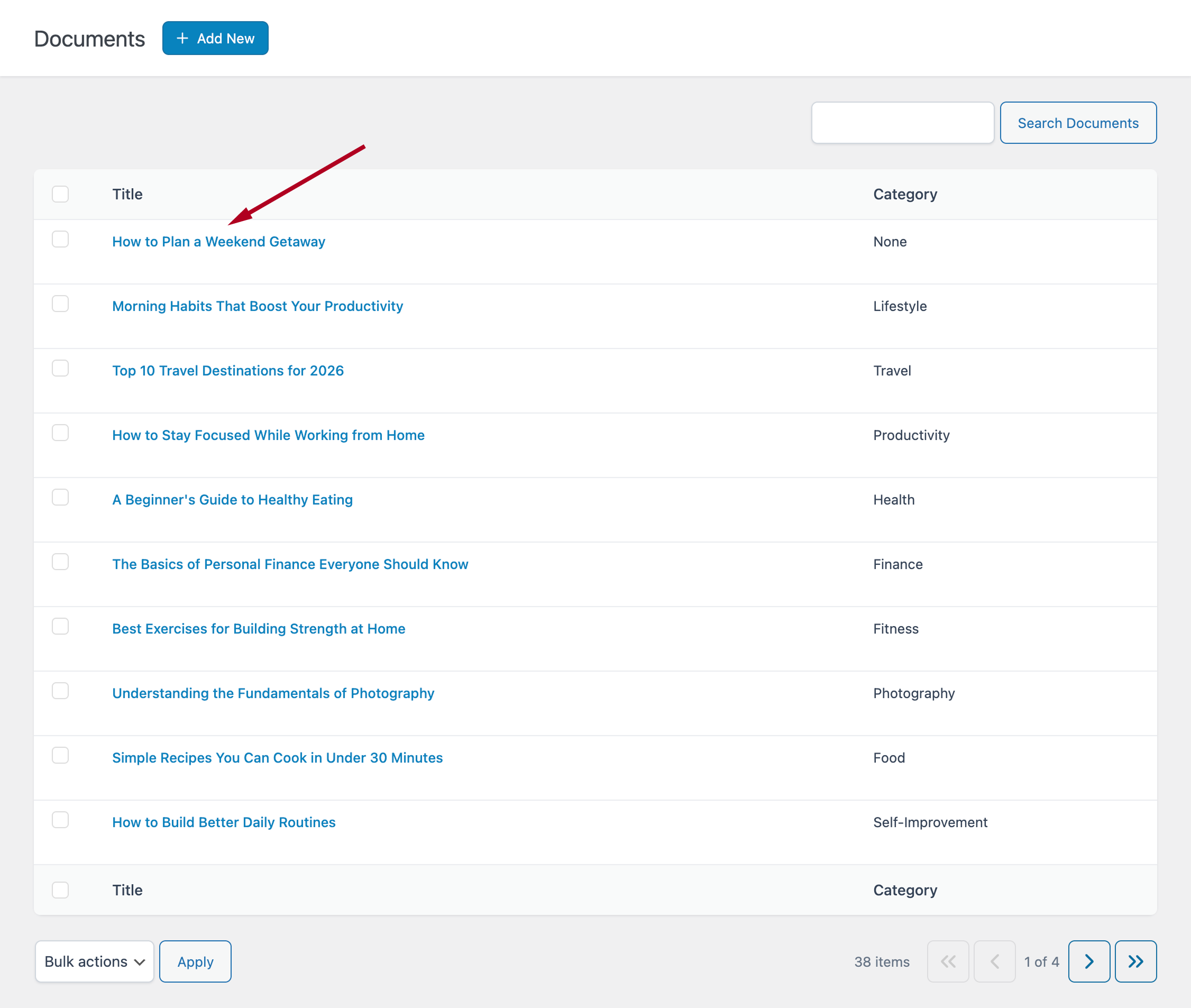
Importing Markdown to Documents
This section explains how to import local Markdown files into the internal archive available in Markdown → Documents.
This workflow is ideal if you want to:
- Build a centralized Markdown archive inside WordPress
- Prepare content before publishing
- Manage documents separately from posts
To begin, go to the Tools menu in your WordPress dashboard.
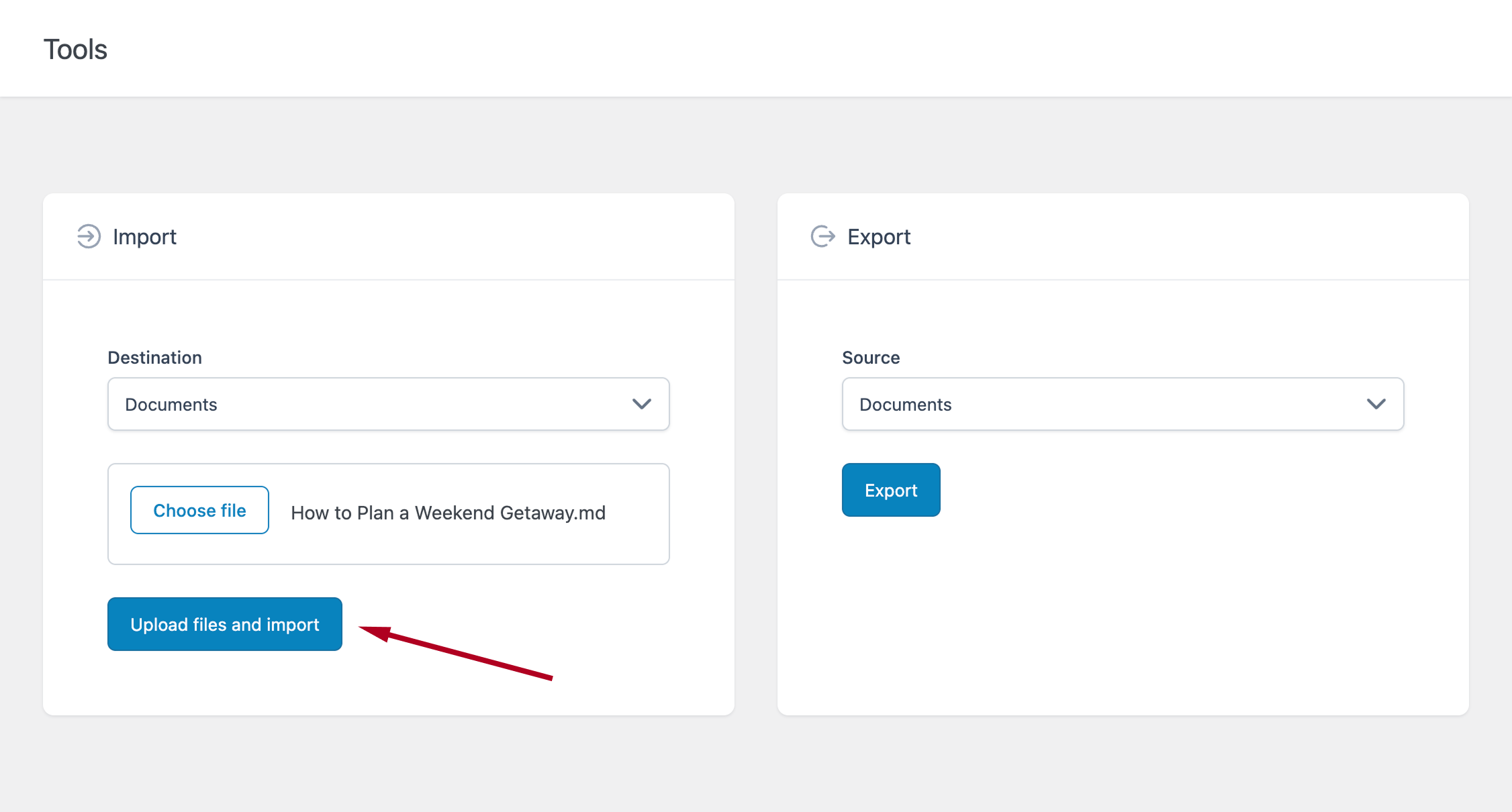
In the Import section select Documents as the Destination. This ensures the imported content is stored as internal Markdown documents and not as WordPress posts.
Click the Choose files button to select one or more files from your computer.
Supported inputs include:
- Plain text Markdown files (supported extensions)
- ZIP files containing a Markdown file and related images (see Importing Images documentation)
Click Upload files and import to start the process.
After the import completes:
- A notification displays the list of generated documents
- Each file is converted into a document in the plugin archive
You can verify the imported content by visiting the Markdown → Documents menu, where all generated documents will be available.