Export Markdown from the Post Editor
The Export Markdown section allows you to generate a Markdown file from the content of the currently edited post.
Use this panel if you want to:
- Create backups of your posts
- Share content offline for review
- Migrate content to other platforms
- Maintain a Markdown version of your articles
To begin, open the Export Markdown section in the post editor sidebar.
Click the Export as Markdown button to generate the file.
The exported file includes the saved version of the post content.
If you have made changes that are not yet saved and want them included in the export, make sure to save the post before exporting.
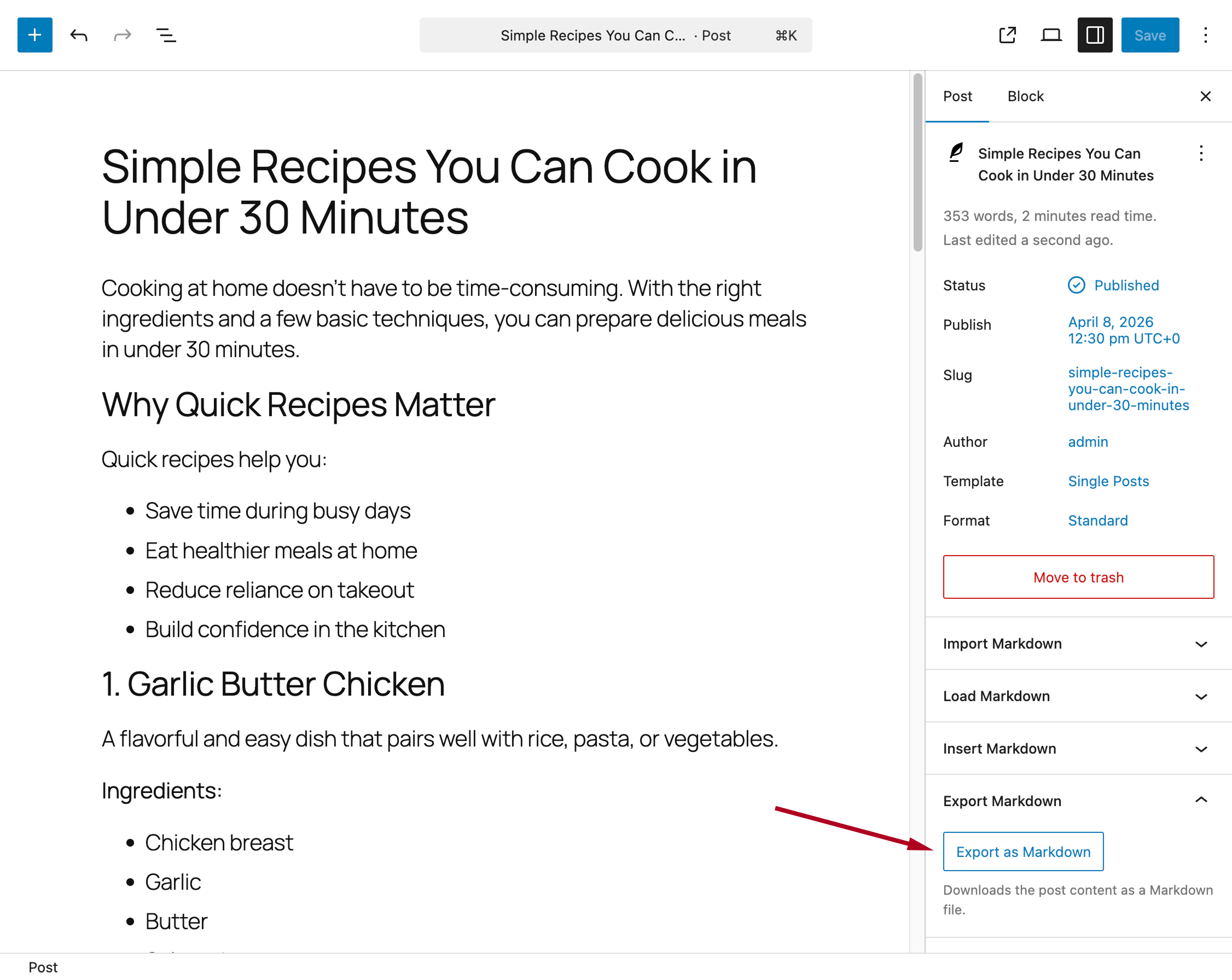
After clicking the button:
- The Markdown file is generated automatically
- Your browser will download the file
- The file will be available in your default downloads folder
Configuring the File Extension
You can configure the file extension of exported files in:
Options → Advanced → File Extension
This allows you to customize the extension used for generated Markdown files (for example, .md or .markdown).

Enabling and Configuring Front Matter
You can optionally include YAML front matter at the top of exported Markdown files.
To enable this feature:
- Go to Options → Advanced
- Enable the Add Front Matter option
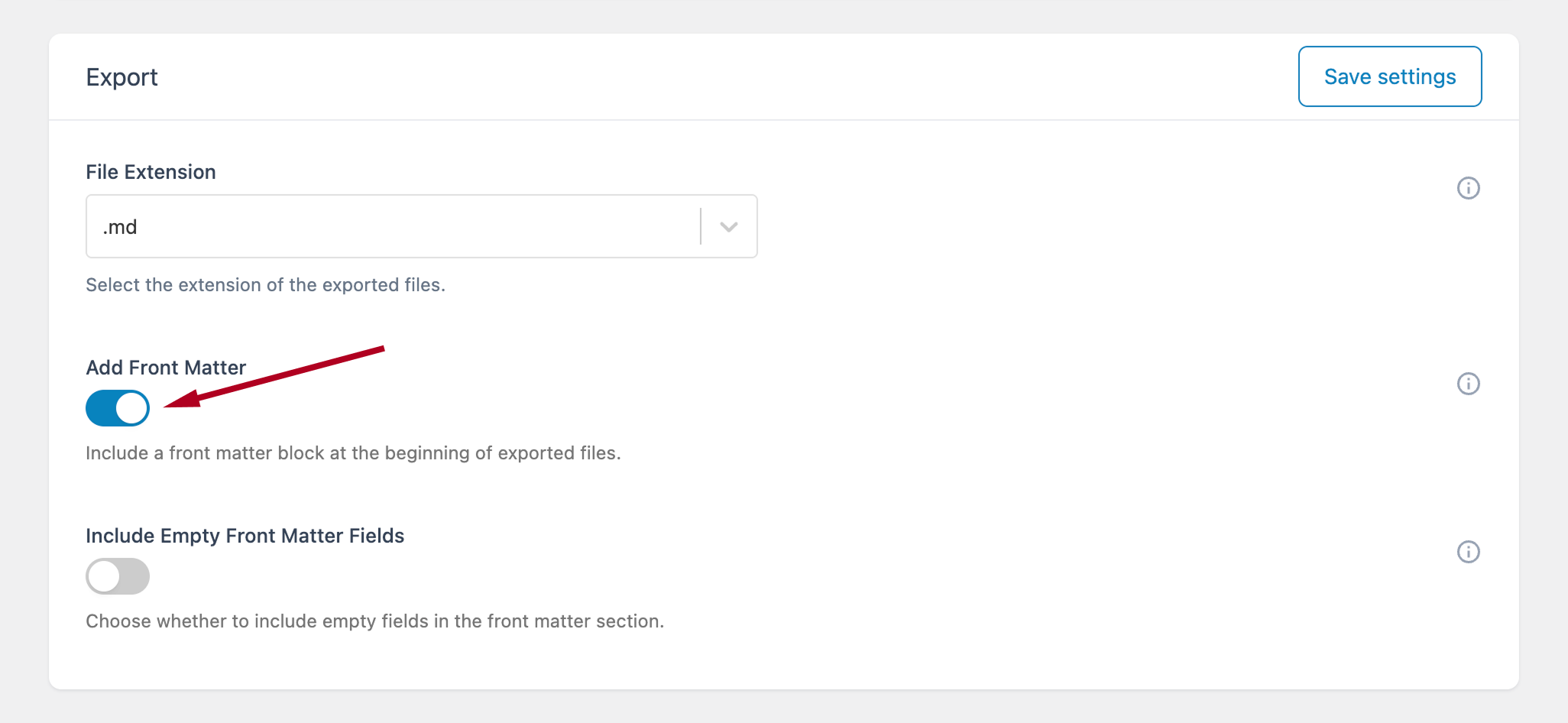
When enabled, a front matter block is added to each exported file and automatically populated with metadata such as:
- Title
- Excerpt
- Slug
- Publication date
Include Empty Fields
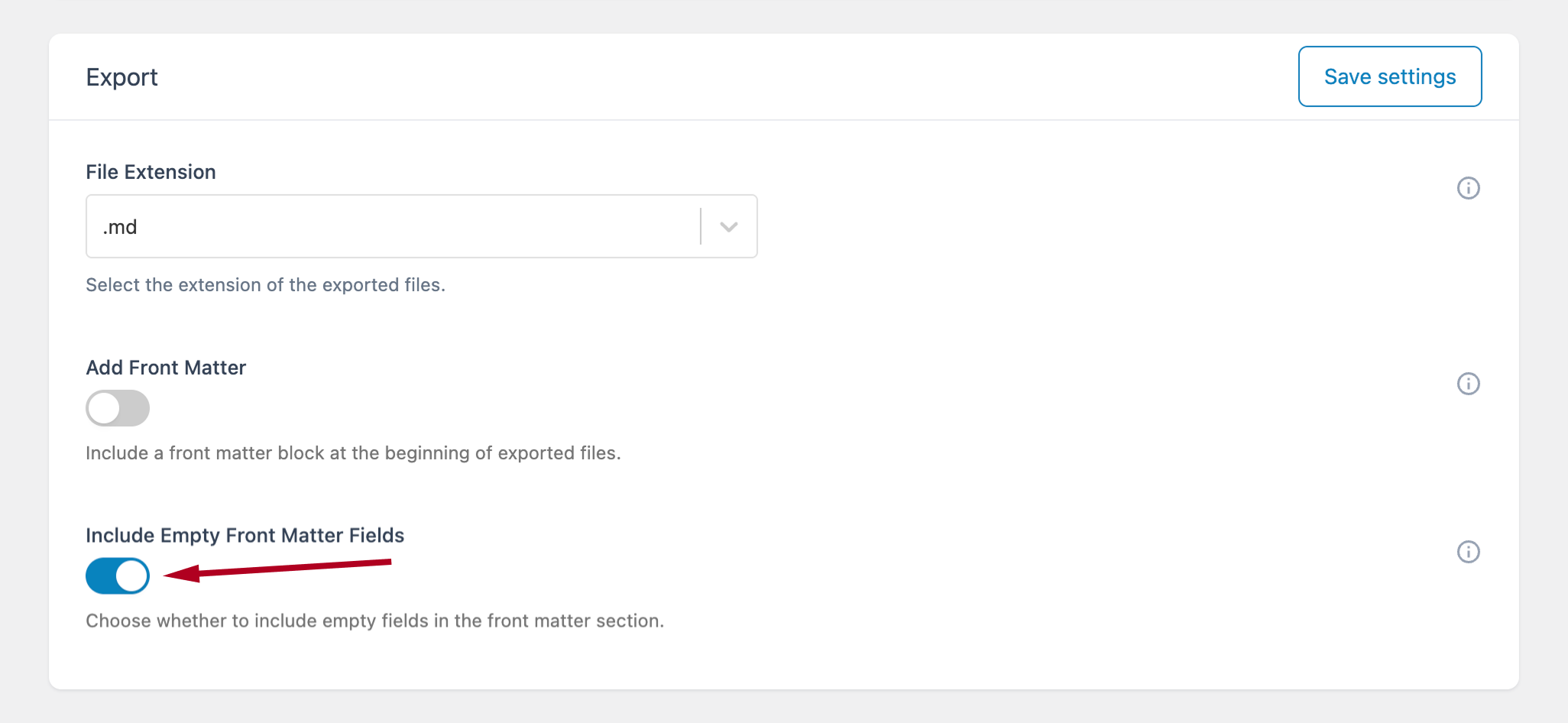
You can also enable Include Empty Front Matter Fields.
- Enabled → Empty fields are included as empty values
- Disabled → Empty fields are omitted
This option helps you match the format required by your content workflow or external tools.
Use these settings to ensure compatibility with static site generators, headless CMS setups, or custom pipelines that rely on structured metadata.