Quick Start Guide
Ultimate Markdown helps you work with Markdown in WordPress by providing tools to import, export, and manage Markdown documents efficiently.
The plugin supports multiple workflows, so how you use it depends on your specific needs. This guide gives you a quick overview so you can understand the core features, try them immediately, and then explore the full documentation if needed.
Why Use Ultimate Markdown
Markdown is widely used for its simplicity and focus on content. With Ultimate Markdown, you can bring those advantages directly into WordPress.
- Faster content creation – Write in Markdown instead of dealing with HTML or blocks
- Works well with AI tools – Easily paste content generated by LLMs in Markdown format
- Portable content – Keep Markdown as a universal format that can be used across platforms
- Efficient storage – Markdown files are lightweight and ideal for version control
- Flexible workflows – Work locally, in WordPress, or via external tools
Whether you are writing content manually, importing existing Markdown files, or integrating external tools, the plugin adapts to your workflow.
Using the Editor Panels
The plugin adds four dedicated panels to the editor (Block Editor sidebar or Classic Editor meta boxes). These panels provide quick access to key features:
- Import Markdown – Upload a Markdown file and import it into the editor
- Load Markdown – Retrieve stored Markdown documents
- Insert Markdown – Paste or insert Markdown manually
- Export Markdown – Download the current post as a Markdown file
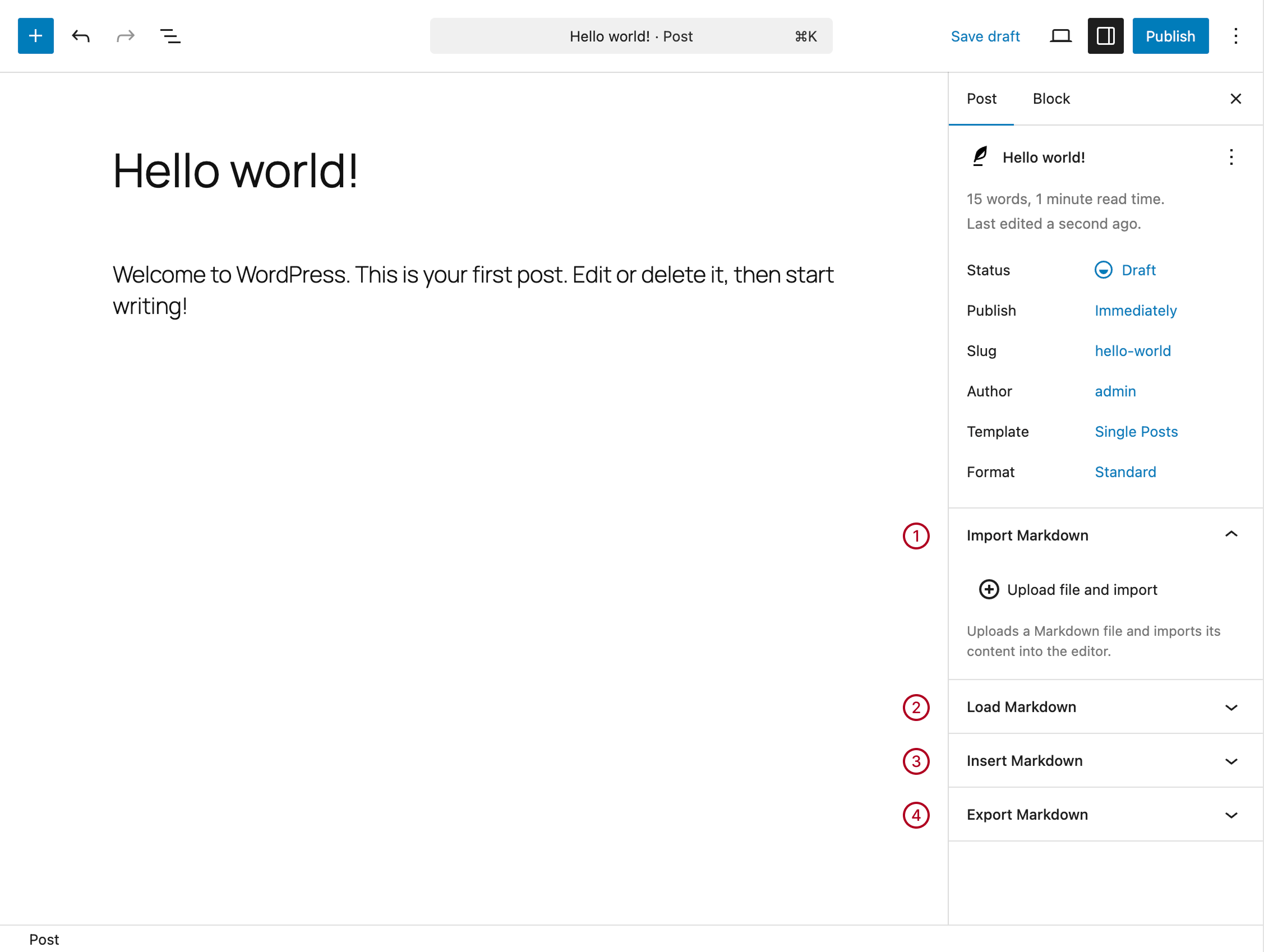
For step-by-step instructions, refer to the dedicated documentation on using the editor panels.
Bulk Import and Export
If you already have Markdown files, you can quickly import them and convert them into WordPress content using the Tools menu.
You can also import Markdown files into the plugin’s internal document archive instead of creating posts.
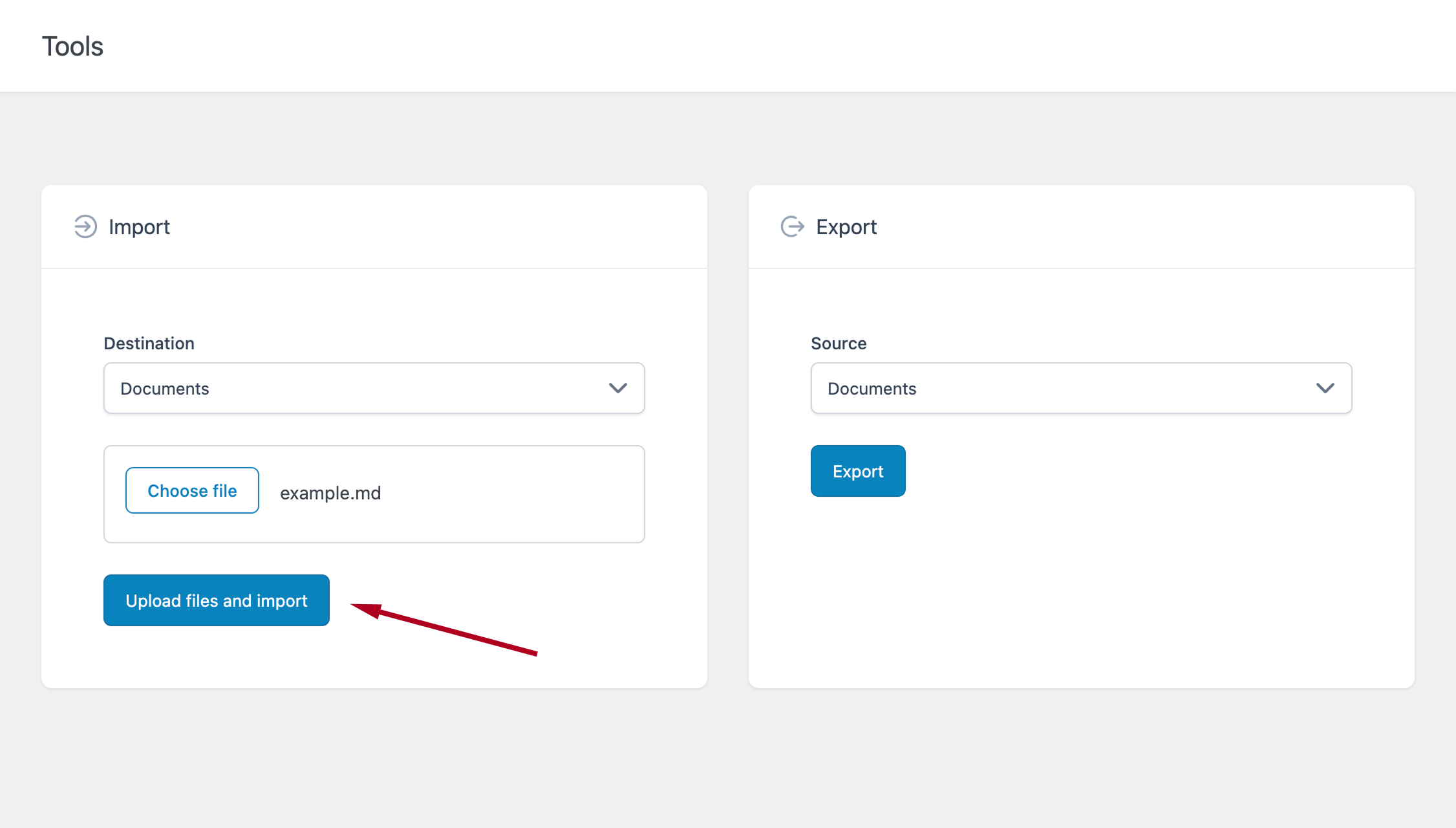
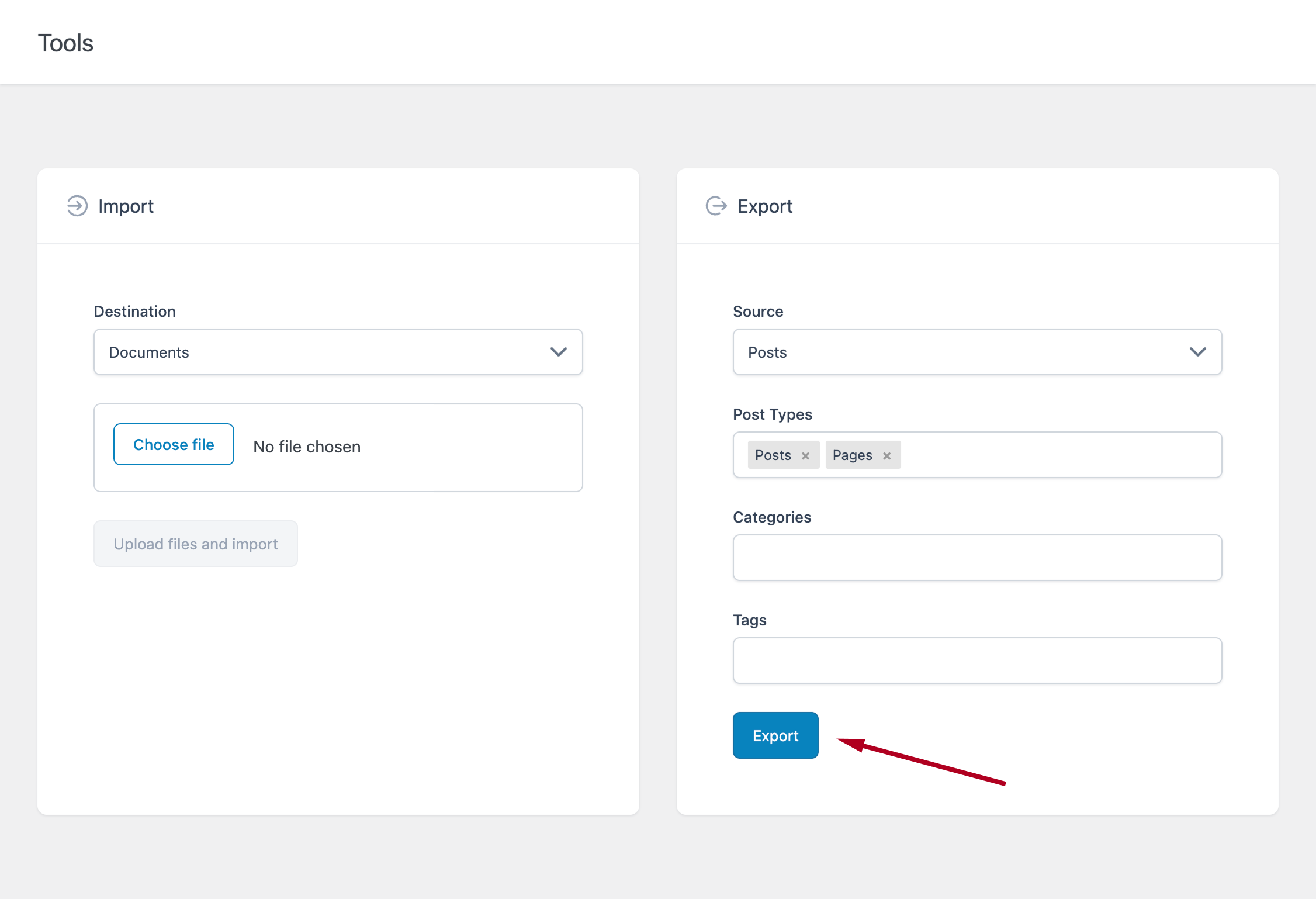
The export feature allows you to generate Markdown files from your WordPress content.
- Export posts as Markdown files
- Export internal documents
- Filter by post type, category, or tag
- Download everything as a ZIP archive
Managing Markdown Documents
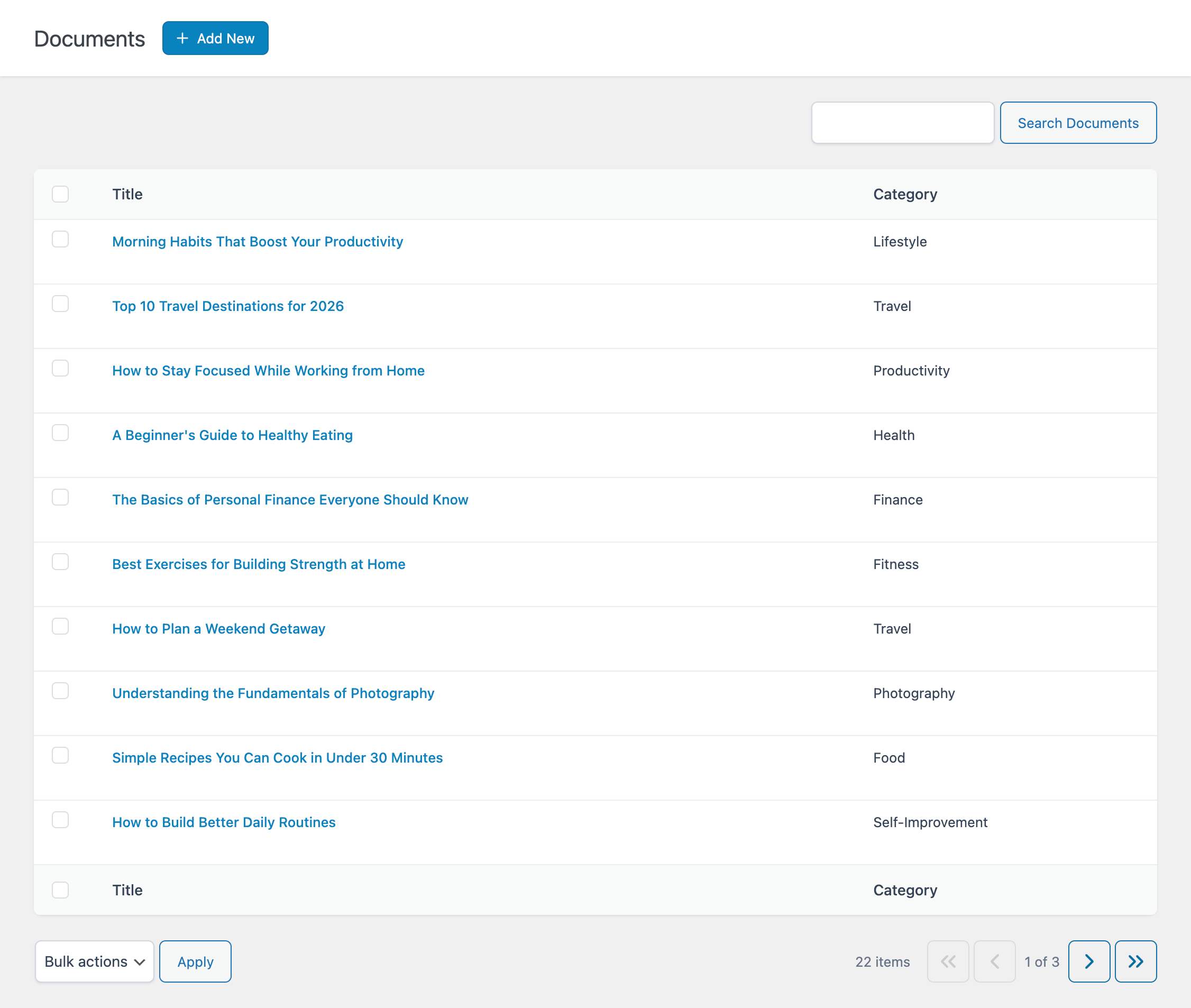
The plugin includes a dedicated section to manage Markdown documents directly in the dashboard.
- Create and edit Markdown documents
- Duplicate or delete documents
- Download documents as files
- Organize your Markdown archive
Each document includes a live preview so you can verify formatting and syntax while editing.
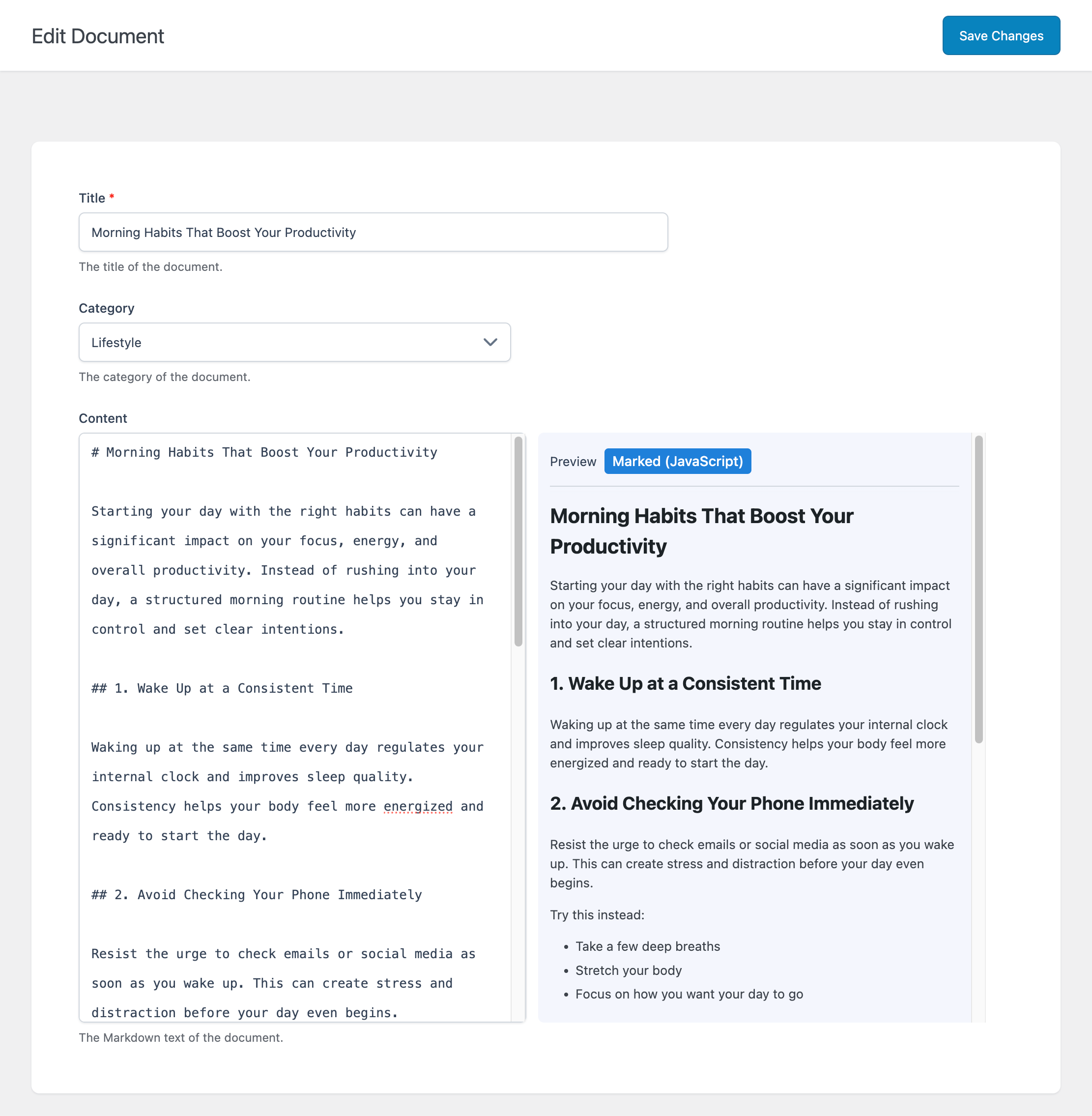
Documents can be converted into WordPress posts at any time using the editor panels.
If you prefer working only with import/export tools, you can ignore this feature entirely.
REST API for Developers
The plugin includes REST API endpoints that allow external applications to interact with WordPress using Markdown.
- Create documents programmatically
- Publish posts from Markdown
- Read stored Markdown documents
This enables advanced workflows such as:
- Publishing from external platforms
- Integrating custom editors
- Automating content pipelines
Where to Start
Choose your starting point based on how you plan to use the plugin:
- Writing content offline? Create a post and use the Import Markdown panel in the post editor to upload and convert your Markdown file.
- Exporting a single post? Use the Export Markdown panel in the post editor to download the content currently being edited.
- Exporting multiple posts or creating backups? Use the Export Posts feature in the Tools menu to download your content in bulk as Markdown files.
- Building a site from Markdown files? Use Import to Posts to create multiple posts, or Import to Documents to store them in the document library.
- Managing Markdown inside WordPress? Use the Documents menu to create, edit, and organize your Markdown documents.
- Using external tools or automation? Use the Read Documents and Import via REST API endpoints.
- Importing Markdown with images? Use ZIP Images for local images, or Public Images for externally hosted images.