Introduction to Managing Documents
The Documents menu allows you to create, edit, duplicate, download, and delete Markdown documents directly within the plugin.
This feature provides a dedicated environment for working with Markdown, separate from the standard WordPress editor. This means you can manage your content without affecting your usual editing workflow in the Block Editor or Classic Editor.
Important: Throughout this documentation, Documents refers to the internal Markdown files managed by the plugin, while Posts refers to standard WordPress posts.
Create a document
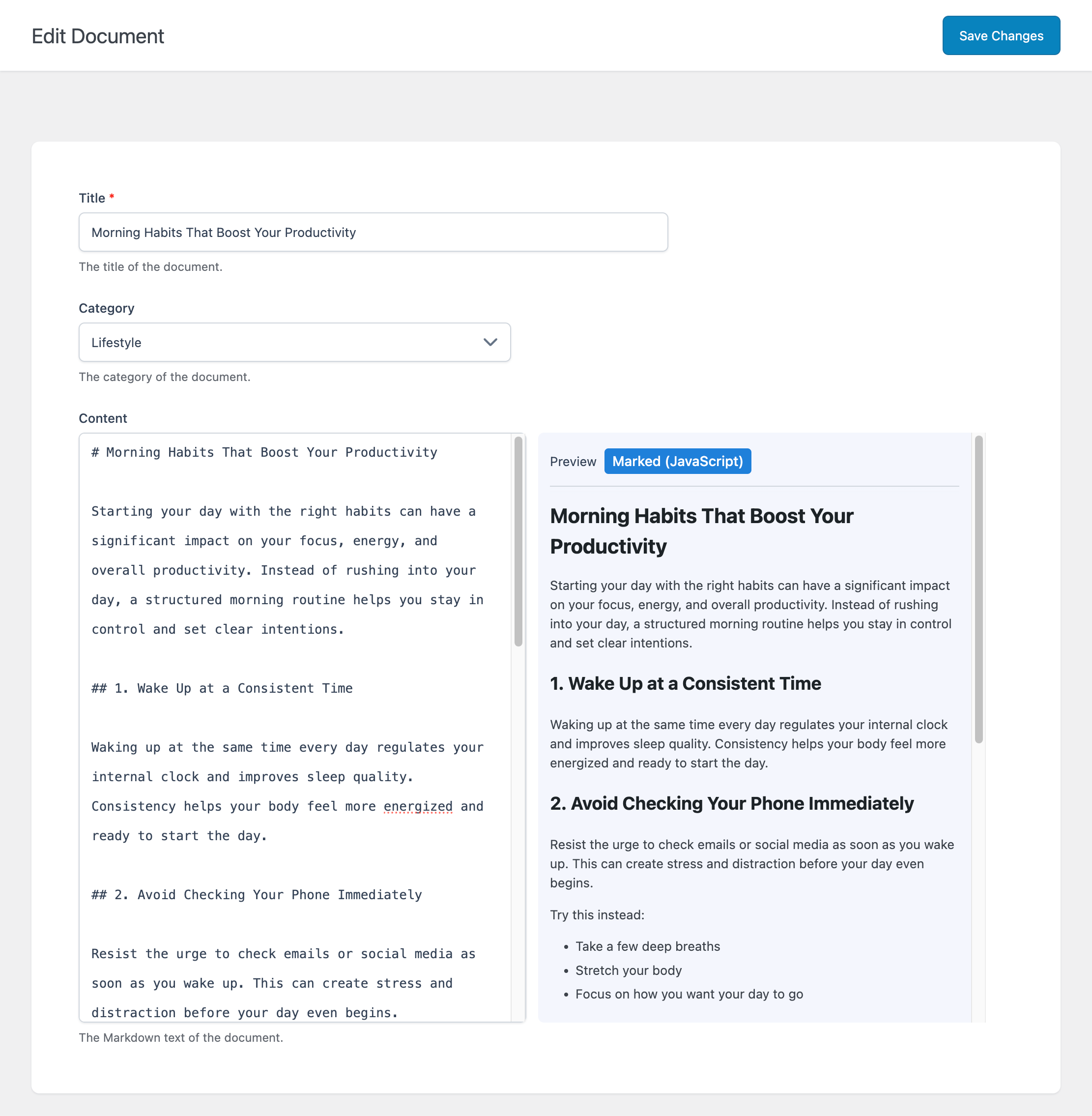
To create a document:
- Enter the Title of the document
- Select a Category (optional)
- Add your Markdown Content
- Click Save Changes
Download a Document
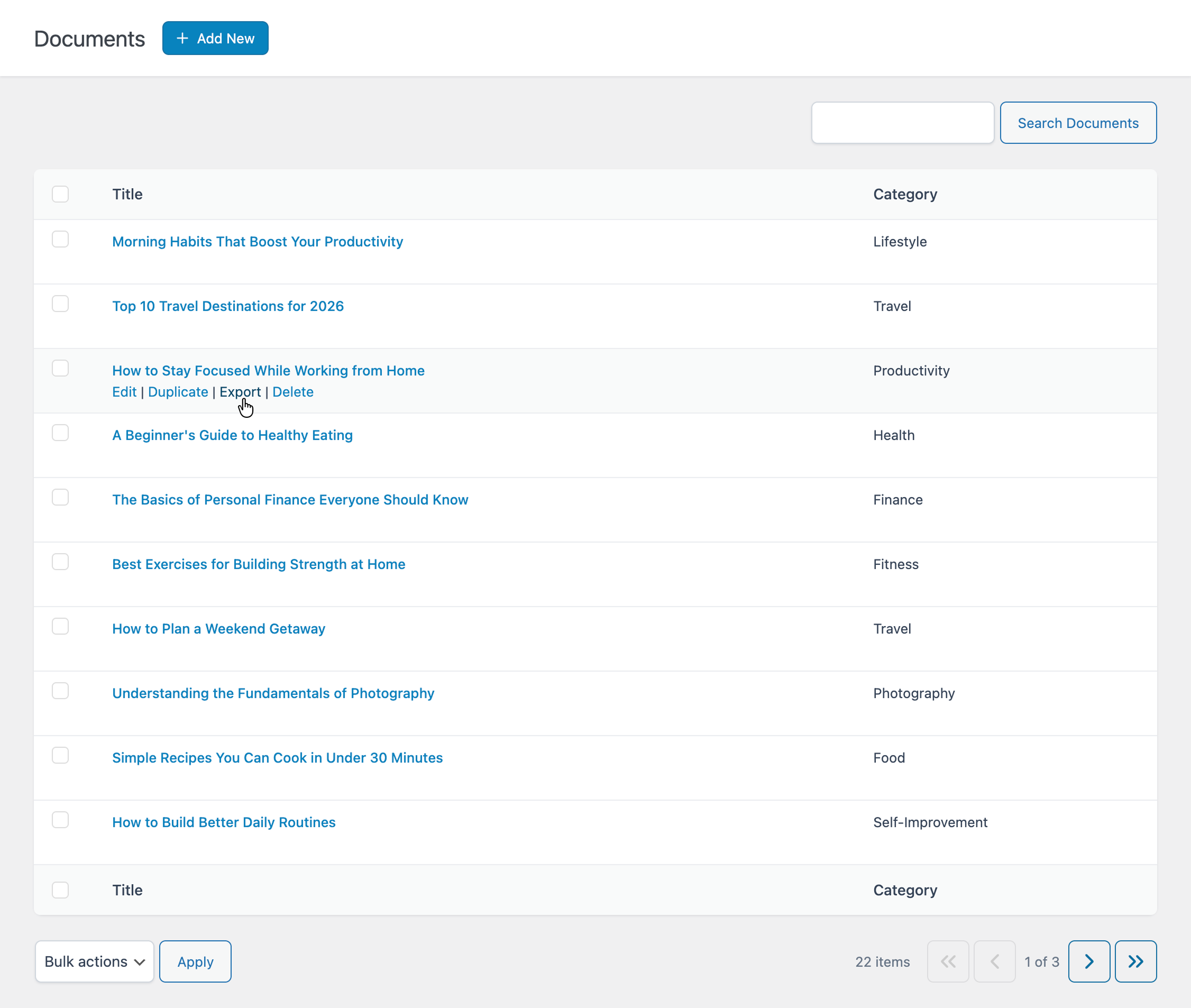
To download a document:
- Locate the document in the list
- Click the Export link in the first column
This will download the document as a Markdown file.
Categories
The Categories menu allows you to organize your documents into groups.
Using categories is optional, but recommended if you manage a large number of documents.
Create a Category
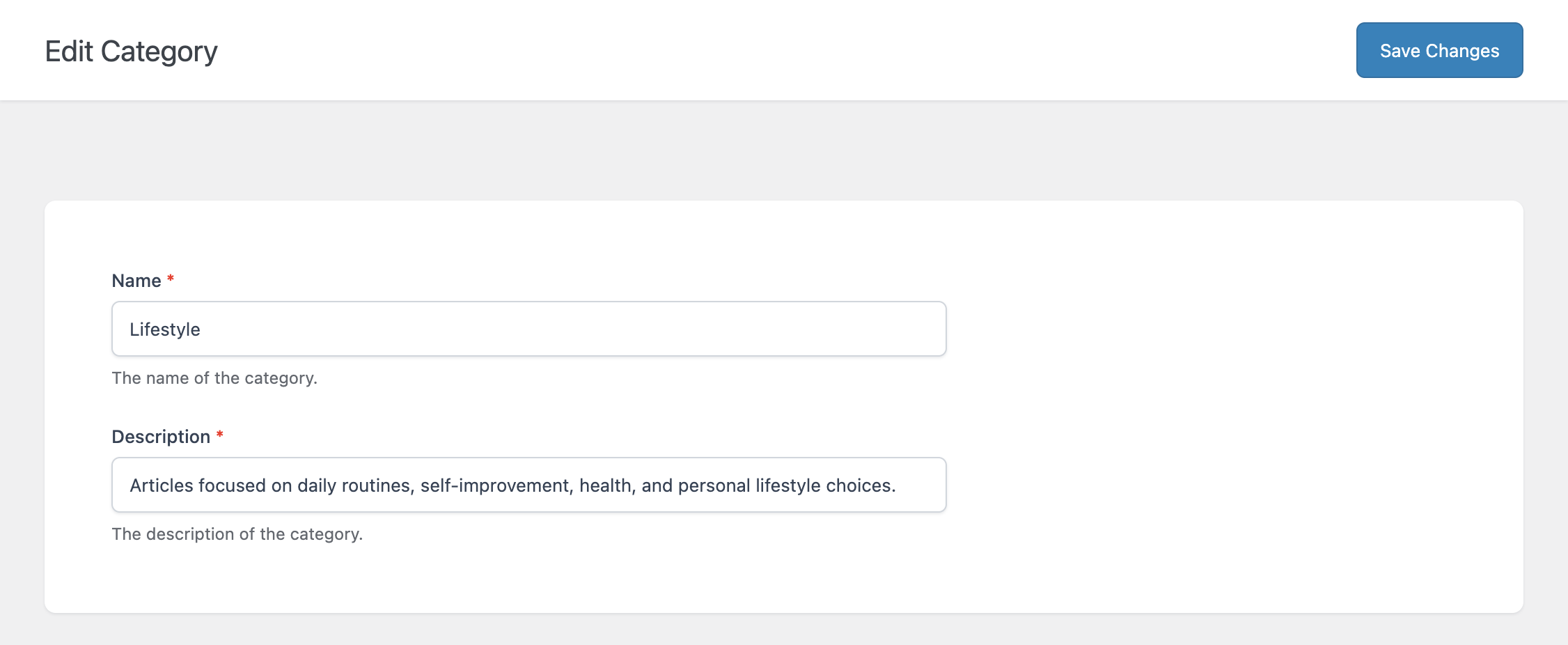
To create a new category:
- Enter the Name
- Add a Description (optional)
- Click Save Changes
Configure the Preview Parser
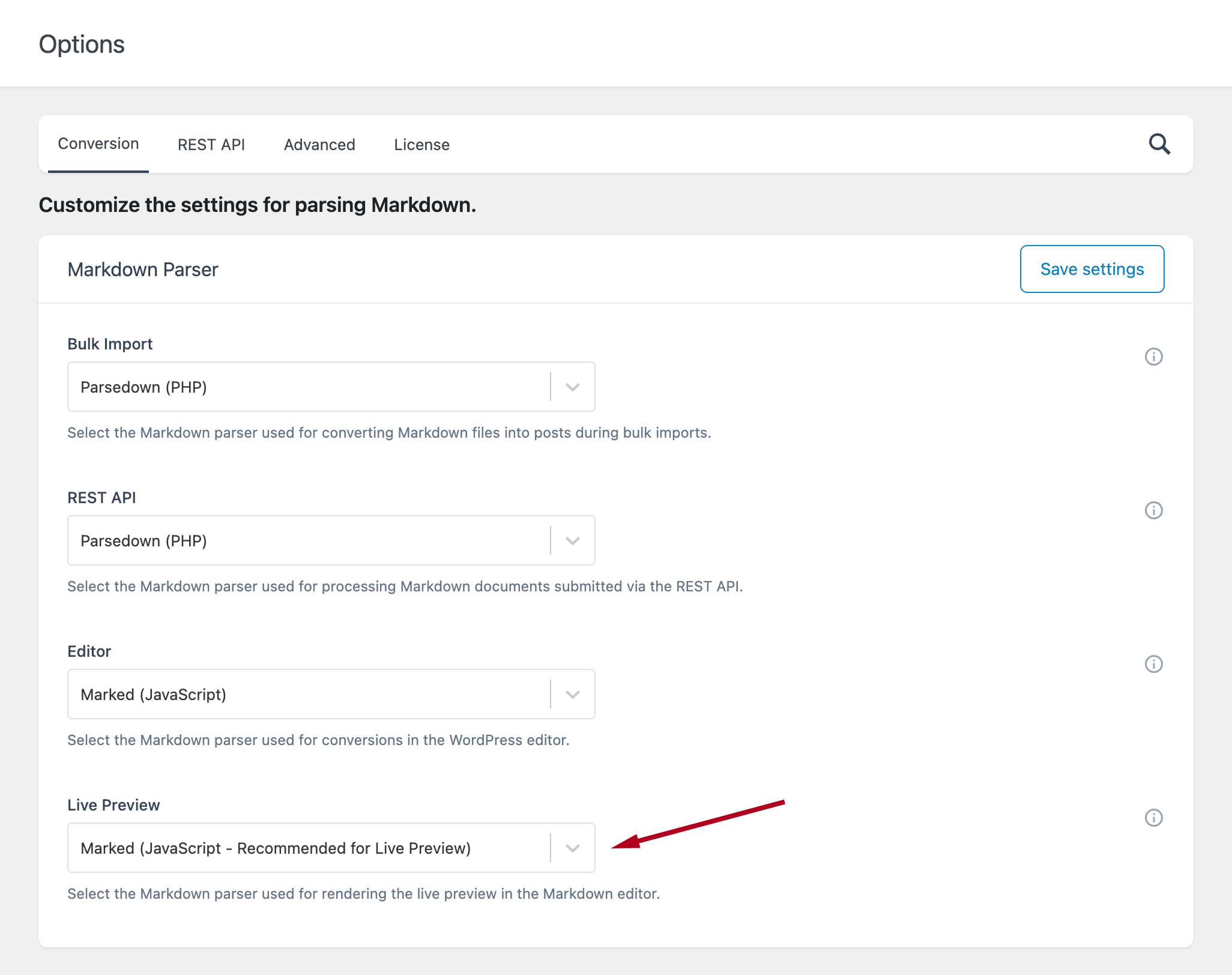
You can configure how Markdown is rendered in the document preview.
Go to:
Options → Conversion → Markdown Parser
Here you can choose the parser used in the editor.
For instant, real-time preview without server requests, we recommend using the Marked parser (JavaScript parser).
If you choose to use a PHP parser, note that these parsers require server requests to render Markdown, so the preview is not instant. Use a PHP parser only if you need specific parsing behavior.
For PHP-based parsers, additional settings are available under:
Options → Advanced → Live Preview
Here you have two options.
The first option allows you to enable the automatic refresh of the preview when editing a Markdown document without the need to click the refresh button. When enabled, the plugin automatically updates the live preview while typing. If disabled, you must manually refresh the preview using the dedicated button.
Disabling this option can reduce server load on shared or slow hosting environments. This setting applies only when a PHP-based Markdown parser is selected.
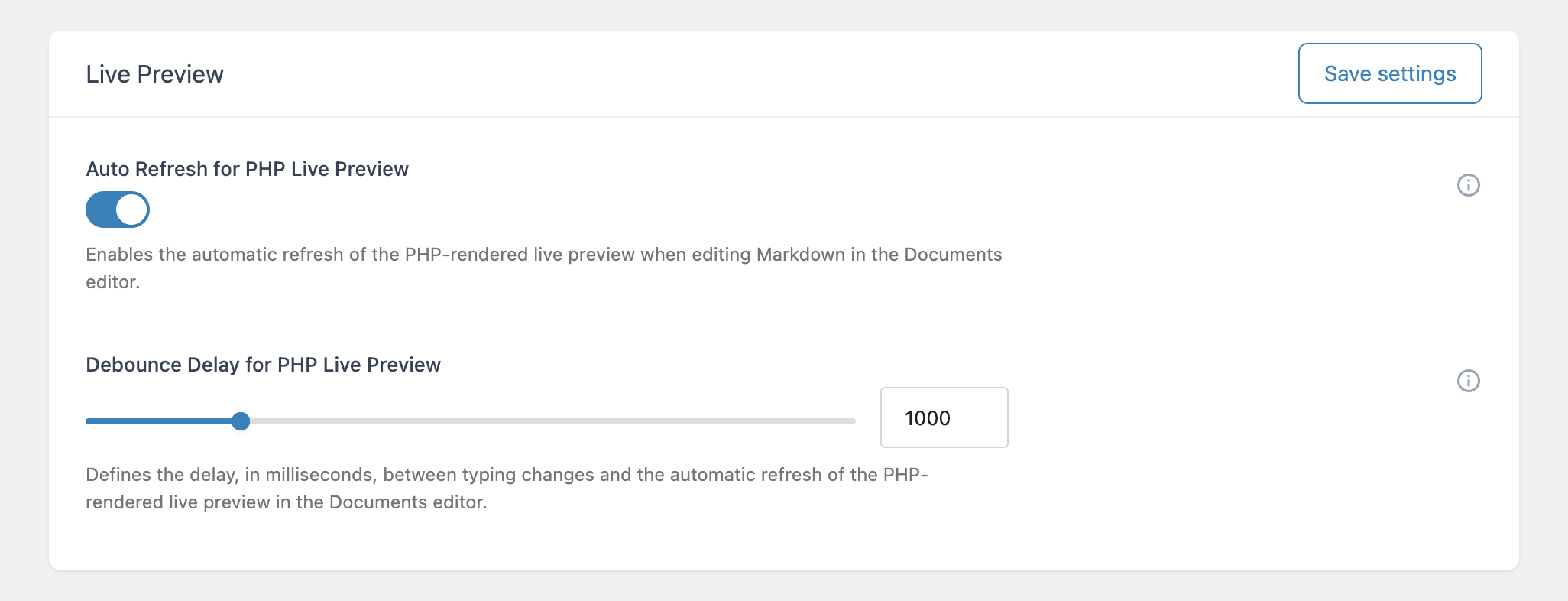
The second setting defines the delay between typing changes and the automatic refresh of the preview. This value determines how long the plugin waits after you stop typing before sending the Markdown content to the PHP parser via REST API to update the live preview.
Higher values reduce the number of server requests but may make the preview feel less responsive. This setting applies only when a PHP-based Markdown parser is selected.