Targeting Content with Target Groups
A Target Group is a reusable, named collection of targeting conditions that you can apply to one or more Auto Link Rules. Instead of manually selecting Post Types, Categories, and Tags separately on every rule, you can define a Target Group once and reuse it across multiple rules.
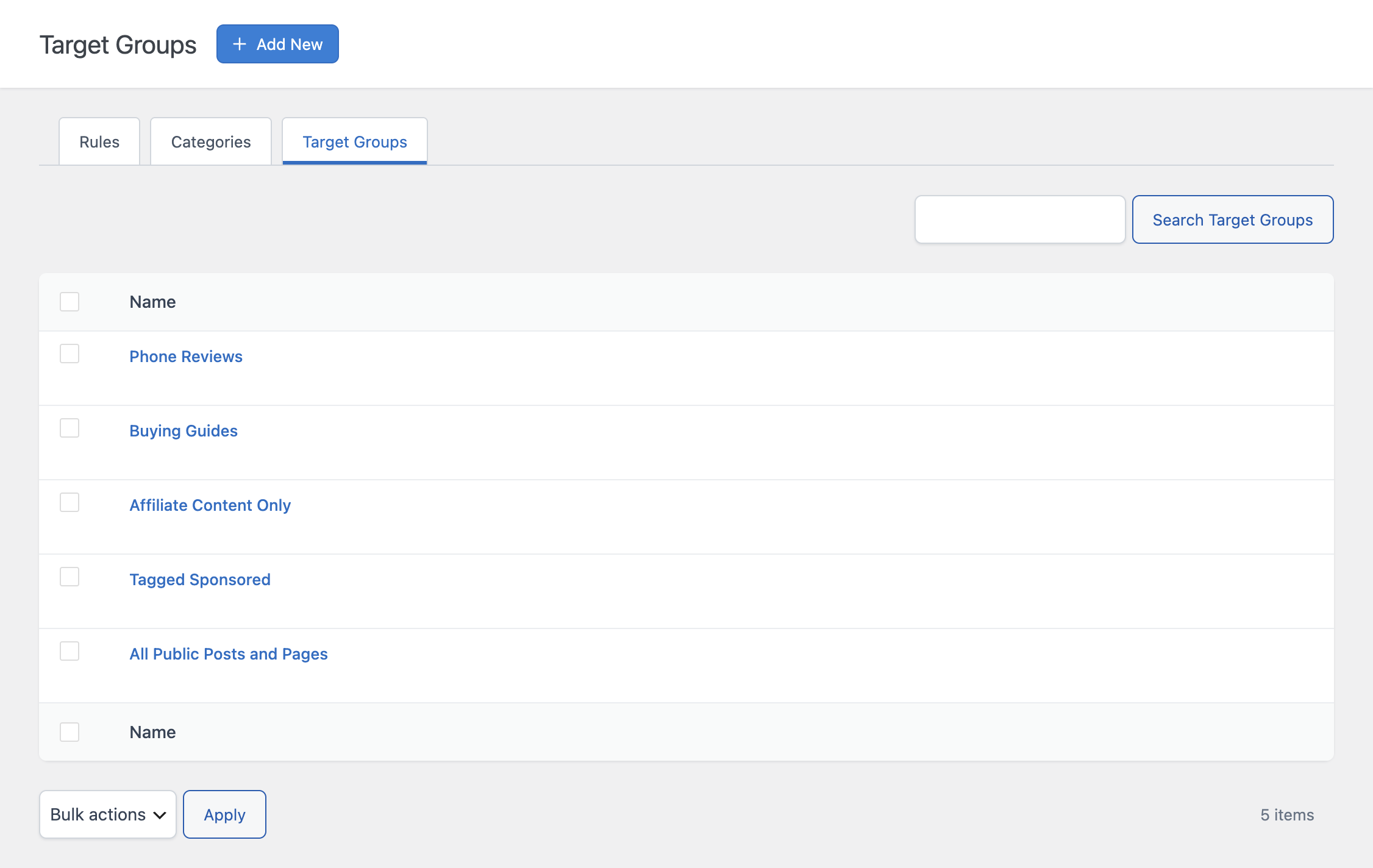
When to Use a Target Group Instead of Categories and Tags
The Apply To section of the Auto Link Rule form already lets you restrict a rule by Post Types, Categories, and Tags directly. A Target Group becomes useful when:
- You want to reuse the exact same targeting logic across several different rules, without re-selecting the same conditions every time
- You need to combine multiple post type and taxonomy combinations into a single condition, for example targeting “posts tagged X” or “pages in category Y” within the same group
- You want to centrally update where a group of rules applies by editing the Target Group once, instead of editing every rule individually
If a rule references a Target Group, the Categories and Tags fields on that rule are ignored, and only the Target Group’s conditions are evaluated.
Creating a Target Group
Open the Target Groups tab from the Auto Link Rules menu and click Add New.
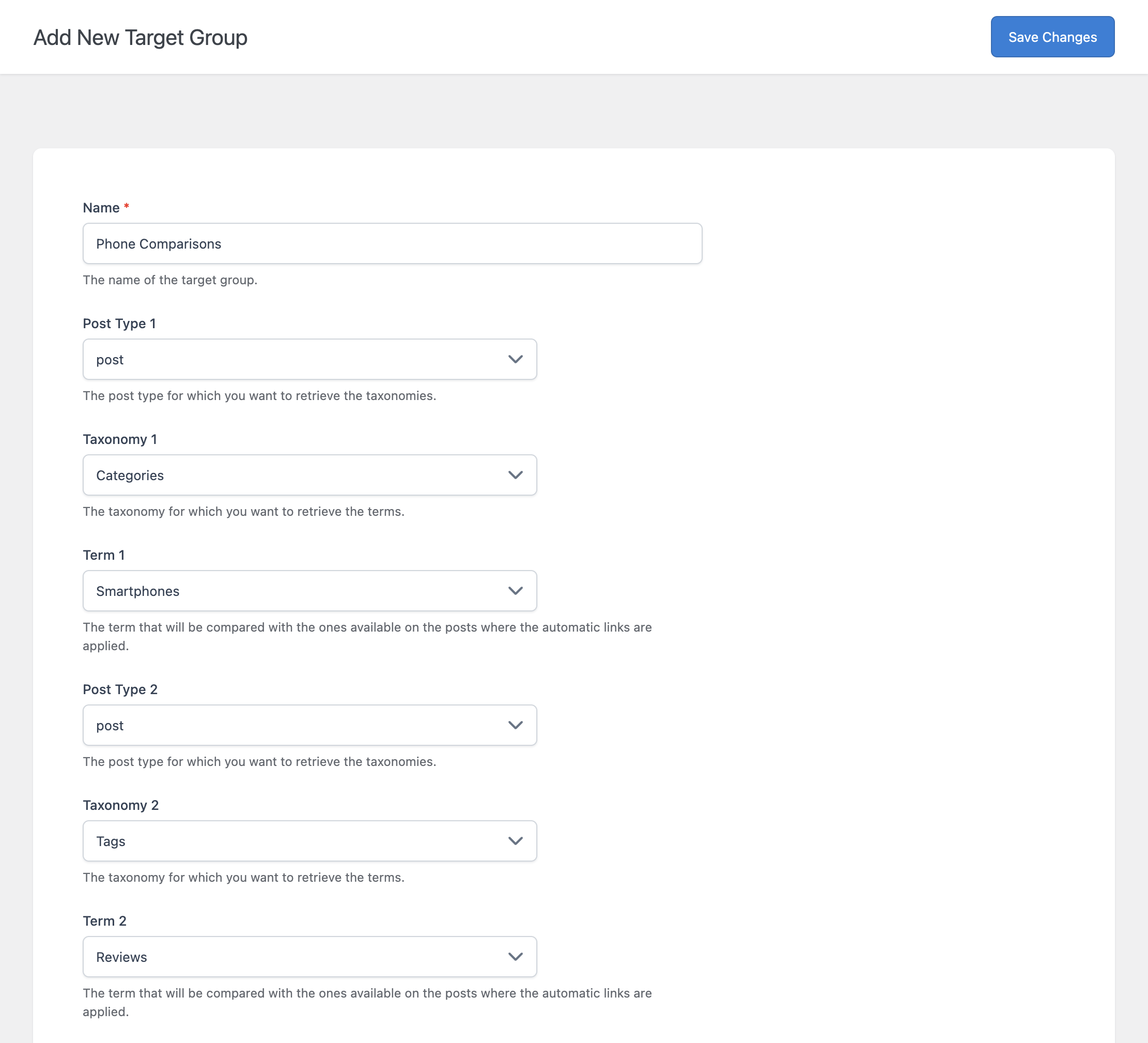
- Name – A label for the Target Group, shown in the Term Group dropdown when creating or editing a rule.
Below the Name field, the form provides a set of three fields (Post Type, Taxonomy, and Term) for each targeting condition you want to add. The number of available rows is determined by the Supported Terms option in the Settings menu.
For each row:
- Post Type – Select the post type this condition applies to, for example post or page. Select None to leave the row empty.
- Taxonomy – Once a Post Type is selected, this dropdown is populated with the taxonomies available for that post type, such as Categories or Tags.
- Term – Once a Taxonomy is selected, this dropdown is populated with the available terms in that taxonomy. This is the specific term that must be present on a post for this row to match.
You don’t need to fill in every row. Only the rows where a Post Type, Taxonomy, and Term are all selected are evaluated; empty rows are ignored.
How Target Group Matching Works
This is the most important concept to understand about Target Groups: a post matches the Target Group if it satisfies at least one of the configured rows, not all of them.
When the plugin evaluates whether a rule should apply to a given post, it checks each row in the Target Group in order. If the post’s type matches the row’s Post Type and the post has the row’s Term assigned in the row’s Taxonomy, the post is considered a match and the rule is applied. The remaining rows are not checked once a match is found. If none of the rows match, the rule does not apply to that post.
Example
Suppose a Target Group has two rows configured:
- Row 1: Post Type = post, Taxonomy = Category, Term = News
- Row 2: Post Type = page, Taxonomy = Category, Term = Resources
A rule using this Target Group will apply to any post in the “News” category, and separately, to any page in the “Resources” category. A post does not need to satisfy both rows, only one of them, to be matched.
This behaves like an “OR” condition across rows, not an “AND” condition. If you need a rule to apply only when multiple conditions are true at the same time, this cannot currently be expressed within a single Target Group row.
Editing and Deleting Target Groups
Click any Target Group’s name in the list to edit its Name or any of its rows.
A Target Group cannot be deleted while it is still assigned to one or more rules. If you try to delete a Target Group that is in use, the plugin will block the deletion and let you know it is associated with existing rules. Reassign or remove the affected rules first, then delete the Target Group.