Internal Links Optimization Panel
The Internal Links Optimization panel shows you, directly in the post editor, whether the post you’re working on has enough internal links relative to its length, using the same optimization logic that powers the Status column in the Dashboard’s Internal Links tab.
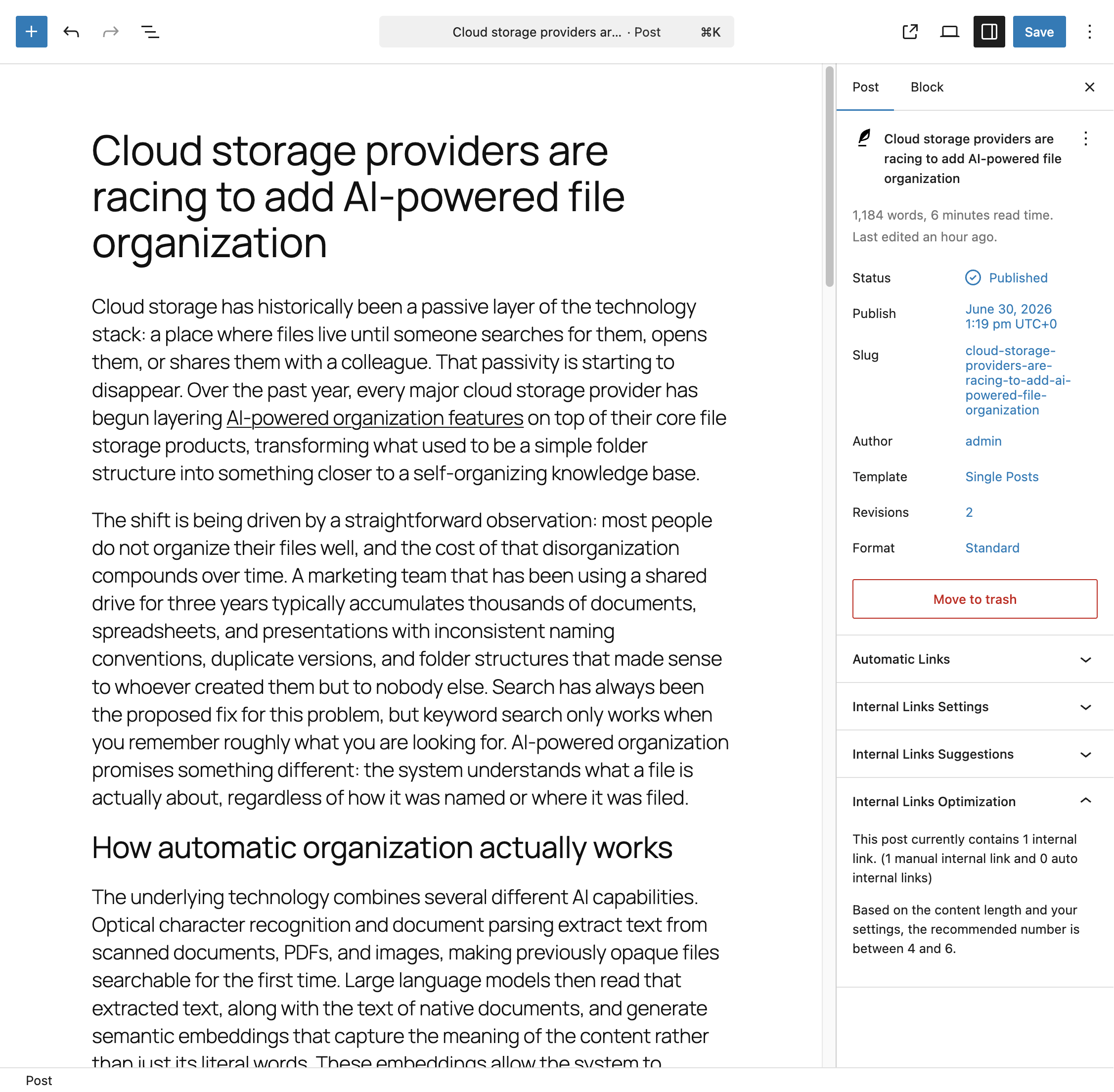
Where to Find It
This panel appears in the block editor’s document settings sidebar under Internal Links Optimization. It is not available in the classic editor.
How It Works
Unlike the Suggestions panel, this panel requires no manual action. It automatically fetches and displays optimization data when you open the post, and refreshes again every time you save it, so the numbers always reflect your current content.
The panel reports:
- The total number of internal links currently in the post, broken down into how many were placed manually and how many were generated by your Auto Link Rules
- Whether that total falls within the recommended range for the post’s current length
- If it doesn’t, the specific recommended range you should aim for
If the post’s internal link count is already within the recommended range, the panel simply confirms this. Otherwise, it shows the current count and the target range to help you decide whether to add or remove links.
How the Recommended Range Is Calculated
The recommended range is built around an optimal number of internal links, calculated by dividing the post’s content length by the Characters per Internal Link setting. The Optimization Delta setting then defines how far the count can deviate from that optimal number and still be considered acceptable: half of the delta is subtracted to get the minimum, and half is added to get the maximum.
Example
If a post has 3,000 characters, Characters per Internal Link is set to 500, and Optimization Delta is set to 4, the optimal number of internal links is 6. The recommended range becomes 4 to 8, since half of the delta (2) is subtracted and added to the optimal value.
Both settings are available in the Link Analysis section of the Settings menu. For full details, refer to the dedicated documentation on Link Analysis settings.
Relationship to the Dashboard
The same calculation drives both this panel and the Status column in the Internal Links tab of the Dashboard. The Dashboard gives you a sitewide view across every post at once, while this panel lets you monitor and adjust a single post’s internal linking while you’re actively writing it, without needing to leave the editor or wait for the Dashboard data to refresh.
Panel Visibility
This panel only appears for post types where the Internal Links Optimization Post Types option, configured in the Advanced section of the Settings menu, includes the post type you’re currently editing.