Configuring Link Analysis Options
The Link Analysis section of the Settings menu controls how Link Equity is calculated and how the plugin’s analysis features behave technically, including performance limits, which post types are analyzed, and how often data refreshes. This section has two cards: Link Equity and Technical Options.
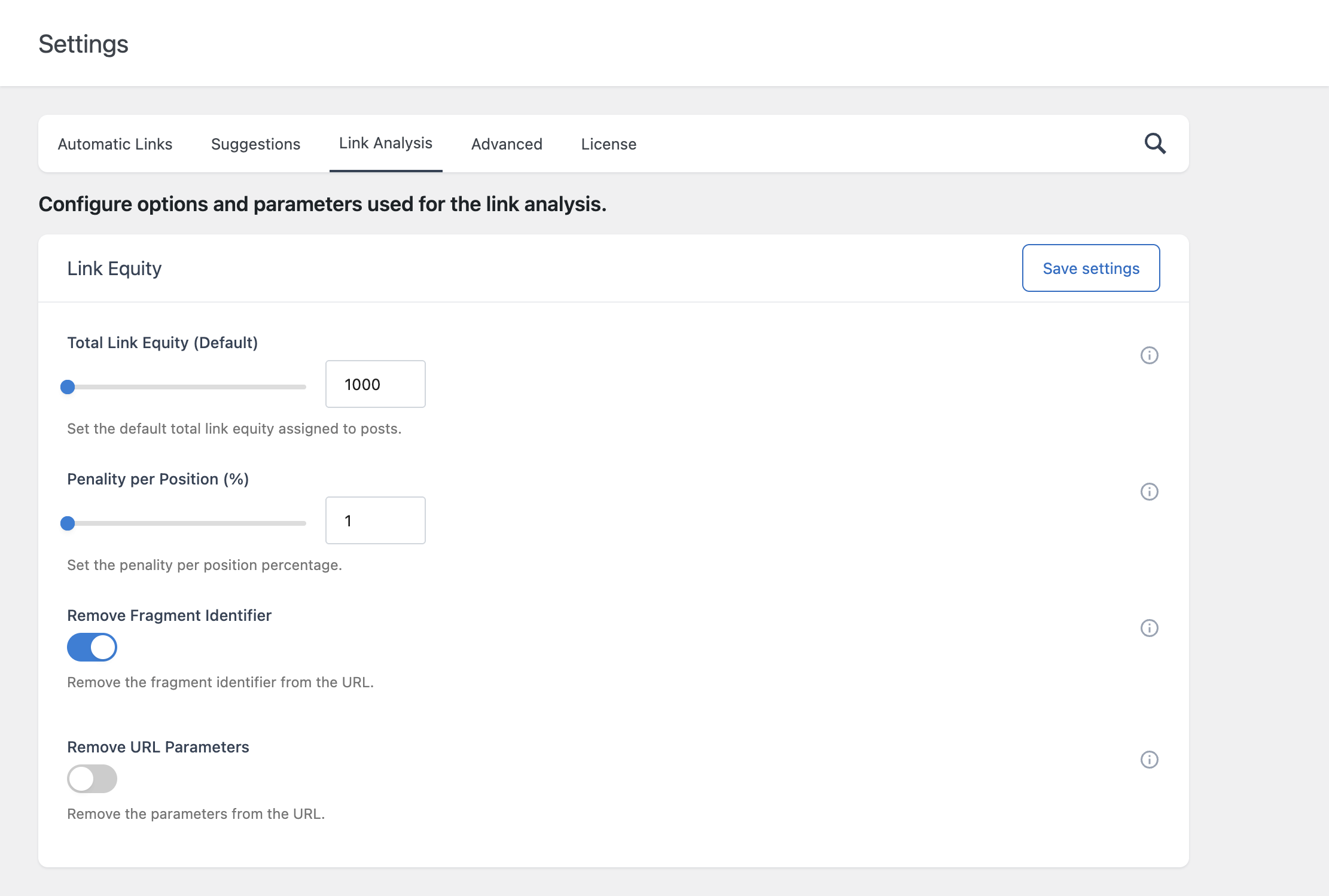
Link Equity
- Total Link Equity (Default) – The default amount of link equity assigned to a post when no custom value has been set in its Internal Links Settings editor panel. This determines how much equity a post is able to pass through its outgoing links.
- Penality per Position (%) – Reduces the equity passed by each link based on its position relative to other links in the same post. A higher value increases the gap in equity between links that appear early versus late in the content.
- Remove Fragment Identifier – When enabled, treats URLs that differ only by their fragment identifier (the part after
#) as the same URL when aggregating link equity. - Remove URL Parameters – When enabled, treats URLs that differ only by their query parameters as the same URL when aggregating link equity. Leave this disabled if your site relies on URL parameters to identify distinct pages.
For the full explanation of how these settings feed into the equity calculation, refer to the dedicated documentation on understanding Link Equity.
Technical Options
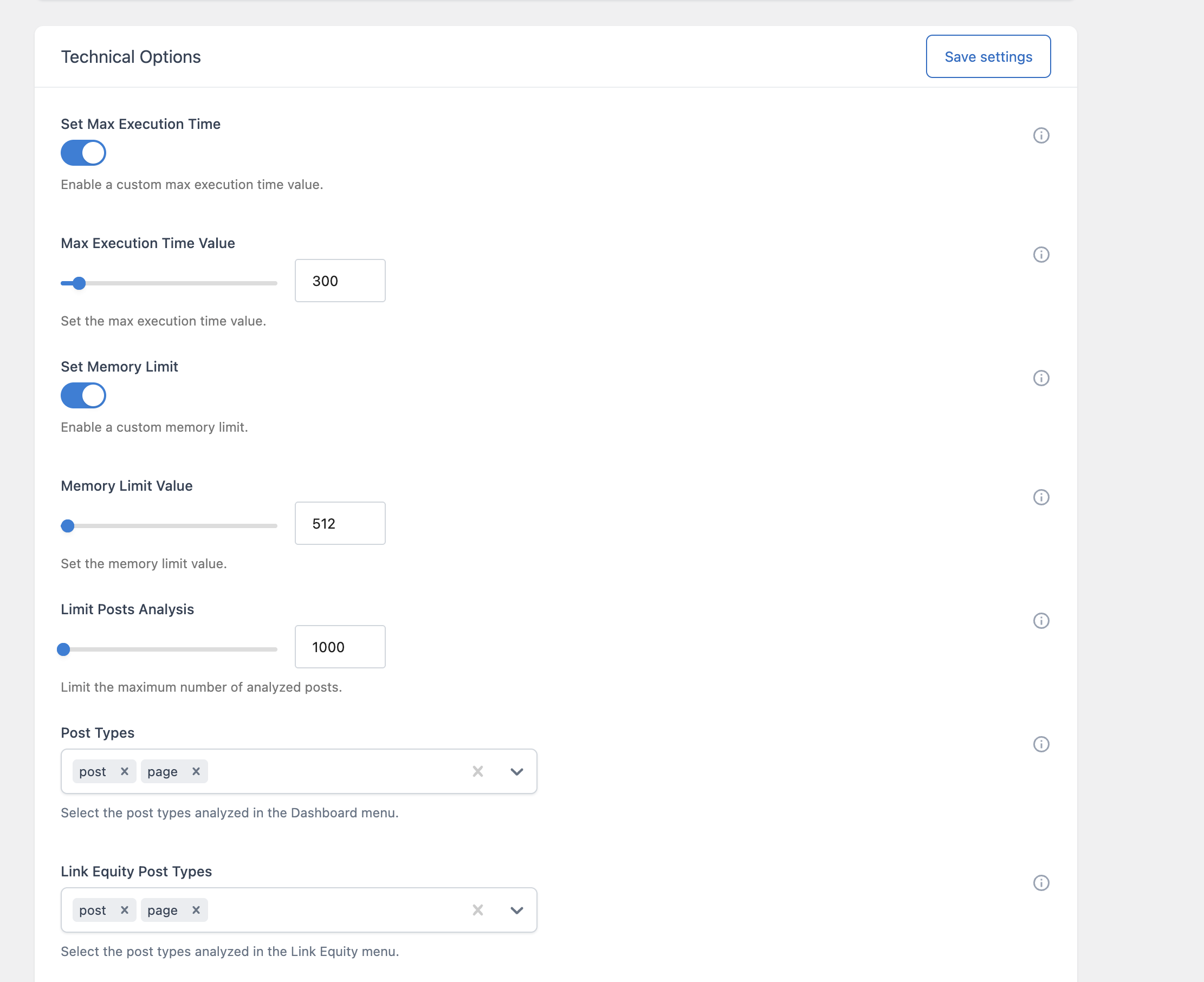
- Set Max Execution Time / Max Execution Time Value – Enables a custom PHP max execution time, in seconds, used specifically while the plugin runs its longer analysis tasks. Increase this if large sites experience timeouts while the Dashboard or Link Equity data is being regenerated.
- Set Memory Limit / Memory Limit Value – Enables a custom PHP memory limit, in megabytes, used during the same long-running analysis tasks. Increase this if you encounter memory exhaustion errors on large sites.
- Limit Posts Analysis – Caps the number of most recent posts considered across the plugin’s analysis features, including the Dashboard, Link Equity, and Domains Report. Lowering this value improves performance on very large sites at the cost of excluding older content from analysis.
- Post Types – Determines which post types are analyzed in the Dashboard menu. Leave empty to analyze all eligible post types.
- Link Equity Post Types – Determines which post types are analyzed specifically in the Link Equity menu, independently of the Dashboard’s Post Types setting above.
- Broken Links Post Types – Determines which post types are analyzed in the Broken Links menu, independently of the other two post type settings.
- Dashboard Data Update Frequency – How often the Dashboard’s data is automatically regenerated. Options range from Never to Monthly.
- Link Equity Data Update Frequency – How often the Link Equity menu’s data is automatically regenerated, configured independently of the Dashboard’s frequency.
- Broken Links Data Update Frequency – How often the Broken Links check is automatically triggered, configured independently of the other two frequencies.
Why Three Separate Post Type Settings
The Dashboard, Link Equity, and Broken Links features each have their own Post Types setting rather than sharing a single one. This lets you, for example, analyze Link Equity only across your page content while still running the Broken Links check across both post and page content, without one setting compromising the other.
Balancing Performance and Freshness
On large sites, increasing the data update frequency for any of these three areas increases server load each time the corresponding refresh runs. If your site has thousands of posts, consider setting the frequency to Daily or Weekly rather than Hourly, and rely on the manual Update metrics button when you need up-to-date numbers immediately.